How to give each signer their own section?
"Google form to be completed by several people"- Google Docs Editors Community
A cricket club's player registration on Google Forms needs two people: the player fills in their details, then the team manager adds the team and signs. Google Forms takes one person's answers at a time, so the manager's part ends up in a forwarded email or a second form, and someone copies answers across. In Formesign, one form has a block for each signer. The player fills in and signs theirs, then the team manager opens the same form from an email, sees the player's answers as text they can't change and completes only their own block.
Let's start. Create your form and follow the steps below.
1. Add a signer for each person
- Click on Create your form, click Enter your form name, type Player registration and click Generate.
- Check the outline and click Proceed.
- You land on the EDIT tab, where the Add eSignature dialog says Your signing link is ready. Close it.
- Click the pencil on the Signature workflow card.
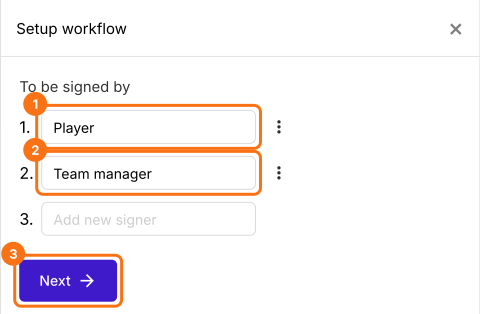
- The AI picks the signers from your form's name, so in Setup workflow, type over them so that they read Player and Team manager, delete any others from their three dots and click Next.
- Close the Your signing link is ready dialog.
2. Open the team manager's block
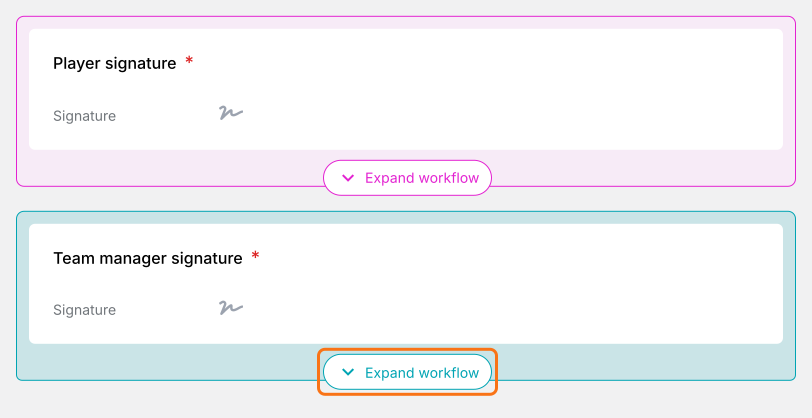
In the EDIT tab, each signer has a colored block. Click Expand workflow on the team manager's.
3. Add their questions
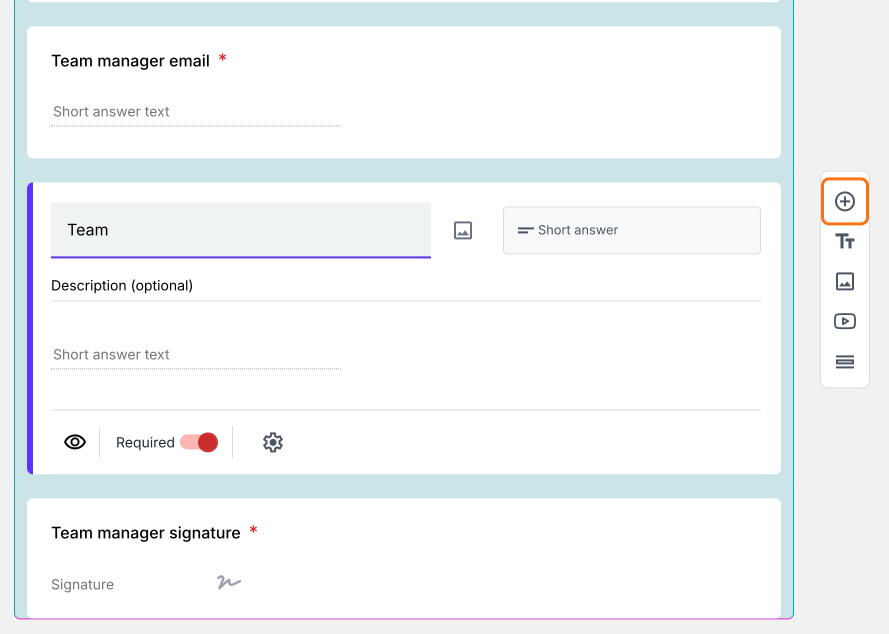
Click a field in the block, then the + button on the toolbar at the right. Type the question, such as Team, then click on another question.
4. Each person fills only their part
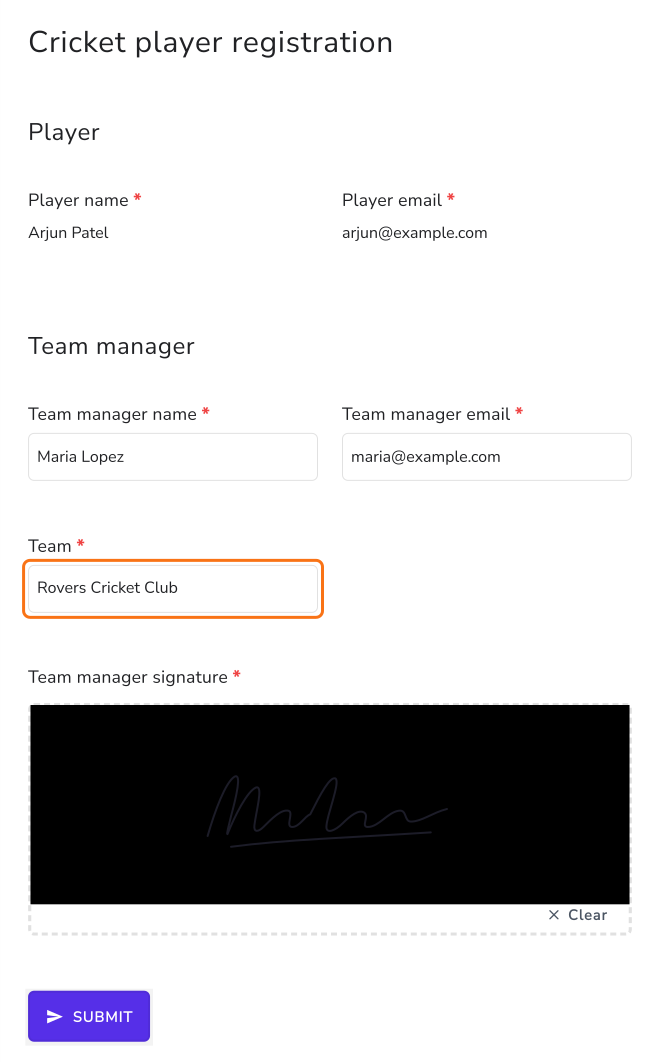
Click SHARE, click Copy and send the link to your players. After signing, the player enters the team manager's email and clicks Proceed. The team manager clicks Review & sign in their email and reads the player's answers, which they can't change. They type the team, sign and click SUBMIT.
Summary
When one form needs answers and a signature from more than one person, Google Forms makes you forward responses or keep a second form. With Formesign, each signer has their own block in the same form. They fill in and sign only their part, earlier answers can't be changed and you get one signed PDF. Create your form and complete the steps above.
Last updated: