How to Embed Google Forms in Google Sites?
"Google form header image not showing when embedded on google site"- Google Sites Community
This is a common question from people building a website on Google Sites, and 91 people on Google's forum have asked it: the header image chosen in Google Forms doesn't show once the form is on the Site. Google Sites inserts a form from its Insert panel, but you can only change the box's width and height, the Google footer stays and a long form scrolls inside its frame. With Formfacade, you paste one url in Insert, Embed and the form shows without Google's branding, with colors and fonts you set to match your site. The responses still go to your Google Form.
Below are two ways to embed a Google Form in Google Sites, and where each one falls short.
Method 1: Embed a Google Form using the native Insert option
There are two options to embed a Google Form in Google Sites.
Option 1: Insert forms directly
- Open your site at sites.google.com and go to the page where you want the form.
- In the right hand panel, click Insert. Scroll down and select Forms.
- Search and select your form and click Insert.
- The form appears on the page. Drag the corners to resize it or reposition it as needed.
- Click Publish in the top right corner to make the page live.
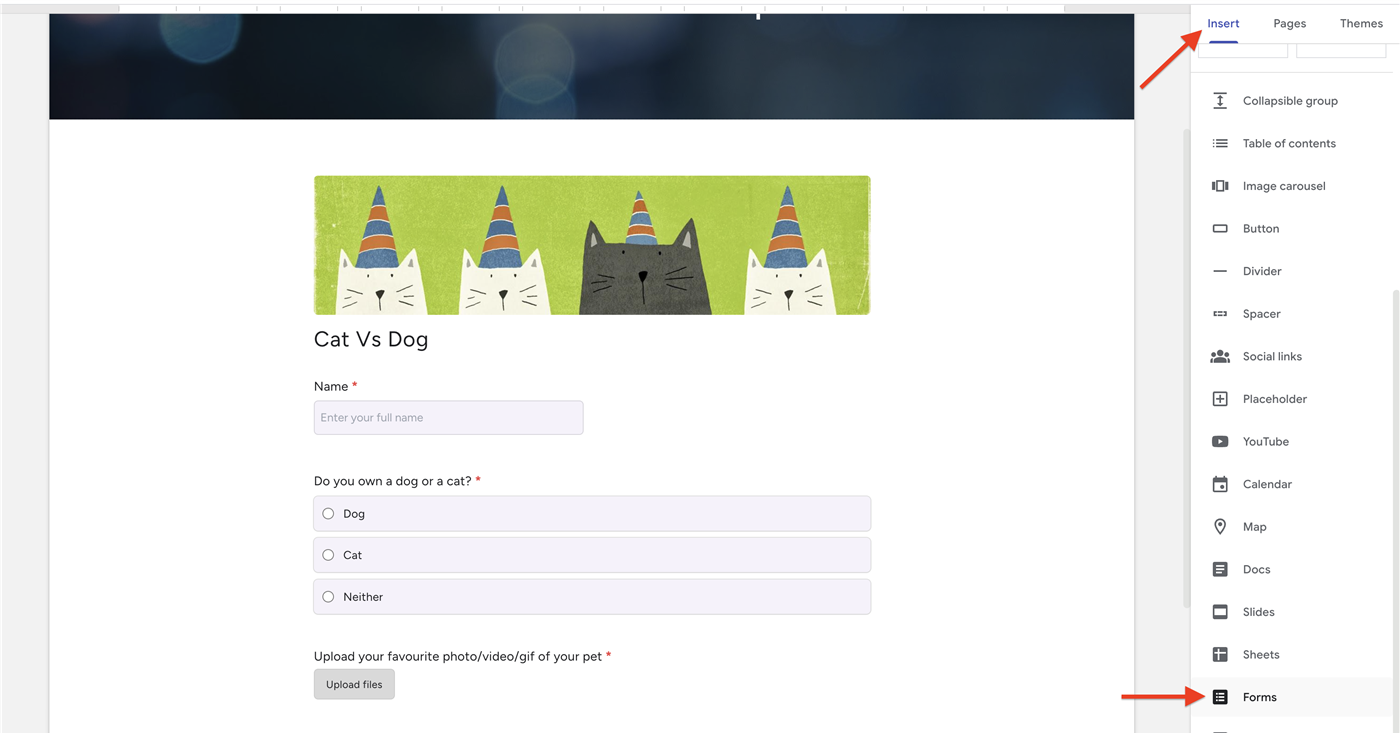
Option 2: Embed by code or URL
If your form lives on a different account or you want control over how it loads, use the embed option instead.
- Open your form in Google Forms and click the More menu (the three-dot icon) in the top right corner.
- Select <> Embed HTML.
- Adjust the width and height as needed, then click Copy.
- In Google Sites, click Insert → Embed. Select Embed code, paste the code, click Next, then Insert. (You can also use the By URL tab and paste the form's live link.)
- Resize if needed and click Publish.
Limitations
- Google branding and terms visible. A "Google Forms" footer and terms stay on the form and can't be removed with the native embed.
- Very limited styling. You can only adjust the form's width and height. You can't change colors, fonts, button styles or layout to match your site's theme, so the form looks like a Google box dropped onto your page.
- Iframe with internal scroll on longer multi-page forms. The iframe is a fixed size, so a long form scrolls inside its own box instead of expanding with the page.
- Not mobile-friendly or responsive. The form doesn't adapt to screen size and can get cut off or look cramped on phones.
- File upload questions block embedding. Forms with a file upload question can't be embedded, you'll see "This form cannot be embedded because it makes use of File Upload fields."
- User analytics won't work. Because the form loads in a cross-origin iframe, session-recording and analytics tools like Hotjar or FullStory can't see inside it, so you can't track behavior or spot drop-off points within the form.
- Can't prefill answers. You can't automatically prefill the embedded form from URL query strings or pass values in dynamically with JavaScript, since the page can't reach into the cross-origin iframe.
Troubleshooting common problems
- The form shows up blank or won't load. This usually happens when the form isn't shared properly. Make sure the form's response settings allow public access and that the site itself is published.
- The form opens on its own page instead of embedding. You likely pasted the form's share link into a button or text block rather than using Insert → Forms or Insert → Embed. Re-add it using one of the embed methods above.
- The form is cut off or won't scroll on mobile. Multi-section forms can clip inside a fixed-height iframe. Increase the embed height or use Formfacade for a responsive embed that adapts to screen size.
- Visitors don't see a "thank you" message after they submit. With a tall fixed-height iframe, the confirmation message can appear far above the visible area, so the user sees blank space instead. There's no native fix, because the page can't reach into the cross-origin iframe to scroll it back to the top.
Method 2: Embed a branded form that matches your site's theme
If you want the form to look like a native part of your site, you can use Formfacade to embed the form in Google Sites.
- On the page that opens, name your form, click Embed form and click Proceed.
- On the Share tab, under Where do you want to embed this form?, select Embed in my Google Sites and click Next.
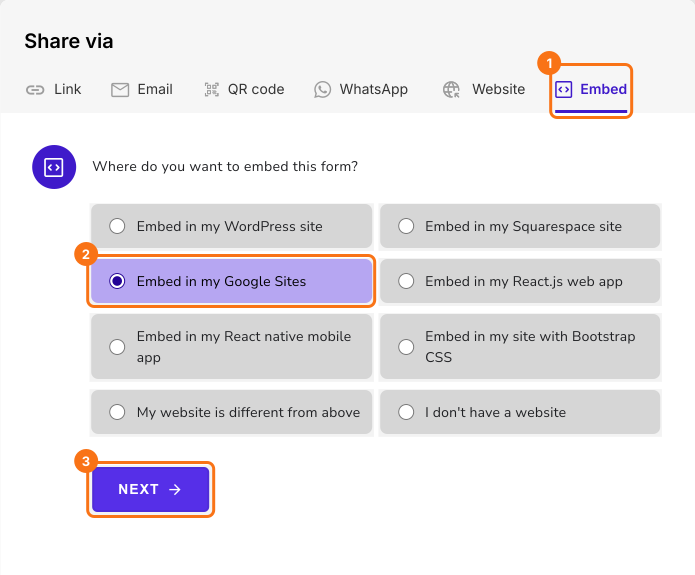
- Copy the Formfacade url.
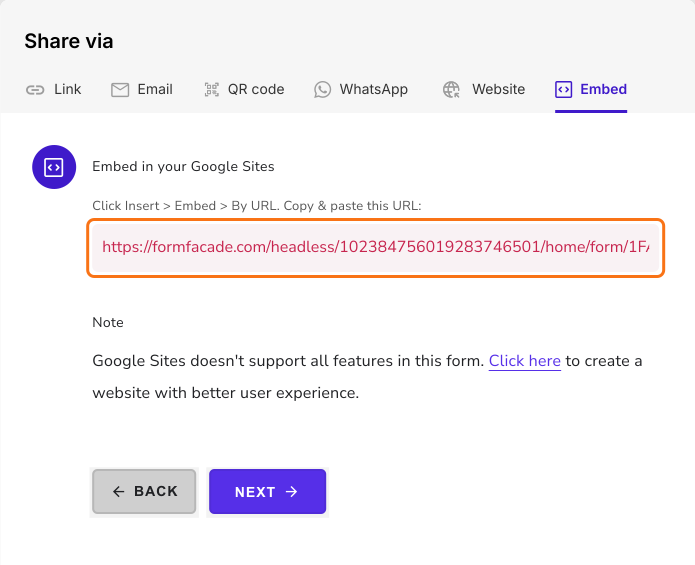
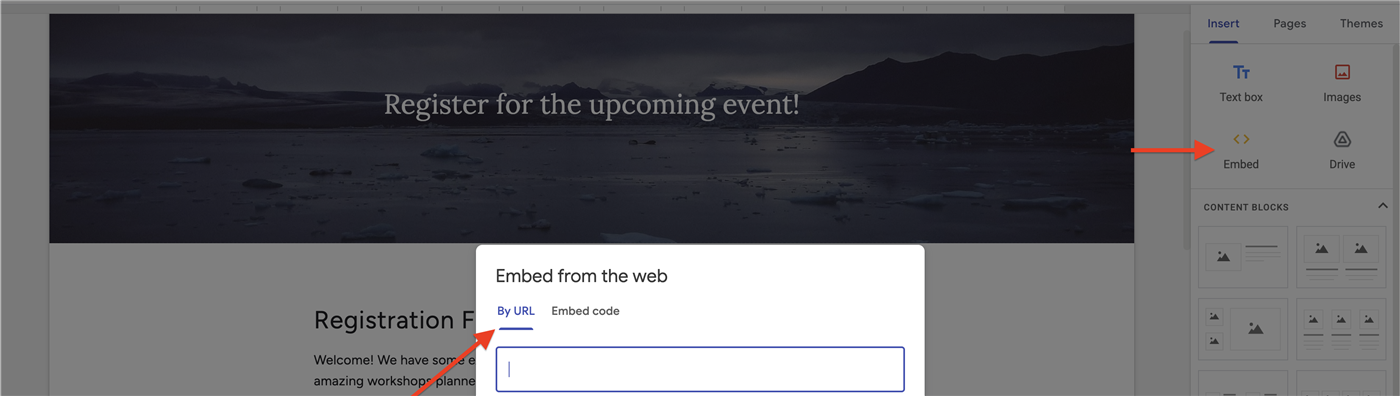
- In Google Sites, click Insert → Embed. Select By URL, paste the url, click Next, then Insert.
- Resize if needed and click Publish.
Your form will show on your page. The Embed tab also notes that Google Sites does not support all features in this form.
Why Formfacade
- Matches your website theme. The form takes on your site's fonts, colors and layout for a professional, responsive look, without Google branding.
- Keeps your Google Workspace workflow. Responses still flow into Google Forms and can auto-sync to Google Sheets, so nothing changes about how you manage them.
- Supports file uploads. Unlike the native embed, Formfacade lets you embed a form with file upload questions (up to 10 MB per file). Larger files and syncing uploads to Google Drive are available on higher paid plans.
Limitations
- Google Sites allows iframe embed only. So even with Formfacade, session recording, user analytics and prefill answers won't work.
- Formfacade branding on the free and lower plans. The free tier removes Google's branding but adds a small Formfacade attribution. Removing that, along with higher response volumes, requires a paid plan, so check the current pricing against what your form needs.
Frequently Asked Questions
Can I embed more than one Google Form on the same page?
Yes. Repeat the insert steps for each form. Google Sites allows multiple embedded forms on a single page.
Can I remove the Google branding and disclaimer?
Not with the native method. To remove Google branding and the disclaimer note, use Formfacade (Method 2).
Can I resize the form or add text around it?
Yes. You can drag to resize the embedded form and add headings, images or text above and below it to give visitors context.
Can I make the form match my site's fonts, colors and layout?
Not with the native embed. Google Forms lets you change only the header color and font and the rest still looks like a Google form. Use Formfacade to match your site's colors, buttons and layout.
Summary
If you insert a Google Form in Google Sites, it keeps Google's branding and you can only change its size. With Formfacade, you copy one url from the Embed tab, paste it in Insert → Embed and set the form's colors and fonts to match your site. Create your form and complete the steps under Method 2. If you have any questions, write to support.
Last updated: