How to hide patient details in Google Forms?
"We have a spreadsheet that contains some HIPAA protected info and some unprotected information"- Google Docs Editors Community
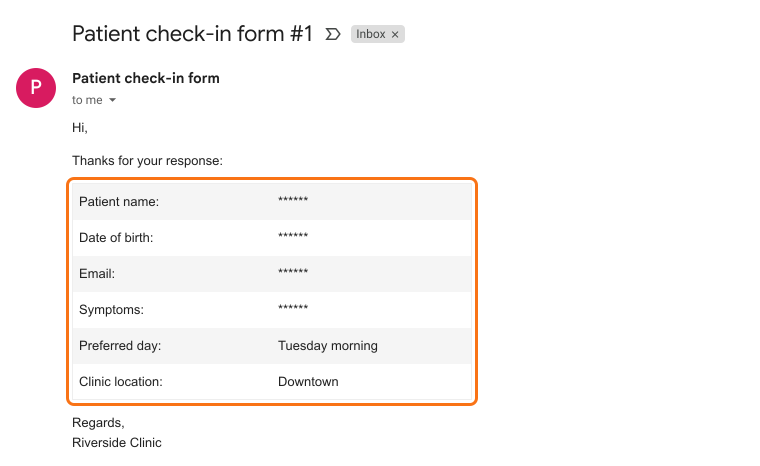
A healthcare office that collects patient answers in Google Forms and Google Sheets usually has two kinds of data side by side: HIPAA protected details, and answers staff need to do their job, like the preferred day or clinic. Once those answers are in an email or a shared Sheet, whoever gets them can read all of it. With Formesign, you tick the fields that hold patient details during the HIPAA check and turn on secure email. Staff get the other answers in their email and the ticked ones show as ******. Signing the BAA is one of the same setup steps.
Let's start. Create your form and follow the steps below.
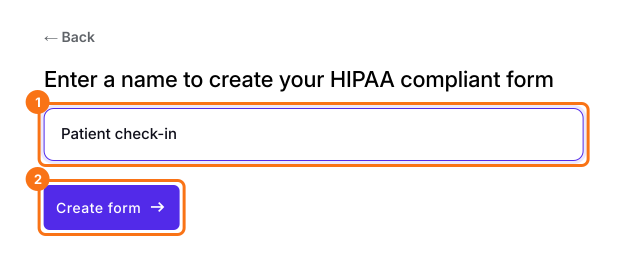
1. Start the HIPAA check
Click on Create your form, click Enter your form name, type Patient check-in and click Create form. Check the outline and click Proceed. In the EDIT tab, when Check HIPAA compliance says Verify your Google Forms setup meets HIPAA requirements with Formesign, click Proceed.
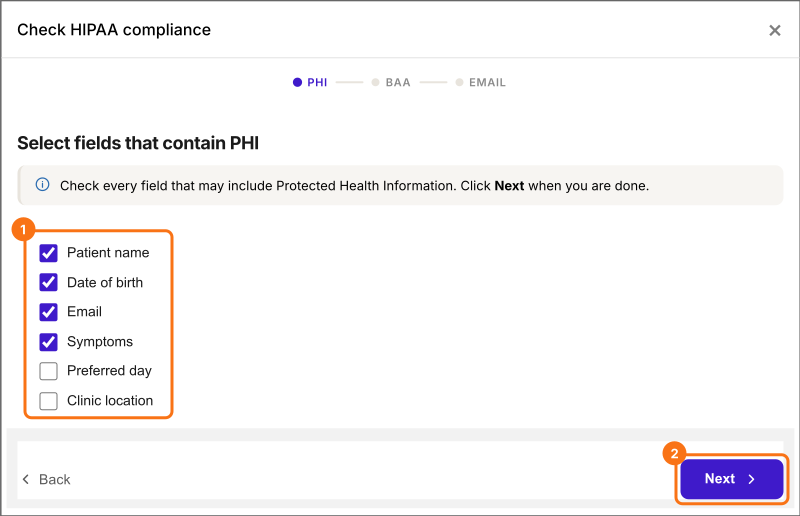
2. Check what's private
Click Next. Under Select fields that contain PHI, the AI has already ticked the fields it thinks are private. Check them, tick each other field with patient details, such as the signer's name and email, untick the rest and click Next. Your ticks are saved and the fields show a lock in the EDIT tab.
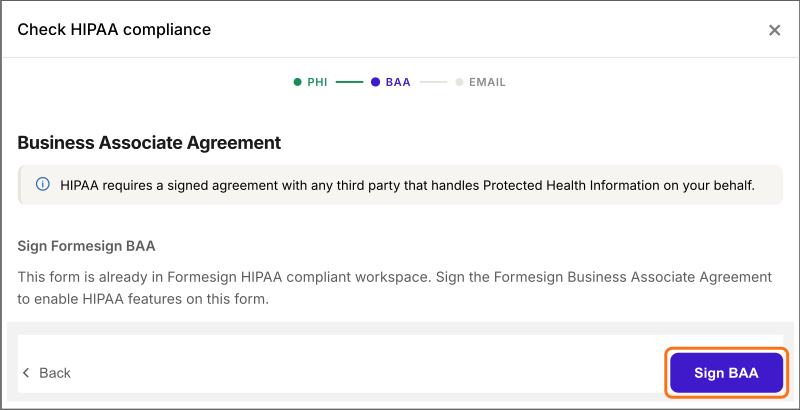
3. Sign the BAA
Click Sign BAA and sign the agreement. There's no way around this step, because it enables the HIPAA features on your form. Then click Next.
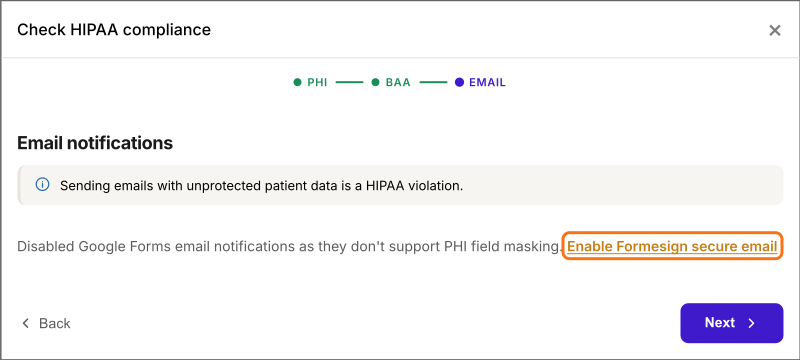
4. Turn on secure email
Click Enable Formesign secure email. When it says PHI fields are masked in notification emails, click Next.
5. Email your staff the rest
Click SHARE and send the link to your patients. In RESPONSES, open Kanban board, click a column's three dots and choose Notify collaborators. Type your staff's email and click Next on each step. They read the unticked answers and the ticked ones show as ******.
Summary
When some answers are protected health information and the rest are needed by staff, sending everything by email exposes the private part. With Formesign, you mark the fields with patient details and those answers show as ****** in the emails your staff get, while the rest stay readable. Create your form and complete the steps above.
Last updated: