How to add signature in Google Sheets?

"I would like to send out for electronic signatures by 2 individuals"- Google Docs Editors Community
Timesheets, expense logs and purchase lists often live in Google Sheets, and someone has to sign them off. Google Sheets has no eSignature of its own, so people insert an image or a drawing, which doesn't show who signed, or download the sheet as a PDF and send it through another tool. With Formesign, you add a signature field to the sheet itself, set the order people sign in and get a signed PDF in Drive.
Below are three ways to add a signature in Google Sheets, and where each one falls short.
Google Sheets has no eSignature of its own. There are three ways to sign a sheet: insert an image of your signature, draw it with Insert > Drawing, or use an addon such as Formesign.
Upload a Signature Image
If you already have a scanned or photographed signature, then you can upload this signature image.
- Open Google Sheets
- In Google Sheets, click Insert > click Image > click Insert image over cells
- Upload your signature image
- Resize and position it as needed
✅ Pros
- Easy to use
- Looks like a real signature
❌ Cons
- Not legally binding
- Does not work well for signature workflows
- Limited tracking & analytics
Use the Scribble Tool via Insert > Drawing
You can use the Drawing feature in Google Sheets to add hand drawn signature in your Google Sheets.
- Open Google Sheets
- In Google Sheets, click Insert > click Drawing
- Click Line and select Scribble tool
- Use your mouse or trackpad to draw your signature
- Click Save and Close
- Resize and position it as needed
✅ Pros
- No external tools needed
- Looks like a real signature
❌ Cons
- Not legally binding
- Might be hard to draw
- Does not work well for signature workflows
- Limited tracking & analytics
Use Formesign - Signature for Google Sheets add-on
The addon adds a signature field to the sheet, sends it to each signer in the order you set and saves a signed PDF to Drive.
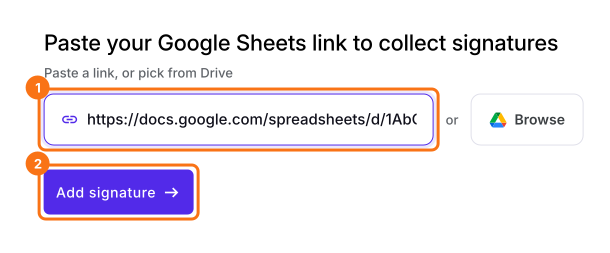
- Click on Connect your Google Sheet, paste your Google Sheets link and click Add signature
- Click Next on Let's connect your sheet, pick your sheet in Google Drive and allow access
- Choose the tab to sign and add the signer. Formesign adds a signature field to the sheet and saves a signed PDF to Drive when the signer signs
You can also start from the addon, once it is installed:
- Open Google Sheets
- click Extensions > click Formesign - Signature for Google Sheets
- click Request signature > select Email, click Next
- enter the approval steps
- enter the email address of the approvers and click Request signature
✅ Pros
- Secure and legally compliant (ESIGN Act, eIDAS)
- User-friendly and intuitive interface
- Seamless integration with Google Drive
- Supports multiple signers and approval workflows
❌ Cons
- Requires users to install the addon
Summary
When a sheet has to be signed off, an image or a drawing doesn't show who signed and a PDF sent through another tool leaves the sheet behind. With Formesign, you add a signature field to the sheet, set the signing order and get a signed PDF. Connect your Google Sheet and complete the steps above. If you have any questions, write to support.
Last updated: