Can I customize the thank you message shown after form submission?
"how do i make a customised message when a person completes a google form?"- Google Docs Editors Community
After people submit your Google Form, they see "Your response has been recorded" and nothing else. You may want to thank them, tell them what happens next or point them to a page. Google Forms does let you change this text, from its settings rather than on the form, but it stays plain text and everyone sees the same message. With Formfacade, you set the message on the form's own button, and you can also send people to your own thank-you page or show a different message for each answer.
Below are two ways to change the message, and what each one can't do.
1. Change it in Google Forms
- Open your form in Google Forms and click on the Settings tab.
- Under Presentation, click Edit next to Confirmation message.
- Type your message and click Save.
The message is plain text, with no formatting, and everyone sees the same one whatever they answered.
2. Change it with Formfacade
- Click Create your form, name your form, click Build form and click Proceed.
- Click on the "Edit" tab.

- Scroll down to the end of the form and click on the gear icon on the last "After page" row. It says "After page 1" on a form with one page.
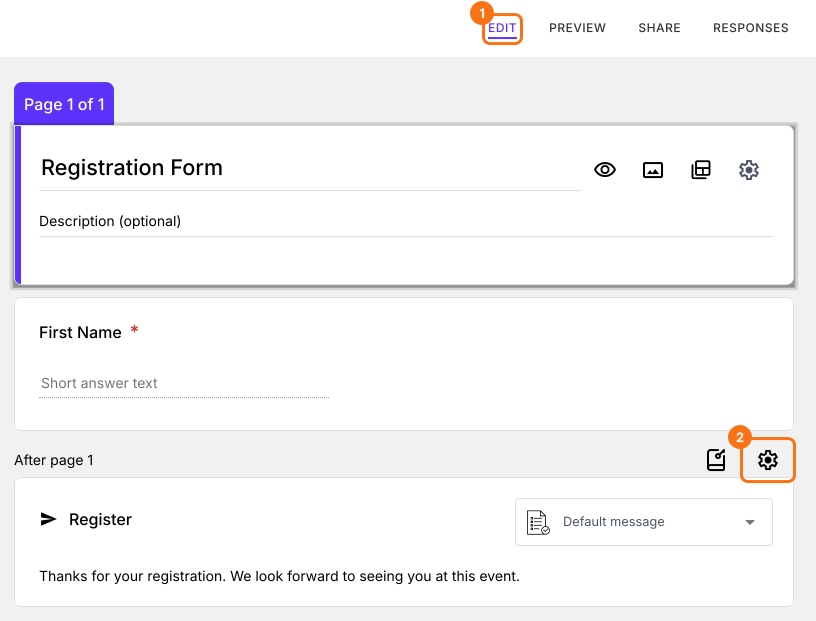
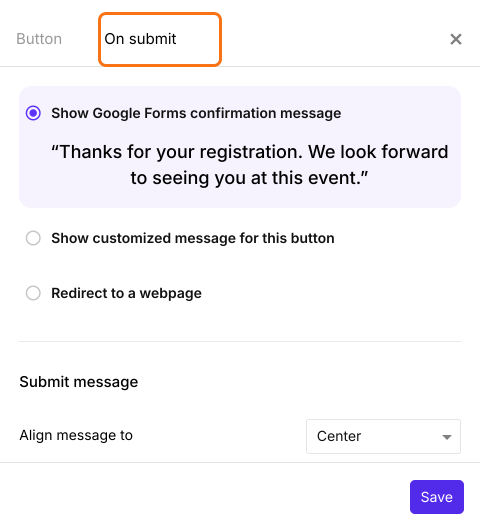
- Select the "On submit" tab.
- Select "Show customized message for this button".
- Enter your message in the textbox.
- Click on "Save".
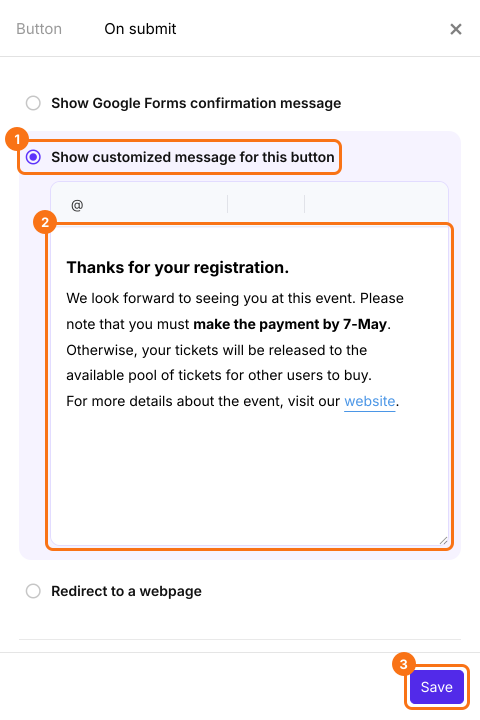
People will see your message after they submit the form.
Summary
The message people see after they submit is the last thing they read, and Google Forms only gives you plain text that is the same for everyone. With Formfacade, you select Show customized message for this button, enter your message and click Save. Create your form and complete the steps above.
Last updated: