Checkbox grid
"The question did NOT ask for a unique answer per column"- Google Docs Editors Community
A checkbox grid puts a list of items and the same answer choices in one table, so people can tick several answers in each row instead of working through a long run of separate questions. Its setup trips people up: you type the questions as rows and the choices as columns, and the two settings that turn it into a ranking, a response in each row and one response per column, are easy to miss. Without them, as one person on Google's forum found, everyone can put every item at the same level. Here you add a checkbox grid to a Formfacade form, which keeps your own look, and turn on the settings you need.
Create your form and follow the steps below.
How to add a checkbox grid question?
- Click on Create your form, name your form, click Build form and click Proceed.
- Click on the "Edit" tab

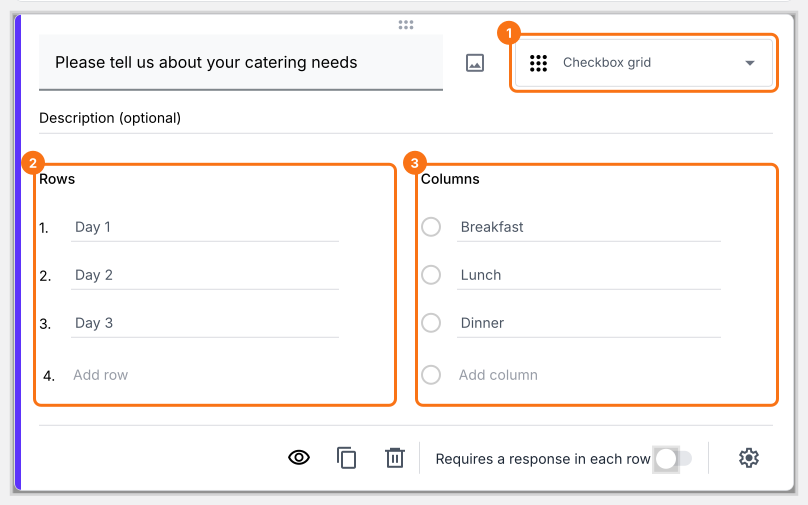
Checkbox grid question setup looks different from how it is displayed for end users. You have to add your questions as rows and answer choices as columns, but it will be displayed as a checkbox grid for your users.
- Click on the + icon (Add field) in the toolbar on the right and enter your question
- Select Checkbox grid in the question type list
- Add questions in Rows and answer choices in Columns
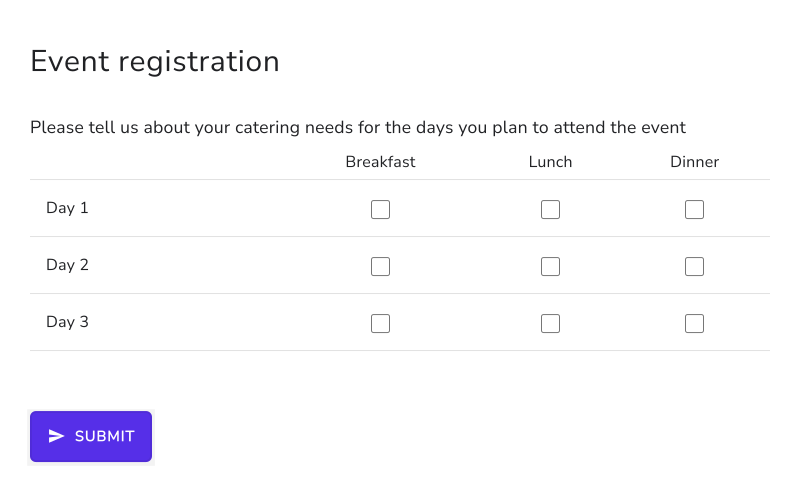
What your users see
Checkbox grid question allows users to select multiple answers for each row in a grid. You can limit users to select only one answer per column and make users answer each question (row). You can also shuffle the row order to eliminate the order bias and improve the form responses.
Key features:
- Allows multiple answers per row
- Can limit responses to one answer per column
- Can shuffle row order to eliminate order bias
What type of questions can this be used for?
- Ranking grid question
- Voting/poll question
- Comparison question
How can I make users respond to each question or statement in the checkbox grid question?
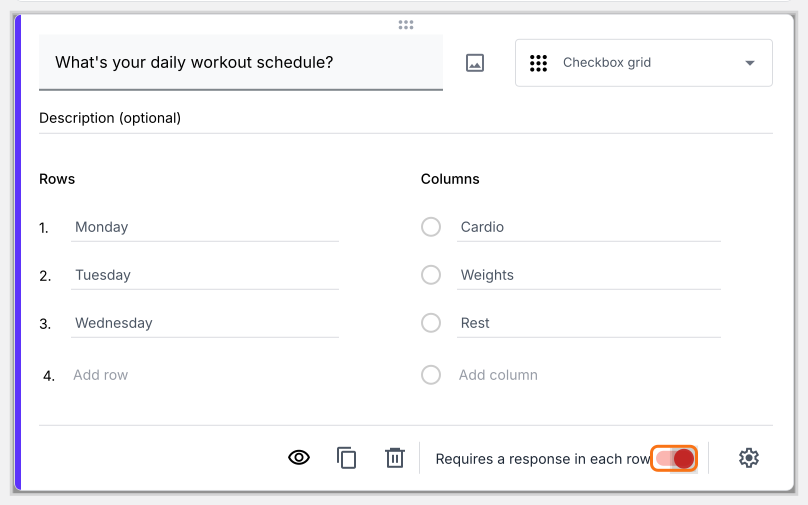
You can force the users to respond to each statement/question in the checkbox grid question by enabling the "Require a response in each row" option.
- Click on the + icon (Add field) in the toolbar on the right
- Select Checkbox grid in the question type list
- Add questions in Rows and answer choices in Columns
- Enable Requires a response in each row toggle button as shown below
How can I limit user responses to one per column?
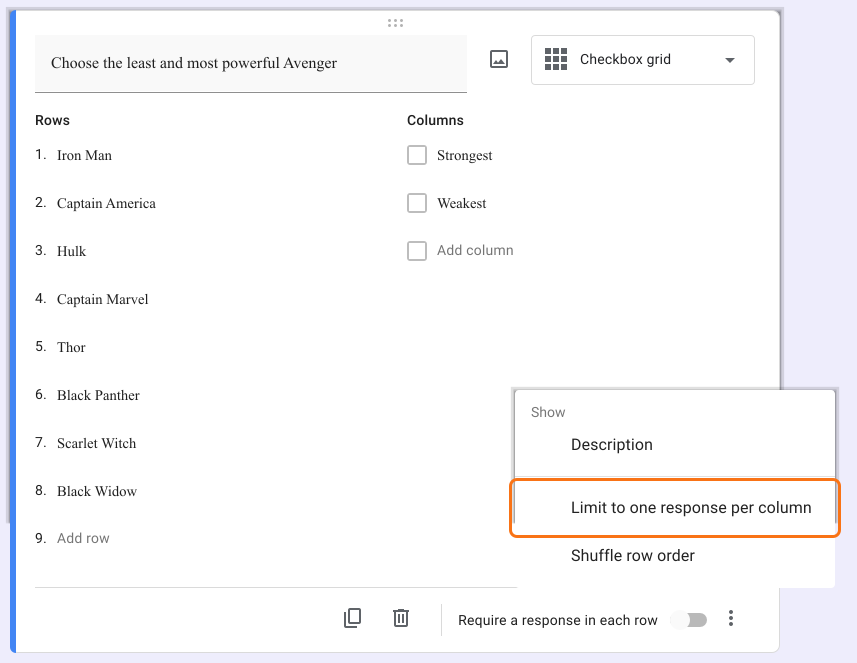
You can enable the "Limit to one response per column" available in "More" options to restrict users to select only one choice per column.
- Click on the + icon (Add field) in the toolbar on the right
- Select Checkbox grid in the question type list
- Add questions in Rows and answer choices in Columns
- This option is only in Google Forms. Click on the form's title, click on the ⚙️ icon, select the "Advanced" tab and click Launch next to "Edit this form with Google Forms"
- In Google Forms, click on the ⋮ icon on the question and select Limit to one response per column
- Reload the form's "Edit" tab in Formfacade, so that your form picks up the change.
How can I shuffle the order of questions?
You can shuffle the order of questions to eliminate the order bias and improve the form responses. Once "Shuffle row order" is enabled, the order of questions (rows) will be different for each user.
- Click on the + icon (Add field) in the toolbar on the right
- Select Checkbox grid in the question type list
- Add questions in Rows and answer choices in Columns
- This option is only in Google Forms. Click on the form's title, click on the ⚙️ icon, select the "Advanced" tab and click Launch next to "Edit this form with Google Forms"
- In Google Forms, click on the ⋮ icon on the question and select Shuffle row order
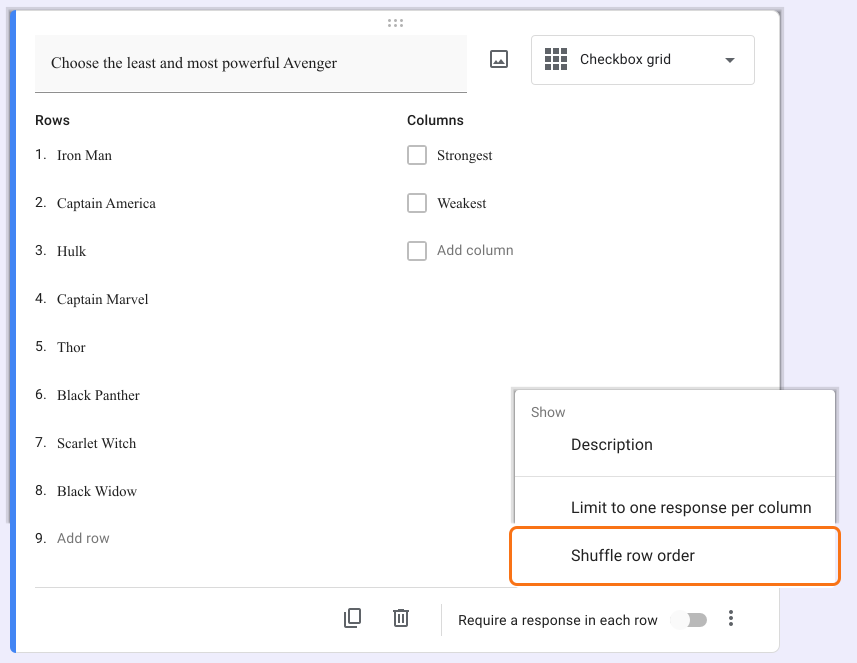
- Reload the form's "Edit" tab in Formfacade, so that your form picks up the change.
How to create a ranking question using checkbox grid question?
You can create a ranking question by adding a checkbox grid question and enabling both Require a response in each row & Limit to one response per column option. For example, you can create a ranking question with a list of attributes and ask your users to rank them from most important (1) to least important(5). This can also be done using a multiple choice grid question.
- Click on the + icon (Add field) in the toolbar on the right
- Select Checkbox grid in the question type list
- Add choices to be ranked in Rows and ranking scale in Columns
- Enable Requires a response in each row toggle button
- This option is only in Google Forms. Click on the form's title, click on the ⚙️ icon, select the "Advanced" tab and click Launch next to "Edit this form with Google Forms"
- In Google Forms, click on the ⋮ icon on the question and select Limit to one response per column
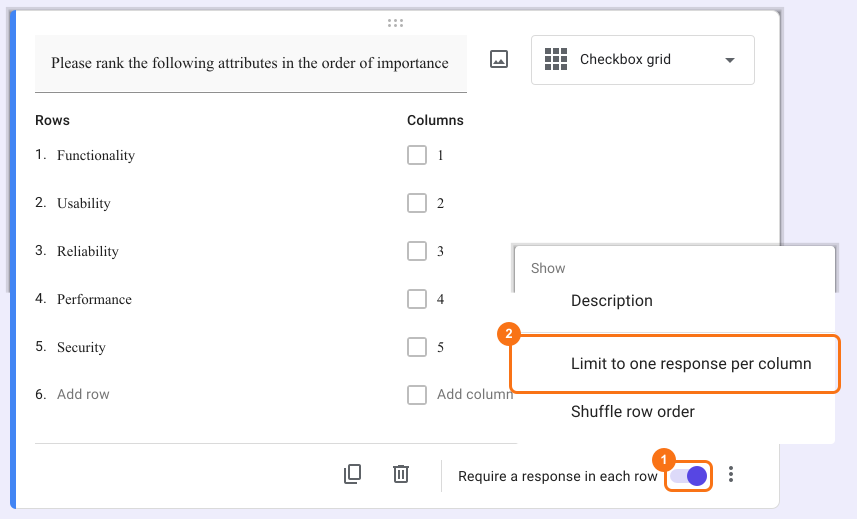
- Reload the form's "Edit" tab in Formfacade, so that your form picks up the change.
Summary
If you need several answers for each row or a ranking, separate questions are slow to fill in. With a checkbox grid question in Formfacade, you can add your questions in Rows and your answer choices in Columns and enable the options you need. Create your form and complete the steps above.
Last updated: