How can I use the form response to personalize the confirmation message in Google Forms?
"How can I develop a dynamic confirmation message that concats response data?"- Google Docs Editors Community
When someone signs up through a Google Form, a plain thank you doesn't remind them what they chose or what to do next. Google Forms lets you change the confirmation message, but everyone sees the same words, so the details go out by email, one person at a time. With Formfacade, you write the message once with fields from the form in it, and each person sees their own name and answers as soon as they submit.
Below are three ways to confirm a response, and where each one falls short.
3 ways to confirm a response
1. Change the confirmation message in Google Forms
In Google Forms, open Settings, expand Presentation and edit the Confirmation message.
Where it falls short: everyone sees the same words. You can't include the person's name or what they chose.
2. Send people a copy of their response
In Google Forms, turn on Collect email addresses and Send responders a copy of their response.
Where it falls short: it is a copy of their answers in an email, not your message, and you have to collect every person's email address to send it.
3. Personalize the message with Formfacade
- Click on Create your form, name your form, click Build form and click Proceed.
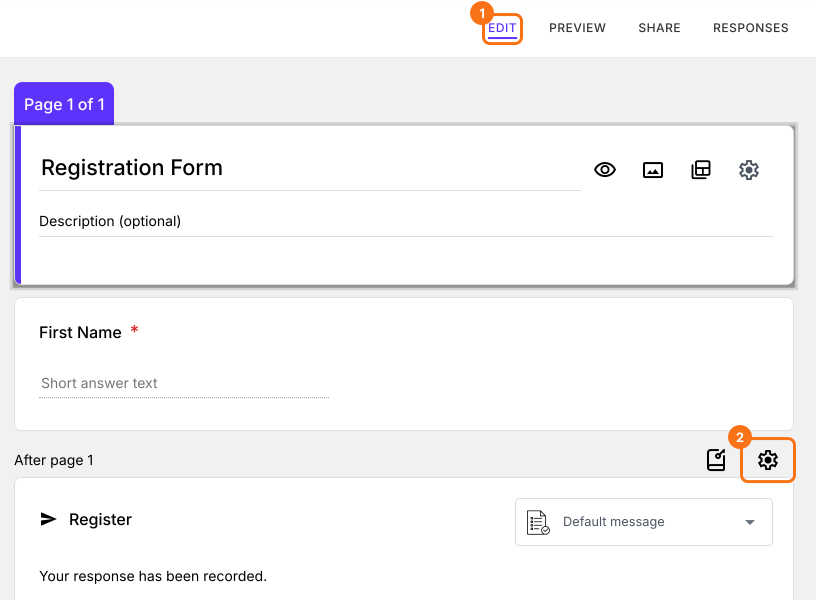
- Click on the "Edit" tab

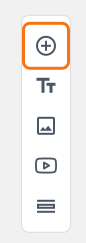
- Click on the + icon (Add field) in the toolbar on the right.
- Enter "First Name" as the question. It is already a Short answer.
- Click on the + icon again
- Enter "Choose the pass" as the question and select Multiple choice in the question type list
- Type the first answer choice in the first box, then click Add Option and type the next one. Do this for each answer choice.
- Scroll down to the end of the form and click on the gear icon on the last "After page" row. It says "After page 1" on a form with one page.
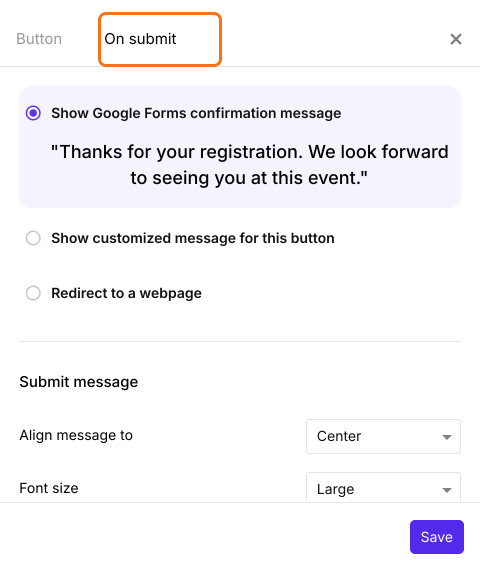
- Select the "On submit" tab. The default option is to show the confirmation message configured in Google Forms.
- Select "Show customized message for this button"
- Enter your message
- Click on the @ icon in the toolbar. You will see the list of all the fields in the form.
- Select the required form field. It will automatically insert the field id inside ${}.
- Select Response to show all the answers the user has filled in the form
- Click on the Save button
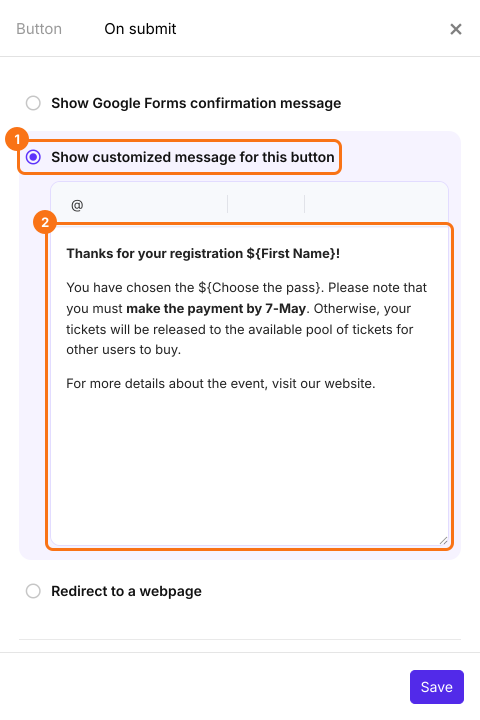
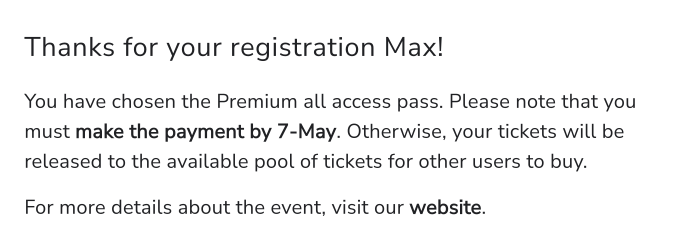
Each respondent now sees a message with their own answers. Personalized confirmation message based on the first name and package details submitted by the respondent (see screenshot below).
Summary
Google Forms shows the same confirmation message to everyone, so a name or a choice has to be sent separately. With Formfacade, you write a customized message with fields from the form and each person sees their own answers after they submit. Create your form and complete the steps above.
Last updated: