How to calculate multiple scores by adding different questions in Google Forms?
"I have 40 questions, 4 categories of 10 questions."- Google Docs Editors Community
This is a common question: 77 people on Google's forum have asked how to score one questionnaire in several categories. A Google Forms quiz gives one total for the whole form, so the category scores end up in a Google Sheet, with a FILTER or SUM for each category, worked out after the response is in. The person who answered sees none of it. With Formfacade, you add a Short answer question for each category and add up that category's questions with the POINTS formula. Each person sees a score for every category on the form, and each score gets its own column when you sync the responses to Google Sheets, so you can compare people one category at a time.
Let's start. Create your form and follow the steps below.
How to assign points and calculate multiple scores?
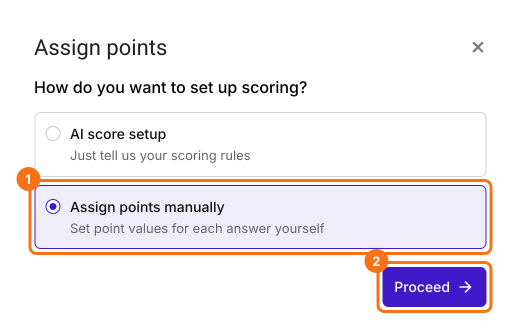
- On the page that opens, name your form, click Create form and click Proceed.

- In the Assign points dialog, under "How do you want to set up scoring?", select "Assign points manually" and click Proceed.
- Pick Multiple choice as the question type to score, assign points to its choices and click Next. The same points go to every multiple choice question in your form.

- Under "How do you want to show the score?", leave both options ticked and click Next.
- Click the × on "You're all set" to go back to the "Edit" tab.
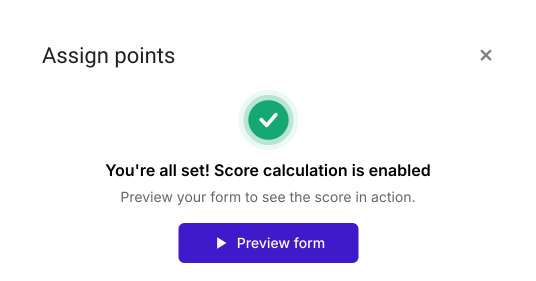
Your form now has a Score question and the same points on every multiple choice question. The steps below give each question its own points.
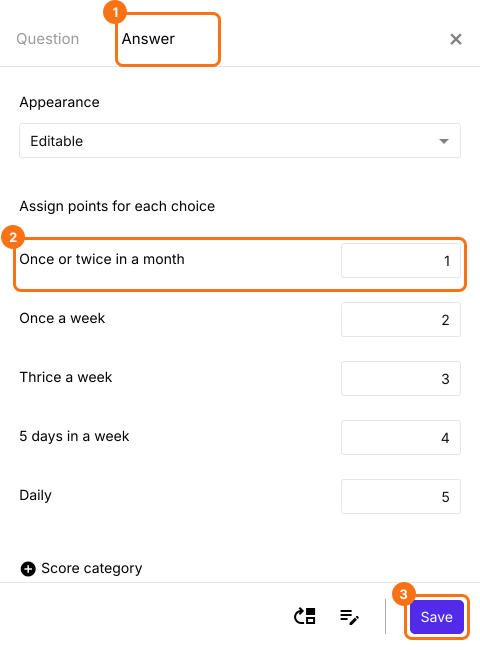
- In the Edit page, click on the question, then click on the gear icon.

- Click Answer. Assign points for the different answer choices and click Save.
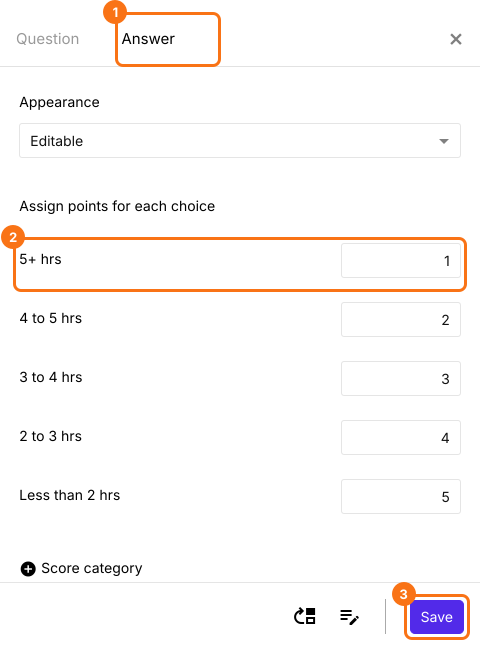
Repeat these steps to assign points for other questions in the form.
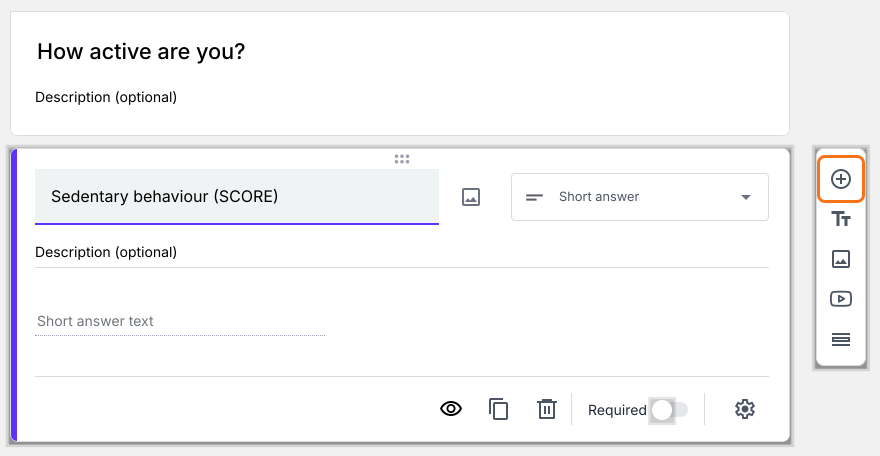
- Your form has one Score question. For each other category score you would like to calculate, click on the Add field icon on the right. It adds a Short answer question. Type the category's name as its title.
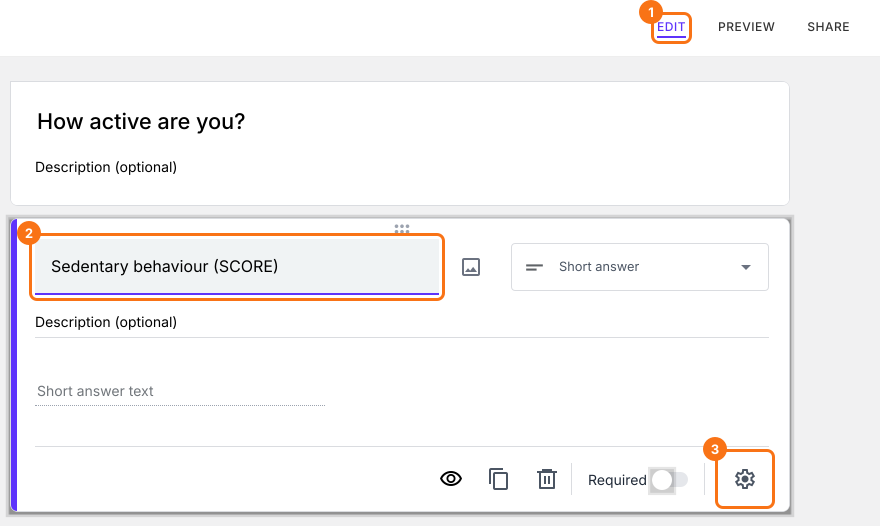
- Click on the score question, then click on the gear icon.
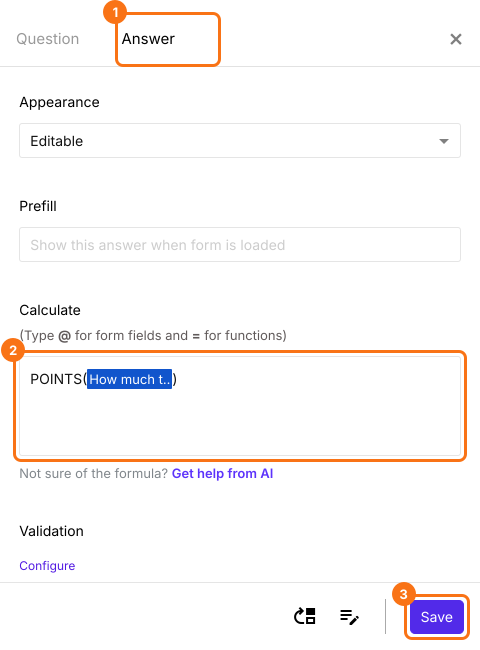
- Click Answer. If the Calculate option already has POINTS(), delete it. In the Calculate option, type POINTS( and then type @ and select a question from this category. Type ) and click Save. To add more questions, type + and another POINTS for each one.
- Similarly, click on the second score question, then click on the gear icon. Click Answer, add the POINTS formula for the questions in this category in the Calculate option and click Save.
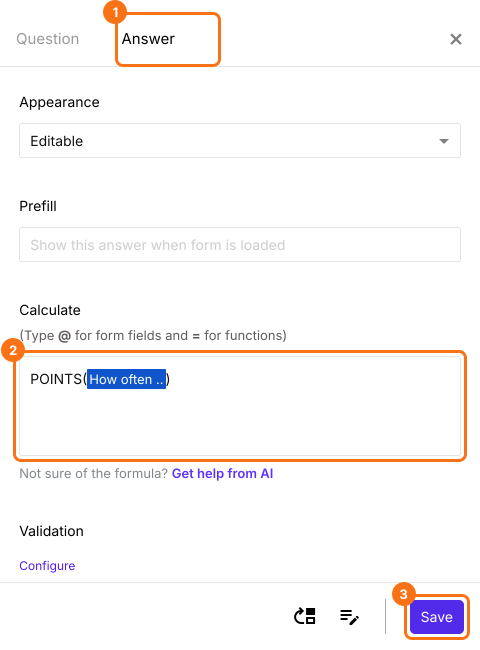
Each category score is calculated as users answer the questions.

Summary
When one form measures several things, a single total hides the difference between them, and a Google Forms quiz gives only that total. With Formfacade, you add a score question for each category and add up its questions with POINTS, so every category gets its own score. Create your form and complete the steps above. If you have any questions, write to support.
Last updated: