How to assign same points for each question and calculate scores for each section?

"I want to get the subtotals for each section."- Google Docs Editors Community

An assessment with several sections usually measures something different in each one, like sitting time, sport and everyday activity. One total blurs them together, and a Google Forms quiz gives you only that total. Getting a subtotal per section means splitting the columns in a Google Sheet after the fact, where the person who answered can't see it. When every question in a section uses the same answer scale, Formfacade does it with one formula per section: you add a Short answer question to each section and write SCORE(SECTION,1,2,3,4,5) in its Calculate option. It scores only that section's questions, and people see each section's score on the form. The Score question can add the sections into an overall total.

Let's start. Create your form and follow the steps below.

How to calculate individual scores for each section using Formfacade?

  • On the page that opens, name your form, click Create form and click Proceed.

The tabs Edit, Preview, Share and Responses, with Edit marked
  • In the Assign points dialog, AI score setup is picked under "How do you want to set up scoring?". Click Proceed.
  • "Describe how you want to score this form" is filled in. Click Send and click Next.
  • Click the × on "You're all set" to go back to the "Edit" tab.
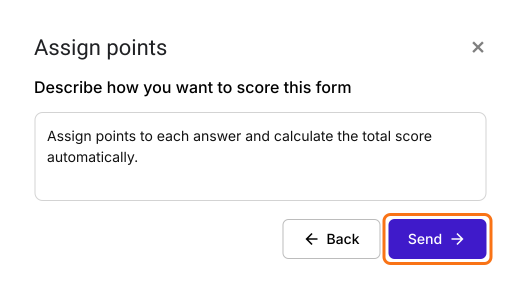
The Assign points dialog asking Describe how you want to score this form, with the box filled in and Send marked
  • Click on the last question of a section, then click on the Add page icon on the right. The questions below it move to a new page. Type the name of the next section in the page title.
  • Click on a question in each section, then click on the Add field icon on the right. It adds a Short answer question after it. Type the section's name as its title. Add a Short Answer question in each section to calculate the score.
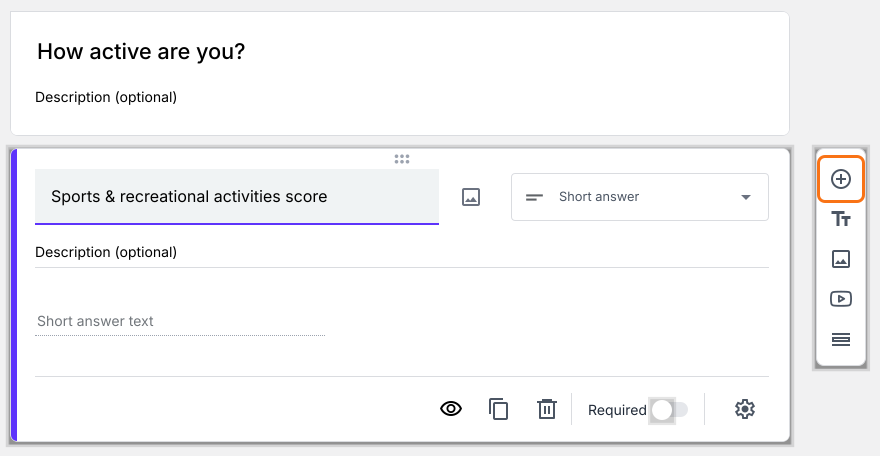
A Short answer question called Sports & recreational activities score on the EDIT tab, with the Add field icon marked
If you would like to calculate the overall score, use the Score question your form already has.
  • Click on the score question in first section, then click on the gear icon.
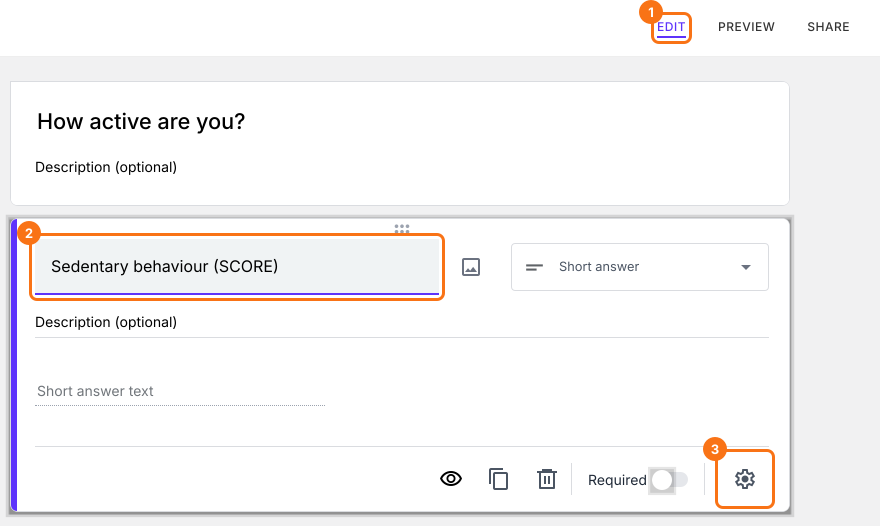
The form on the EDIT tab with the score question selected and EDIT, the question and the gear at the bottom of its card marked
  • Select "Answer" tab.
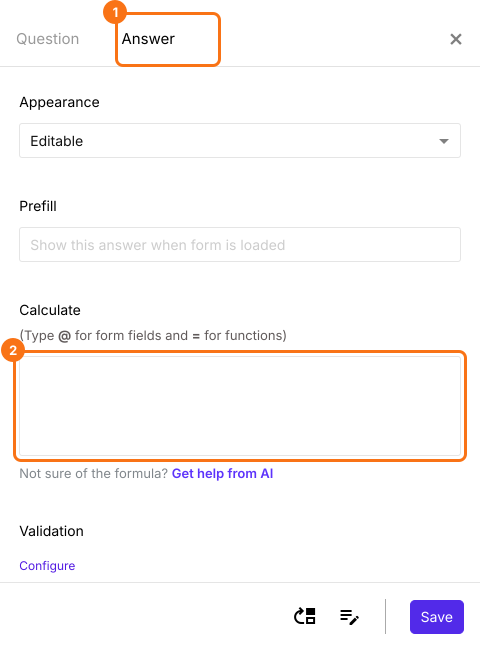
The Answer tab of the score question with Answer and the Calculate box marked

SCORE function

SCORE() function allows you to assign scores to each answer choice in multiple choice questions, checkboxes questions and grid questions. It takes two input parameters:
1. The first parameter specifies whether the score should be calculated for all questions in the section or questions across all the sections or only the questions that match the search term in the description.
2. The second parameter is the points to be assigned for different answer choices (a), (b), (c), (d), (e) etc.
In this example, we will use SCORE function to calculate the individual scores for the three sections Sedentary behaviour, Sports & recreational activities and Everyday physical activities.
SCORE(SECTION,1,2,3,4,5)
First parameter: SECTION option to calculate the score for questions in the current section.
Second parameter: 1, 2, 3, 4, 5 to assign points for answer choices (a), (b), (c), (d), (e) respectively for all the questions in the current section.
  • Write the SCORE function in "Calculate" and click on the Save button.
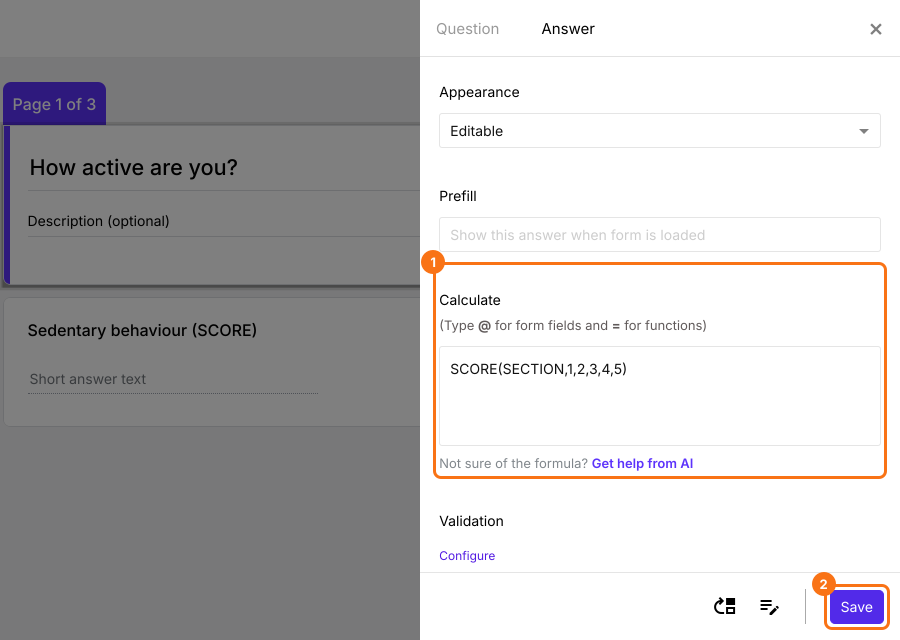
The score question Sedentary behaviour behind its Answer tab, with SCORE(SECTION,1,2,3,4,5) in the Calculate box and Calculate and Save marked
  • Similarly, click on score question in second section, then click on gear icon. Write the SCORE function in "Calculate" and click on the Save button.
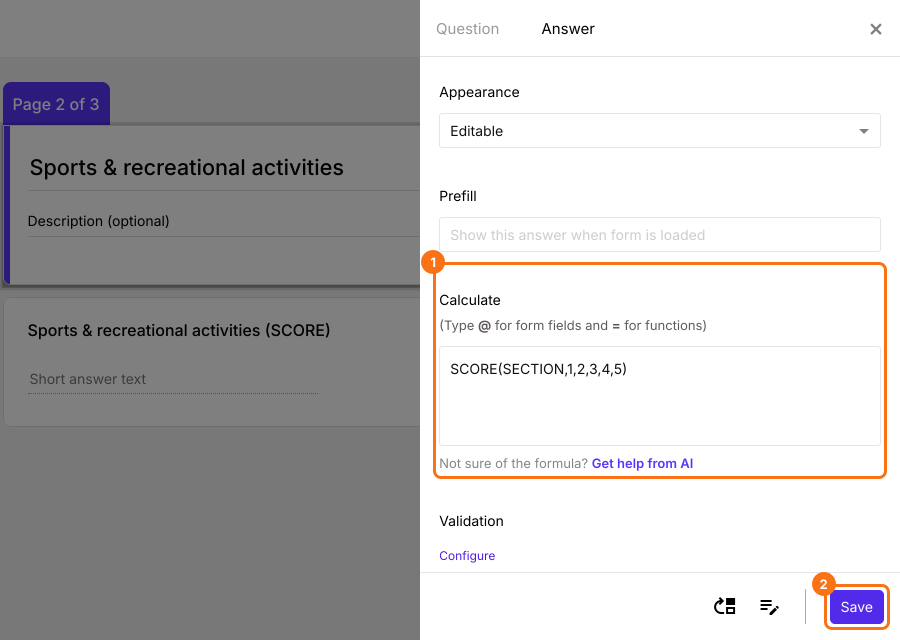
The score question Sports & recreational activities behind its Answer tab, with SCORE(SECTION,1,2,3,4,5) in the Calculate box and Calculate and Save marked
  • Similarly, click on score question in third section, then click on gear icon. Write the SCORE function in "Calculate" and click on the Save button.
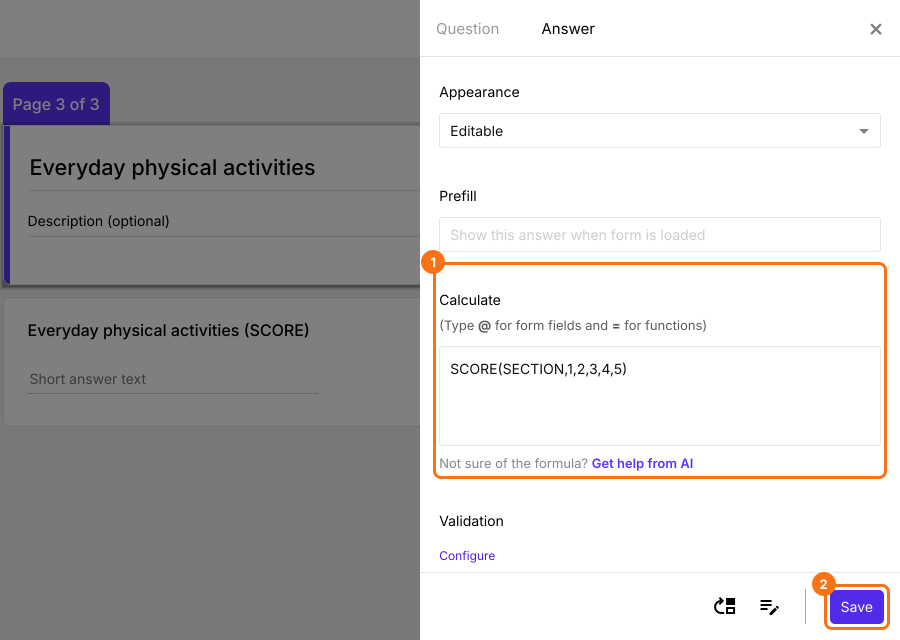
The score question Everyday physical activities behind its Answer tab, with SCORE(SECTION,1,2,3,4,5) in the Calculate box and Calculate and Save marked
  • To calculate the overall score, click on the Score question, then click on the gear icon. In the "Calculate" option, delete POINTS(), type @ and select the score for each section, with + between them as shown below and click Save.
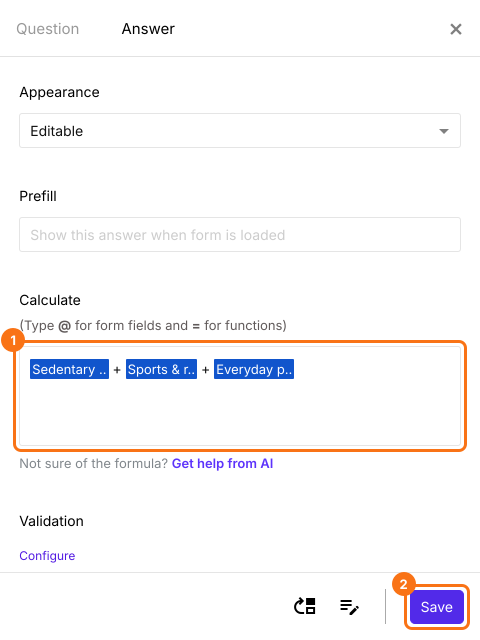
The Calculate box with the three section scores added together and the Save button marked
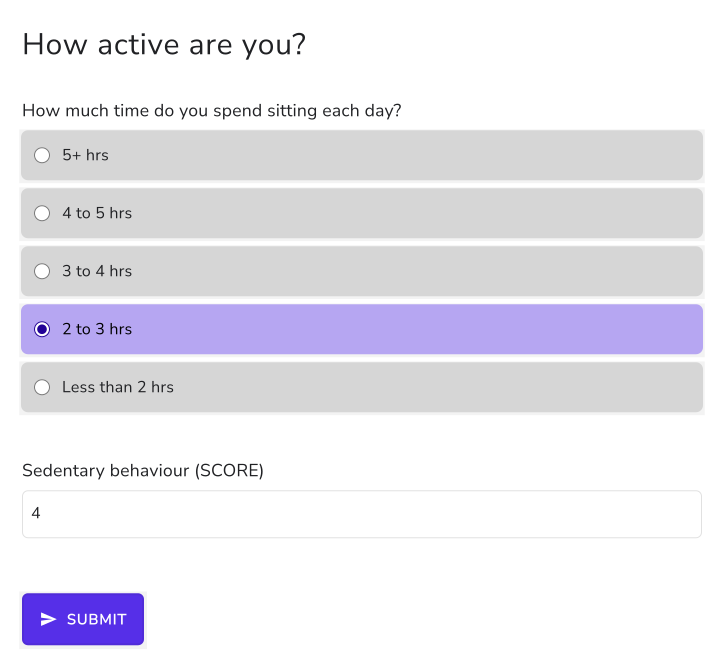
Each section gets its own score as users answer the questions.
The How active are you? form with a question answered and the Sedentary behaviour score showing 4

Summary

A Google Forms quiz adds every question into one total, so it can't tell you how someone did in each section. With Formfacade, you add a score question in each section with SCORE(SECTION) and the points for each answer choice, and each section gets its own score. Create your form and complete the steps above. If you have any questions, write to support.

Last updated: