How to stop notification emails configured in Formfacade - Email notification?
A form has closed or your team has changed, and the emails you set up in Formfacade keep going out for every response. A filter in your own inbox only hides them, and your respondents still get theirs. To stop them, delete the notification from the form.
Stop the emails
- In your form's dashboard, click Responses.

- Click Kanban board, click the three dots ⋮ on Submitted and click Notify collaborators or Notify respondent, whichever you set up.
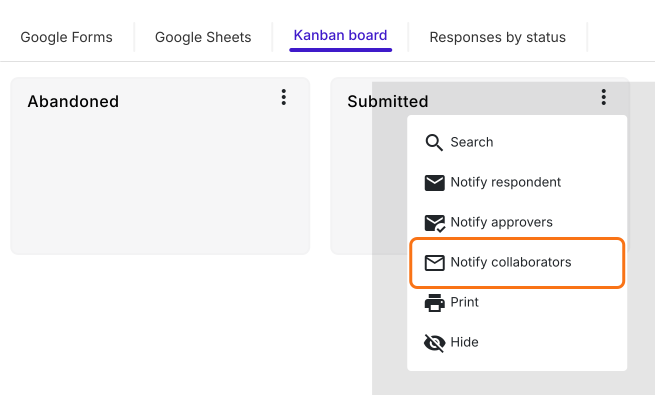
- Click the red Delete button.
- When it asks if you're sure, click Yes.
The next response won't send this email.
Summary
If you no longer want notification emails for a form, a filter in your inbox does not stop them. With Formfacade, you open the notification again and delete it and the emails stop. If you have any questions, write to support.
Last updated: