How to Embed Google Forms in WordPress?
"embedding google form not working on wordpress"- Google Docs Editors Community
Pasting a Google Form into WordPress doesn't always go well: 73 people on Google's forum have asked why theirs won't embed properly. Google's embed code in a Custom HTML block gives you a box with Google's look and its own scroll bar, and it doesn't take your theme. With the Formfacade plugin for WordPress, you pick a Google Form and a page in a setup wizard, and the form is added to that page without an iframe. You can also open your forms and their responses from your WordPress dashboard.
Below are two ways to put a Google Form on a WordPress page, and where each one falls short.
Google Forms' Embed HTML
- Open your Google Form and click on the ⋮ More icon at the top right corner
- Select Embed HTML and copy the HTML code
- In WordPress, edit your page, add a Custom HTML block and paste the code
- Update the page
Where it falls short: the form sits in a fixed box with Google's look and its own scroll bar, and you can change only its width and height.
Formfacade plugin for WordPress
- On the page that opens, name your form, click Embed form and click Proceed.
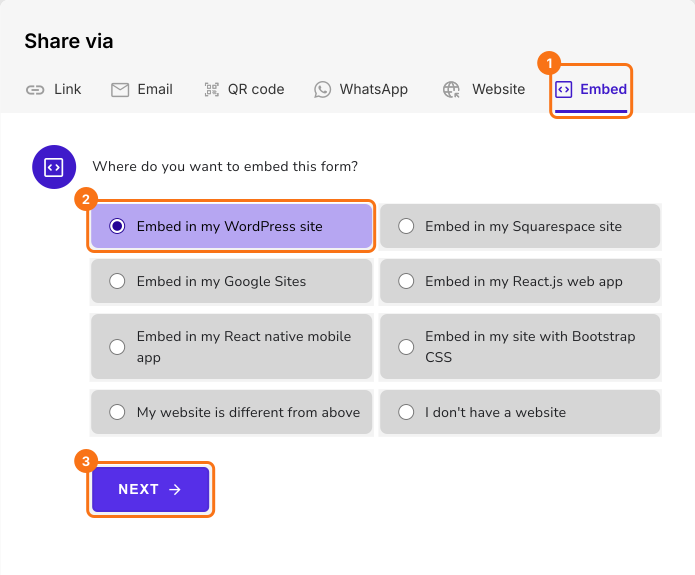
- On the Share tab, under Where do you want to embed this form?, select "Embed in my WordPress site" and click Next.
- Follow the three steps shown, which are below
Step 1: Login to your WordPress website as admin > click Plugins > click Add New Plugin

Step 2: Search for "Formfacade" and click Install Now on the Formfacade plugin for WordPress

Step 3: Click Activate to enable the plugin for your WordPress site

Step 4: In the Embed setup wizard, sign in with your Google account and click Next

Step 5: You can either create a new form, select from your existing forms or copy & paste the url for the google form you would like to embed and click Next.

Step 6: You can select the preferred page from the dropdown with the list of pages from your WordPress site or select create a new page, enter the page title and click Proceed

Step 7: Formfacade adds the form at the bottom of the selected page. Click Preview to see it.

Step 8: The form uses the styles from your website theme. If required, you can further customize the form.

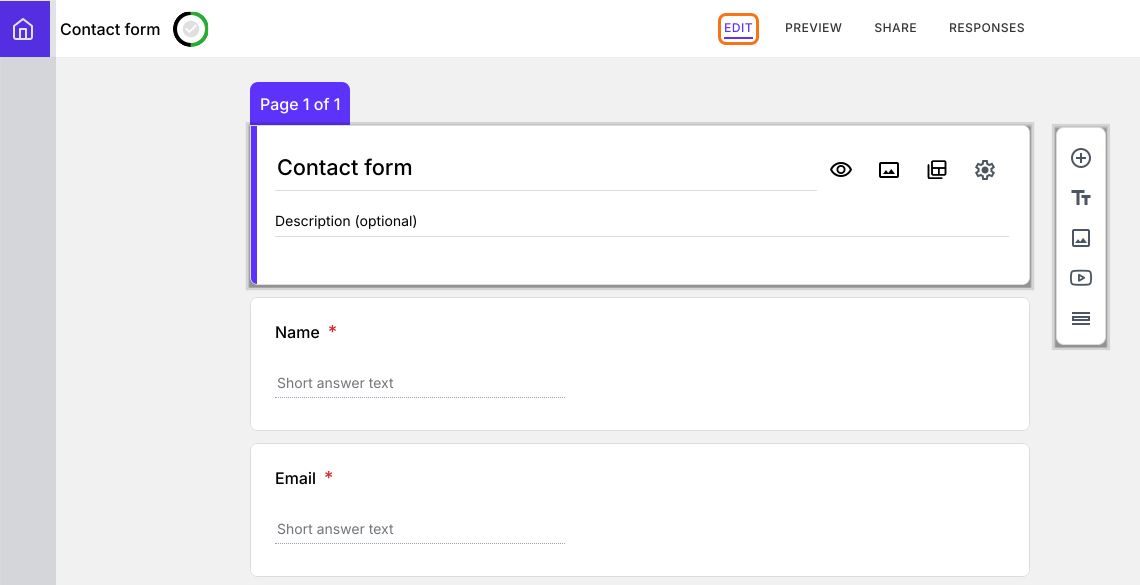
Step 9: To manage your forms inside WordPress, click Formfacade in the WordPress menu and click Dashboard. Click a form to open its Edit page, where you can add fields, change the form appearance, customize the thank you message and more. Form customization is available only in the paid plans.
Summary
If you paste Google's embed code in WordPress, the form keeps the Google look and doesn't match your website. With Formfacade, you install the plugin, follow its setup wizard and the form is added to the page you select, without an iframe. Create your form and complete the steps above. If you have any questions, write to support.
Last updated: