How to add description to a question in Google Forms?
Some questions need a line of help under them: the format you want, or why you're asking. Putting it in the question title makes the form hard to read. Google Forms can show a description under a question, from the question's ⋮ menu. With Formfacade, you click the question and type the description right under it, and the form people fill shows your branding instead of Google's. For bold, italic, links or lists, open the ⚙️ icon on the question and use a text box.
Create your form, or open one you have in Formfacade, and follow the steps below.
Add description to a question
- On the page that opens, name your form, click Embed form and click Proceed. If you already have a form in Formfacade, open it instead.
- Click on "Edit" tab

- Click on the question
- Enter the description for the question in Description (optional)
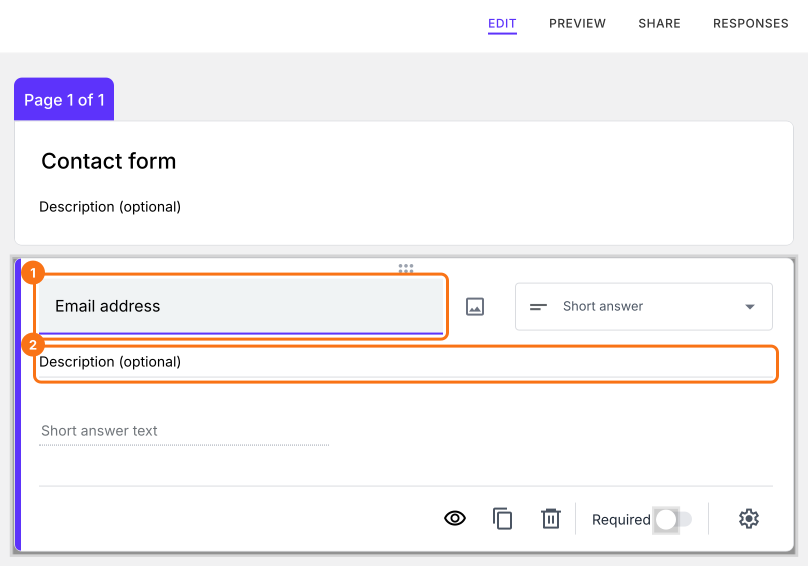
The description will show under the question on your form.
Format the description
In Formfacade, you can use a text box with bold, italic, links and lists.
- Click on the ⚙️ icon at the bottom of the question
- Click + Description
- Enter the description for the question
- Click Save
Summary
If a question needs more explaining, a long question title makes the form hard to read. With Formfacade, you click on the question and enter the description and you can use the ⚙️ icon if you need formatting. Create your form and complete the steps above. If you have any questions, write to support.
Last updated: