How to add videos in Google Forms?
A short video can explain your product or your question better than a paragraph. Google Forms won't take a video file: it adds YouTube videos only, from a url or a search. Sending people to a link instead means some won't come back to finish. If your form is on your website with Formfacade, you open it in Google Forms from Formfacade's editor and add the YouTube video there. People watch it inside the form, on your own page.
Create your form, or open one you have in Formfacade, and follow the steps below.
How to open your form in Google Forms?
- On the page that opens, name your form, click Embed form and click Proceed. If you already have a form in Formfacade, open it instead.
- Click on "Edit" tab

- Click on the form's title
- Click on the ⚙️ icon on the title card
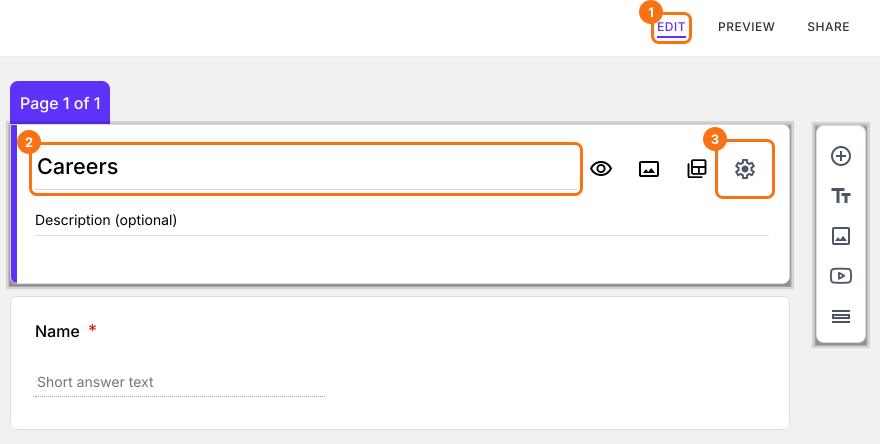
- Click on the Advanced tab
- Click Launch next to "Edit this form with Google Forms"
You can upload your video to YouTube and use the YouTube url to add the video in your Google Forms.
Add YouTube video
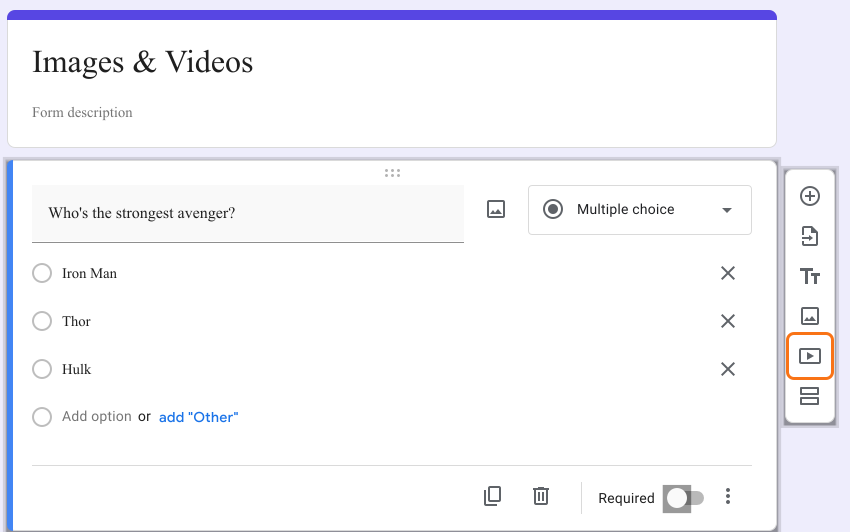
- Click on Add Video icon as shown below
- Paste the YouTube url or use search to add video
- If required, add a video title
Your change reaches your form when you open the "Edit" tab in Formfacade again, or reload it if it is already open. Formfacade reads your Google Form again each time you open it there.
Summary
If a video explains your question better than words, a link sends people away from your form. With Formfacade, you open your form in Google Forms with Launch, upload your video to YouTube, click on Add Video icon and paste the YouTube url. Create your form and complete the steps above. If you have any questions, write to support.
Last updated: