How to view and download uploaded files?
"Uploaded Documents from Google Forms are split by Question, not individual"- Google Docs Editors Community
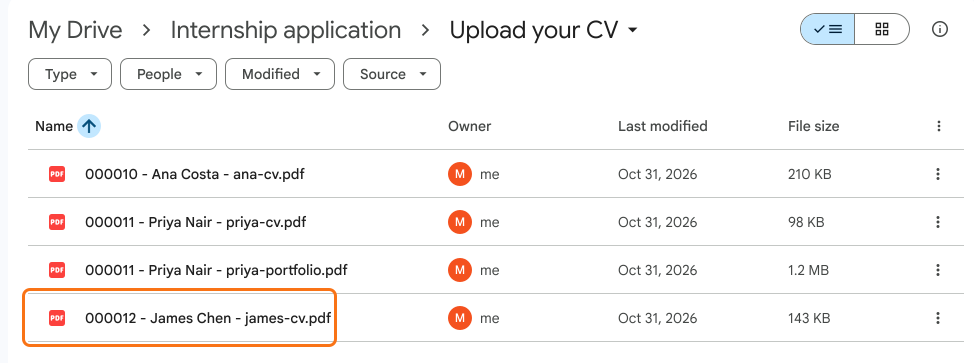
Once files start coming in, you need to find one person's files fast. Google Forms puts uploads in Drive folders by question, not by person, and 15 people on Google's forum have asked how to sort them by respondent instead. Renaming them with a script is one more thing to keep working. In Formfacade, each response links to its own files in the RESPONSES tab, and the same links sit in that person's row when you link Google Sheets. If you also save the files to Google Drive, each file name starts with the response number and the person's name, so the folder sorts by person.
Let's start. Create your form and follow the steps below.
How to add a response with a file?
- On the page that opens, name your form, click Create form and click Proceed.
- If it asks "Do you want to preview this form?", click No.
- Click on "Share" tab

- Click Copy and open the link
- Fill the form, click Add file and add your file. Click Done and click Submit.
Formfacade RESPONSES tab
- Click on "Responses" tab

- Select Kanban board
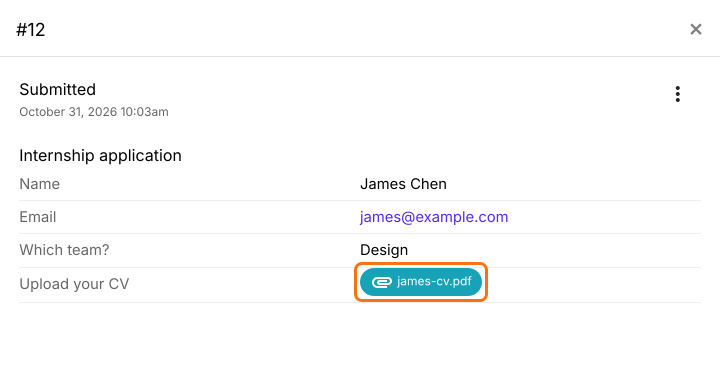
- Click on the response in Submitted
- Click on the link to view the file. It opens in your browser, where you can download it.
Google Sheets
- In the RESPONSES tab, select Google Sheets
- Click Link to Sheets and click Proceed
- Click View sheets
The form responses will be synced to Google Sheets. You can click on the link to view the uploaded file. If you have enabled multiple file upload for a question, the response will be a list of urls separated by comma.

Save uploaded files to Google Drive
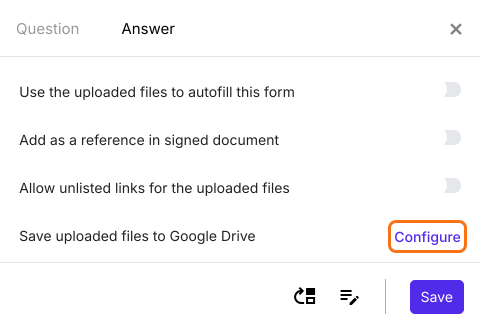
To save the uploaded files to your Google Drive, click on "Edit" tab, click on the file upload question, then click on the gear icon. Select the answer tab. Click on Configure next to Save uploaded files to Google Drive, click Proceed and connect your Google Drive.
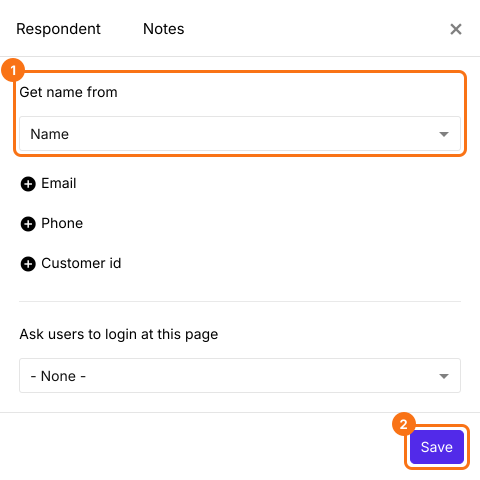
To add the name of the user to the file name, click on the configure key fields icon in the last "After page" row. It says "After page 1" on a form with one page.

Select the name field in Get name from and click Save. If your form has no name question, add one first.
Each new file will be saved in your Google Drive with the response number and the name of the user in front of the file name, so you can sort the files and find them by name.
Summary
Uploads collected by Google Forms are sorted by question, so finding one person's files means opening many. With Formfacade, each response links to its files, the links land in that person's row in Google Sheets and files saved to Drive carry the person's name. Create your form and complete the steps above. If you have any questions, write to support.
Last updated: