How to create custom PDF document from Google Forms responses?
Boobesh Ramalingam
Co-founder of Guesswork.co.
"i'm making contracts and for each contract i have to fill different data"- Google Docs Editors Community
You keep a contract in Google Docs and type each customer's details into a fresh copy of it. For example, you hire out equipment and every customer signs a rental contract before they collect the machine, with only the name, the equipment and the dates changing. Copying the document by hand is slow, and one missed line goes out wrong. Google Forms can't turn a response into a PDF, and a document merge add-on fills in a template but doesn't get it signed. Formesign turns your Google Doc into a form: each customer fills it in and signs, and their answers become their own PDF copy of the contract. You can email that PDF to them and keep a copy in a Google Drive folder. The same works for invoices, applications, certificates, onboarding documents and consent forms.
Let's start. Open the google docs you want as the template. If your document is a PDF, upload it here and pick up from reviewing the fields.
Create your form from your document
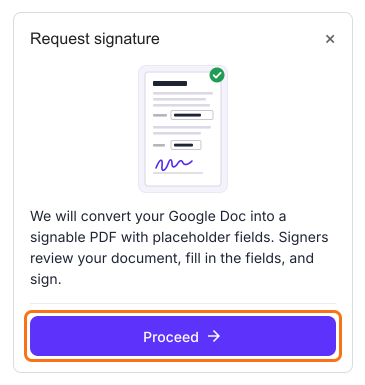
The first time, install the Formesign - Signature for Google Docs addon. You can use the Google Docs formatting options to customize the template before you click Request signature. Open the google docs selected as the template > click Extensions > click Formesign - Signature for Google Docs > click Request signature > click Proceed. Formesign creates a new form from your document, so your Google Form is not used.
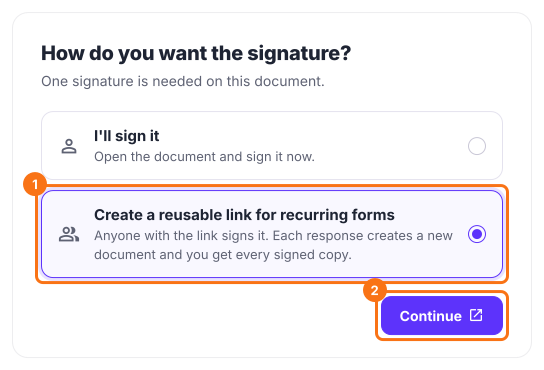
Review the fields on your document and click Proceed > under How do you want the signature?, select "Create a reusable link for recurring forms" and click Continue > click View signed documents to see each signed copy.
Set up PDF template
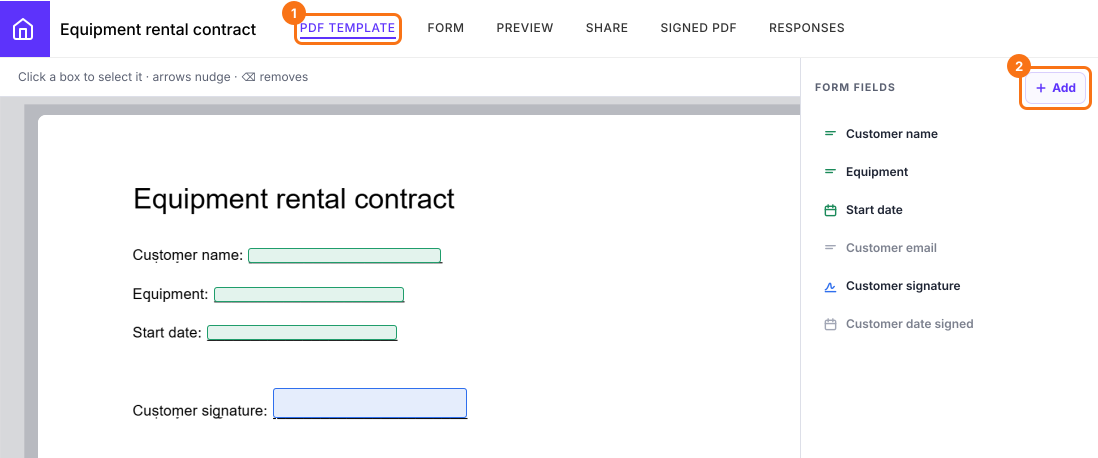
Click PDF Template > in the Form fields side panel, you can click on + Add, then click where the answer goes or drag to draw its box, to add a missing field in the document. The added fields will be shown on the document.
Email custom PDF
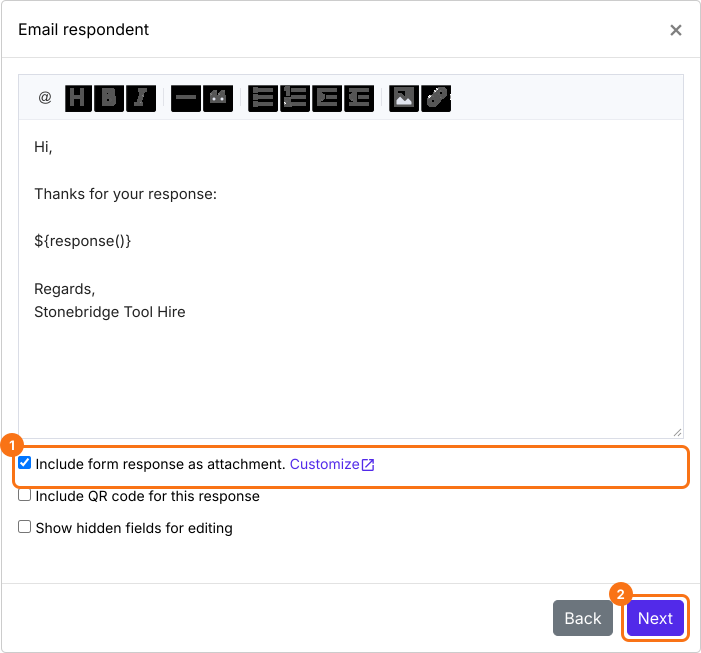
Click Responses > click Kanban board > click on the three dots for the column your responses land in, such as Submitted > click Notify respondent > select the email address field, click Next > update the subject, click Next > update the message, enable the Include form response as attachment option and click Next > when Test email notification is displayed, submit a test response and click YES to complete the setup.
When the user completes the form and submits it, they will receive a confirmation email with the generated PDF document as attachment.
Sync custom PDF to drive
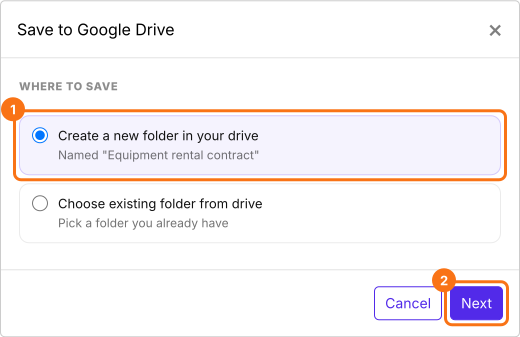
Click Signed PDF > click Save to Google Drive > select the preferred folder, click Next > keep Save Entire form response ticked, click Proceed and authorize Google Drive access to complete the setup.
Click Share, copy the link and share it with your users. When the user completes the form and submits it, the generated PDF document will be automatically synced to your google drive.
Summary
If you write the same document again and again with new details each time, copying it by hand is slow and Google Forms can't turn a response into a PDF. With Formesign, you turn your google docs into a template and each person's answers fill in their own signed copy, which you can share via email and sync to your google drive folder. Open the google docs you want as the template or upload it as a PDF and complete the steps above. If you have any questions, write to support.