How to automatically calculate the total amount in your order form?
"aggregate totals on a Google Form, i.e. total price of items selected"- Google Docs Editors Community
Google Forms can list your products, but it can't add them up. A customer picks three items and a quantity for each, submits, and then waits for you to work out what they owe and message them back. A formula in the response Sheet doesn't help them, because it only runs after they've sent the form. In Neartail, the TOTAL function is already on your Google Form's Order Amount, so the total changes as the customer picks and they know what they owe before they submit. Delivery fees, discounts and tax can go on top of it.
Create your order form and follow the steps below.
How to use the TOTAL function to calculate the total amount?
- On the page that opens, click Enter your form name, type your form's name and click Generate.
- Check the outline it suggests and click Proceed. Your form opens on the Edit tab.

Your form comes with products, an Order Amount question that adds up by itself and an Order Quantity question.
- Click on the Order Amount question, then click the ⚙️ icon
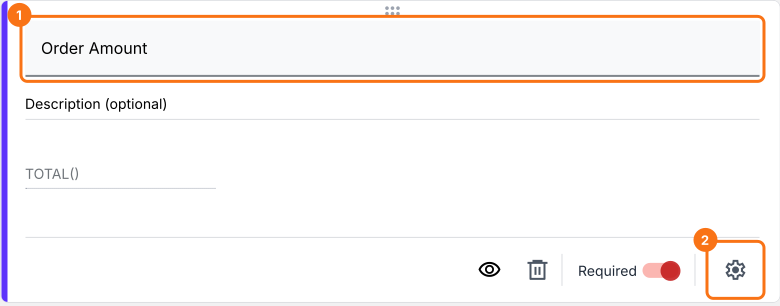
- In Field settings, select the Answer tab
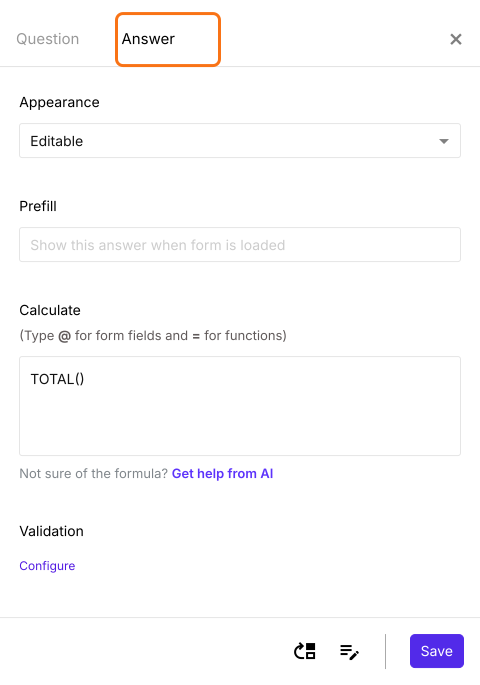
TOTAL function
You can use the TOTAL function to calculate the total amount for the products ordered. The syntax for the TOTAL function is:
TOTAL(currency)
where
- currency = currency identifier to find the price in the description for all question types/answer choices for multiple choice, checkbox and grid questions. It can be a symbol or text, but it has to exactly match the format used in the description/answer choices.
For example:
- If the price format used in description is $50 each, $5.75 per kilo etc, the formula to calculate the total amount is TOTAL("$")
- If the price format used in description is €50 each, €5.75 per kilo etc, the formula to calculate the total amount is TOTAL("€")
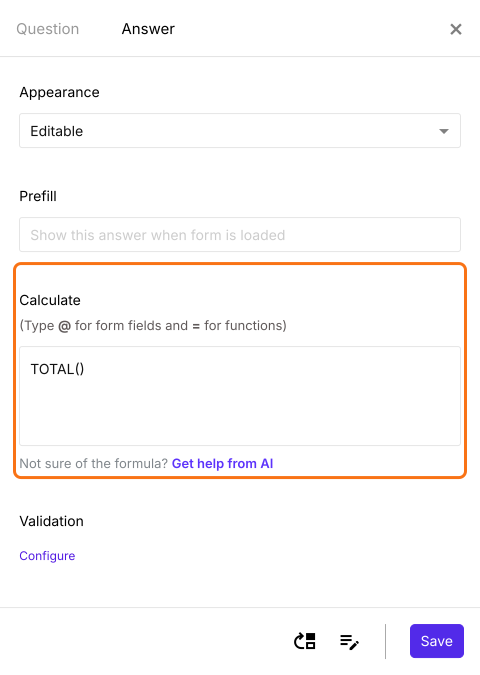
- Your form already has TOTAL() in the Calculate option as shown below, so you do not have to write it
- Close Field settings
To add a delivery fee or a discount to the total, click on Add price field in the toolbar on the right and choose Delivery Fee or Discount. Then click Add price field again and choose Net Amount, which shows the amount to be paid and is what your customers pay.
The Order Amount adds up as your customers pick their products, so they see what they owe before they submit.
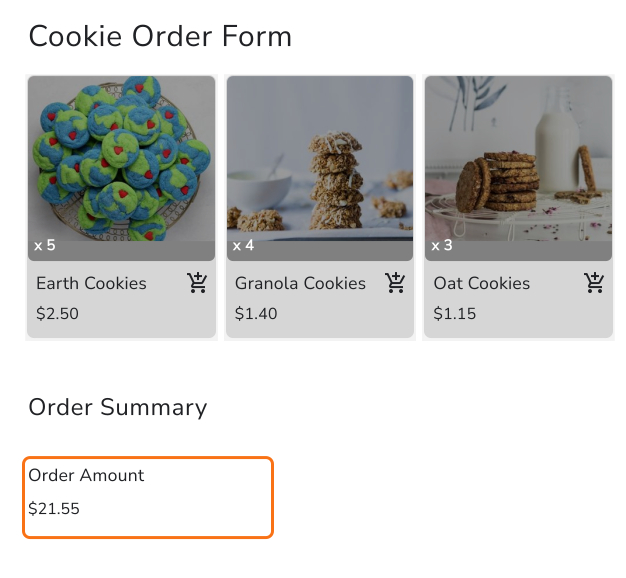
Summary
A Google Form doesn't add up an order, so customers find out what they owe only after you tell them. With Neartail, the Order Amount uses the TOTAL function and adds up as customers pick, so they see the total before they submit. Create your order form and complete the steps above. If you have any questions, write to support.
Last updated: