How to Create a WhatsApp Order Form
"How to submit responses from a Google Form to WhatsApp?"- Google Docs Editors Community
If your customers already message you on WhatsApp, that's where you want their orders. A Google Form can't send anything there, and 468 people on Google's forum have asked how to send its responses to WhatsApp. Taking the order in chat instead means typing out every product and adding up totals by hand. With Neartail, your Google Form becomes a WhatsApp order form: the customer picks from your products, sees the order summary and the total, and on submit the whole order opens in WhatsApp as a message to your number. They press send, and you reply in the same chat.
Create your order form and follow the steps below.
Step 1: Create an online order form
- On the page that opens, click Enter your form name, type your form's name and click Generate.
- Check the outline it suggests and click Proceed. Your form opens on the Edit tab.

- ADD PRODUCTS AND PRICES: Your form comes with products and prices
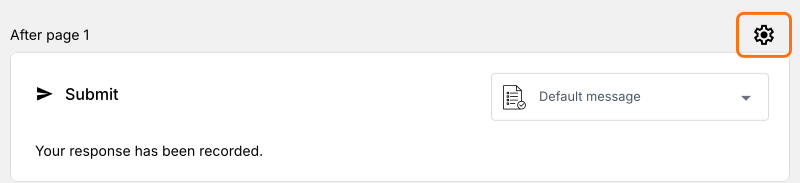
- To change the currency, click on the ⚙️ icon in the last After page row above the Submit button, change Currency and click on Save
- To add another product, click on the product before it and click Add product in the toolbar on the right. For example, "Grocery Essentials Kit#1 Pulses,Tea powder, Oil"
- (Optional) Add images of your products
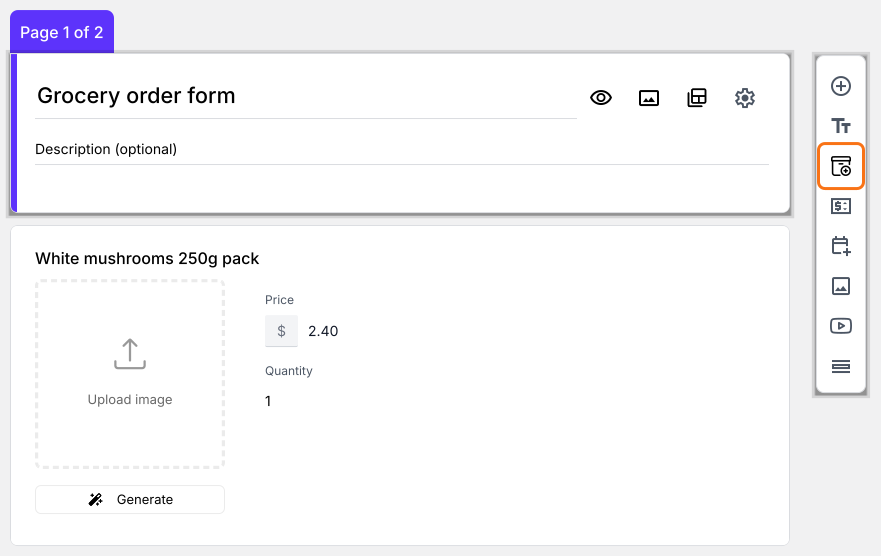
- Delivery details: Your form already asks the customers delivery details, like their name, phone number and address, under Contact Details
- Order Total and Order Summary: Your form already has an Order Amount question that adds up by itself and a Review and place order section that shows the bill
Step 2: Configure your WhatsApp number with this form
- Your form does not send to WhatsApp until you do this. Click on the ⚙️ icon in the last After page row above the Submit button
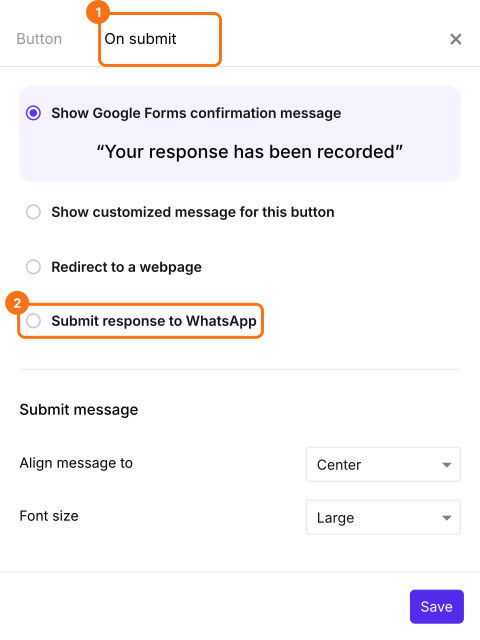
- Click on the On submit tab and select Submit response to WhatsApp
- Enter the WhatsApp number that you have handy to test it in Route to this number, such as +1 650 354 2345.
- Click on Save
Final Step: Testing!
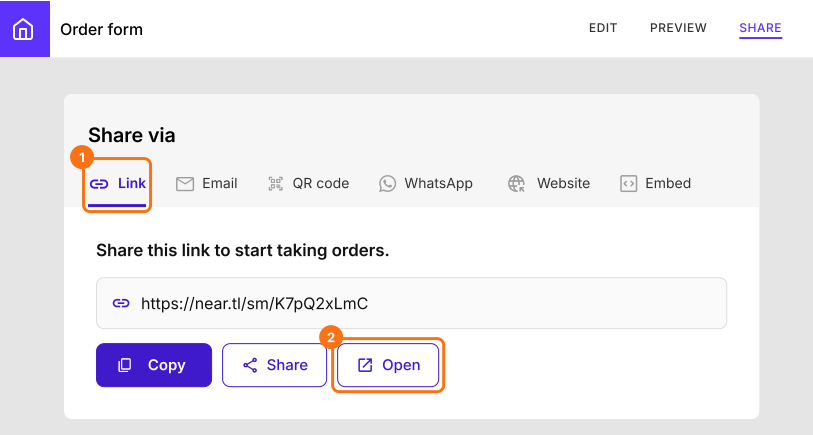
- Click on "Share" tab, click Link and click Open
- It is better to use two different WhatsApp numbers for testing. One to submit a test order like a customer and the other to receive the order, like the store owner
- Create a test order by entering your choices on your order form
- You can notice that the Order summary and the Total are neatly calculated before you submit the form
- Click on "Submit"
- On a computer, it says "Scan this QR code to confirm your order!". Scan it with your phone or, if WhatsApp is installed on this computer, click the "click here" link
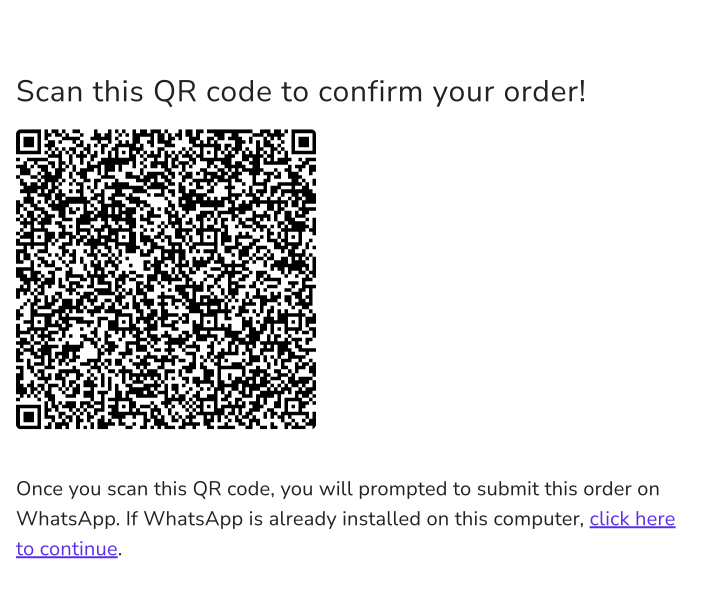
- It opens your WhatsApp and asks if you want to "Chat on Whatsapp with XXXXXXXX" (the number that you configured earlier)
- Continue with the chat
- Your order and contact details are readily copied into the WhatsApp chat
- Press send button to confirm
- The order reaches the WhatsApp number you set up
Summary
A Google Form can't send an order to WhatsApp or show a total. With Neartail, your form shows the order summary and the total, and each order opens in WhatsApp as a message to your number for the customer to send. Create your order form and complete the steps above. If you have any questions, write to support.
Last updated: