How to set a minimum order quantity in your order forms?
Google Forms can check one answer at a time, but it can't add up what a customer picked across all your products. So a minimum such as six items per order can't be enforced: the small order comes in, and you're the one who goes back to the customer. In Neartail, the Order Quantity on your Google Form counts every item as it's picked, and you add a number validation to it. A customer below your minimum sees your message and adds more before they can submit. A maximum works the same way.
Create your order form and follow the steps below.
How to set a minimum order quantity?
- On the page that opens, click Enter your form name, type your form's name and click Generate.
- Check the outline it suggests and click Proceed. Your form opens on the Edit tab.

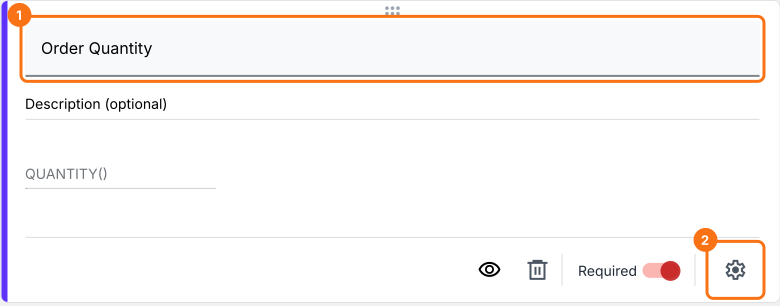
Your form comes with products, an Order Amount question that adds up by itself and an Order Quantity question.
To set a minimum order quantity, add a "greater than or equal to" number validation to the Order Quantity question.
- Click on the Order Quantity question, then click the ⚙️ icon
- In Field settings, select the Answer tab. The QUANTITY formula is already in the Calculate option
- Click Configure under Validation
- Select "Greater than or equal to" number validation and enter the minimum quantity. Enter the error message and click Save
Similarly you can set a maximum order quantity by adding a "less than" number validation for the order quantity question.
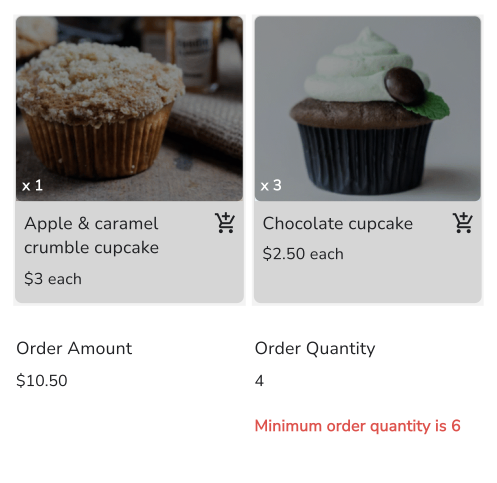
When an order is below your minimum, your customers see your error message on the form.
Summary
A Google Form can't count the items across an order, so it can't hold a minimum quantity. With Neartail, the Order Quantity counts them and a number validation stops orders below your minimum, with your message on the form. Create your order form and complete the steps above. If you have any questions, write to support.
Last updated: