How to stop email notifications?
"How can I stop email notifications to respondents"- Support forum
Emails you set up for your orders keep going out until you turn them off, even when you've paused orders or now tell customers another way. They aren't Google Forms' own emails, so Google Forms' settings can't stop them. You stop them where you set them up: in Neartail by deleting the notification, or in the Formfacade add-on by disabling it.
How to stop the emails from your form?
- In your form, click on "Orders" tab

- Click Kanban board, click the ⋮ on Submitted and select Notify collaborators
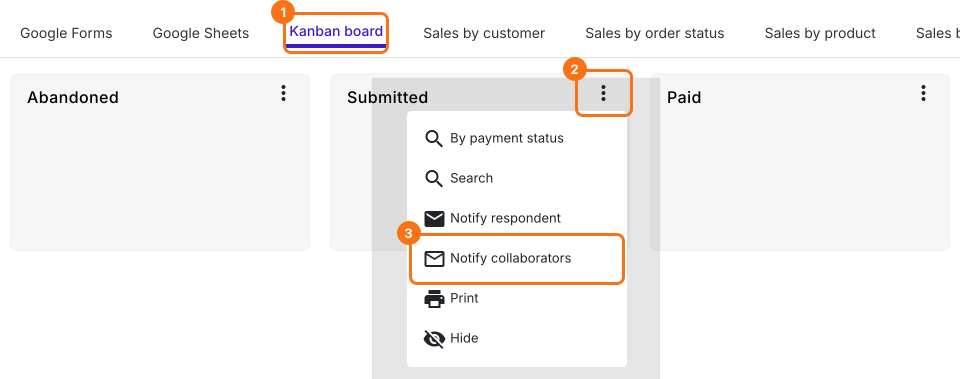
- Click the red Delete button
- In the "Are you sure you want to delete this collaborator notification?" popup, click Yes
To stop the email to your customers, do the same with Notify respondent.
The next order will not send this email.
How to stop the emails you set up with the add-on?
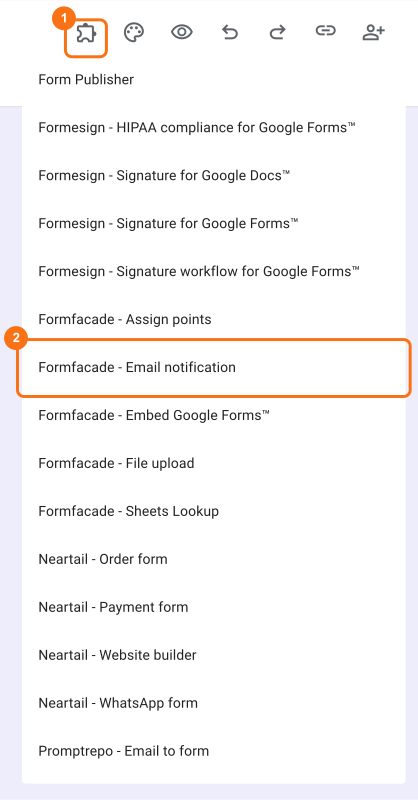
- Open your Google Forms, click on the addon icon and select "Formfacade - Email notification". If you haven't installed the add-on yet, you can install it from Google Workspace Marketplace using this link
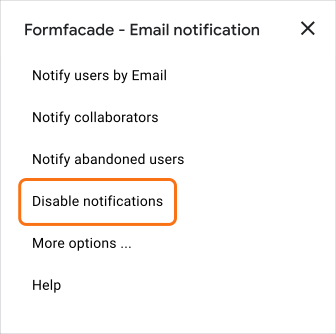
- Select "Disable notifications" to stop Formfacade - Email notification emails. In the "Delete email configuration too?" popup, click No to keep the subject and message for later or Yes to delete them
- A message tells you how many email triggers were disabled
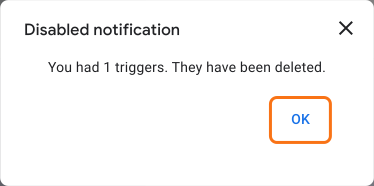
Important: When you use this disable option, all confirmation and notification emails setup using this account will be stopped.
Summary
Order emails you set up in Neartail or the add-on aren't controlled by Google Forms' settings. You stop them by deleting the notification in Neartail or disabling it in the add-on, and the next order won't send them. If you have any questions, write to support.
Last updated: