How to print each order for packing?
"this will have blank spaces in every response from the user"- Google Docs Editors Community
When a Google Form has many products, each response row in the Sheet is mostly blank cells, because nobody orders everything. Whoever packs has to read across the row to find what this person wants, and printing a response from Google Forms gives the whole form with every product on it. Joining the cells takes a formula, and one misread row sends the wrong order out. With Neartail, you print each order on its own page: the order number, only what was ordered, the total and where it goes. On a busy day you can print a whole column of orders as one table.
Let's start. Create your order form and follow the steps below.
1. Name your order form
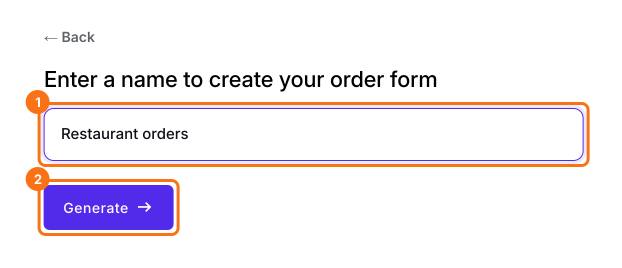
On the page that opens, click Enter your form name, type your form's name and click Generate. Check the outline it suggests and click Proceed. Your form opens on the Edit tab.
2. Open the order
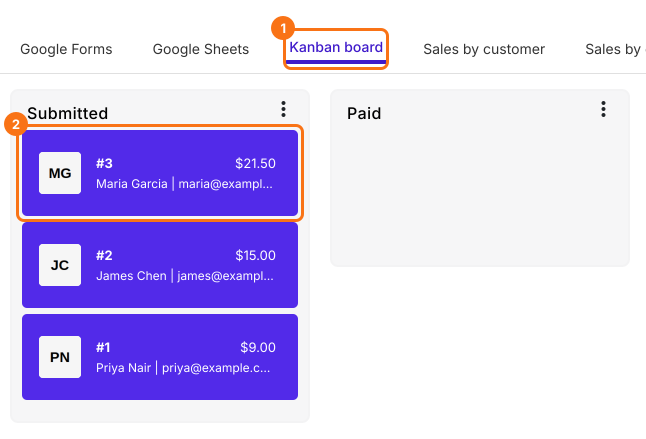
Your new form has no orders yet. Click SHARE, click Link, click Open and place a test order. Then click ORDERS, then Kanban board. Under Submitted, click the order you're packing.
3. Click Print
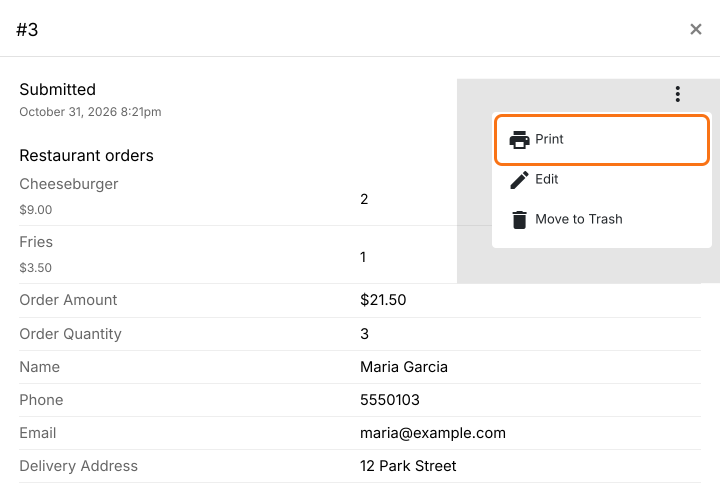
Click the ⋮ at the top of the order and choose Print.
4. Pack from a page with no blanks
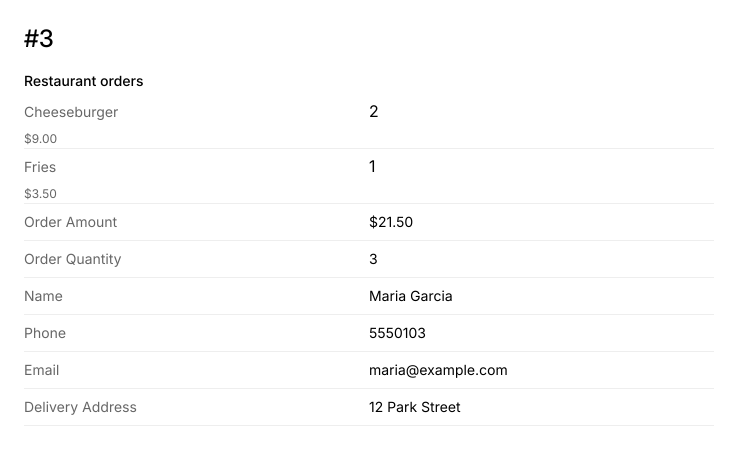
The page has the order number, only what this person ordered, the total and their name and address. Pack from it, then put it on the bag.
5. Print a whole column on a busy day
Click the ⋮ on the Submitted column and choose Print, then choose how many orders and click Print. You get one table with a row for each order.
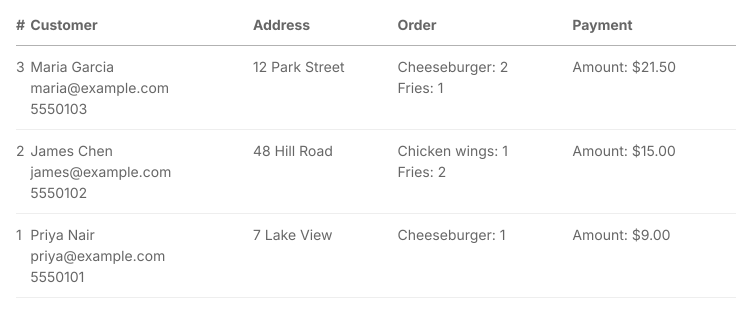
Summary
A Google Form's responses are rows of mostly blank cells, and printing one gives you the whole form. With Neartail, you print each order on its own page with only what was ordered and where it goes, or a column of orders as one table. Create your order form and complete the steps above.
Last updated: