How to populate a Google Forms dropdown from a Spreadsheet?
"How can I auto-fill my Form's choices using Sheets?"- Google Docs Editors Community
Your suppliers, products or staff are a list in Google Sheets, and a dropdown in your form should show that list as it is today. Google Forms can't read a Sheet: you paste the options in by hand, and the form falls behind each time the list changes. An Apps Script can copy them over, but someone has to write it and fix it, and a dropdown still stops at 1,000 options. With Formfacade, you connect your sheet and describe the dropdown in plain English or any language. Your respondents see the current list and can type a few letters to find their choice.
Below are three ways to fill a Google Forms dropdown, from pasting the list to connecting your Sheet, and where each one falls short.
Dropdown questions in Google Forms
A dropdown question allows respondents to select one answer from a list of predefined options. It is similar to a multiple choice question in that respondents can select only one answer from the available choices. Unlike multiple choice, the options are hidden until the respondent clicks the dropdown field. This works well for long lists where you want to keep the form compact.
How to add a dropdown question in Google Forms?
Open your form in Google Forms > click on the + add question icon > enter the question title > select Dropdown question type > Enter the answer choices in Add option > If you want to make the question mandatory, enable the Required toggle button.
Tip: Instead of adding each answer choice manually, you can copy the options from a spreadsheet and paste them into the first answer choice field. Google Forms will automatically split them into separate options.
Limitations
- Google Forms has a hard limit of 1,000 options per dropdown. Lists longer than this will not load correctly.
- There is no native way to pull options from a Google Sheet. Options have to be typed or pasted in manually.
- Any change to the list, whether adding, removing or editing an option, requires opening the form and editing it manually.
To overcome these limitations, you can use Apps Script or the Formfacade - Sheets Lookup add-on to populate a Google Form dropdown from Google Sheets.
Method #1: Google Apps Script
Apps Script allows you to automate tasks across Google Forms, Sheets, Drive and other Google Workspace apps. You can write a script that reads a column from your sheet and automatically updates your form's dropdown with those values. For example, if you have a Google Sheet with a list of 500+ suppliers, you can automatically populate the supplier dropdown in your form without having to add them manually.
How to set it up?
- Open your form in Google Forms > click on the ⋮ three dots menu in the top right > select Apps Script
- In Apps Script, click Create script > paste the following script.
- Replace YOUR_FORM_ID and YOUR_SHEET_ID with the IDs from your form and sheet URLs. Replace QUESTION_TITLE with the exact title of your dropdown question as it appears in your form, including capitalisation and spacing.
- Once you make these changes, save your script and click Run to execute it. Google will ask you to authorize the script to access your form and sheet. Click Review Permissions, select your Google account and click Allow. Running it manually also lets you confirm the script works before setting up the trigger.
- Click the Triggers icon (clock) in the left sidebar > click Create a new trigger > In the dialog that opens, choose which function to run: select updateDropdown > Select event source: select Time-driven > Select type of time based trigger: choose Hour timer or Day timer > Select interval: choose your preferred frequency (for example, every hour or every day) and click Save.
How to find your Form ID and Sheet ID?
Form ID: Open your form in Google Forms. In the URL, copy the string between /d/ and /edit.
https://docs.google.com/forms/d/FORM_ID/edit.
Sheet ID: Open your Google Sheet. In the URL, copy the string between /d/ and /edit.
https://docs.google.com/spreadsheets/d/SHEET_ID/edit.
Limitations
- Requires writing and maintaining code. Scripts can stop working without any warning, leaving respondents with stale or missing options until someone notices and fixes the issue.
- Google Forms cannot display more than 1,000 options in a dropdown and Apps Script cannot bypass this limit.
- Each form needs its own script and trigger. If you have multiple forms pulling from the same sheet, you have to replicate and maintain the setup for each one.
Method #2: Use Formfacade - Sheets Lookup
You can use Formfacade to connect your Google Sheet to your form without any code. Describe what you want in plain English or any language and it will populate your dropdown with data from your sheet. The form stays in sync with your sheet automatically.
How to set it up?
Your Google Form needs a dropdown question and your Google Sheet needs the list of options.
- Click on Connect your Google Sheet to your form
- Click on "Populate a dropdown from Google Sheets" in the page that opens
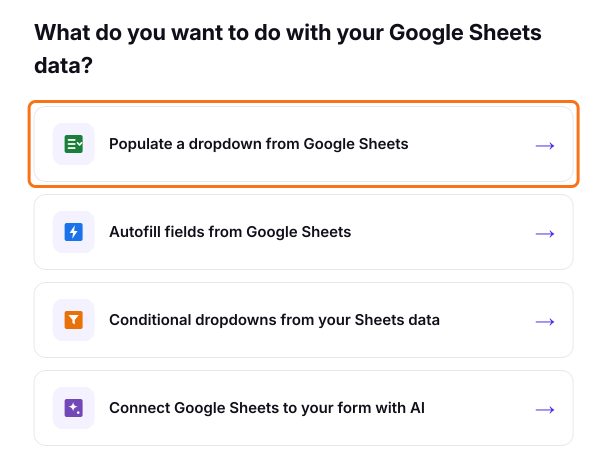
- Paste your Google Form link and click Next. Formfacade will copy your questions
- Select your sheet and click Next. If you haven't connected one yet, click Connect a Google Sheet and pick it in Google's window
- Under "How do you want to connect?", edit the instruction written for you in plain English and click Proceed. For example: populate the supplier dropdown with the names from the Supplier sheet
- Click Preview your form to try it
- Use the Formfacade share link to collect responses.
Your dropdown will show the options from your sheet and stays in sync when your list changes.
Why this approach?
- No Apps Script needed. One plain English instruction in place of a script.
- Supports large lists. Handles hundreds or thousands of options with no performance limits.
- Flexible UI. Show a standard dropdown or enable search for autocomplete on long lists.
- Your sheet is the single source of truth. Update data in one place and every connected form reflects it automatically.
- Your sheet is never modified. Formfacade mirrors your data to serve forms fast and never uses write access to your sheet.
Limitations
- Requires a subscription to Formfacade - Sheets Lookup.
- Responses are recorded in Google Forms as normal, but you must use the Formfacade link instead of the native Google Forms URL to collect responses.
Comparison
| Apps Script | Formfacade - Sheets Lookup | |
|---|---|---|
| Requires code | Yes | No |
| Stays in sync automatically | Yes (if trigger works) | Yes (every 30 mins or on each submission) |
| Works past 1,000+ choices | No | Yes |
| One sheet, multiple forms | No, Separate script per form | Yes |
| Maintenance required | Yes | No |
| Cost | Free | Requires a subscription |
Use Apps Script if your list is under 1,000 options and you are comfortable writing and maintaining scripts. Use Formfacade - Sheets Lookup if you want a reliable, no-code option, especially if your list is large, changes frequently or needs to power more than one form.
Frequently Asked Questions
What happens when I add a new row to my sheet?
With Formfacade, the form syncs automatically with no action needed. By default, it syncs every 30 minutes or when the form is submitted. With Apps Script, the update happens the next time the trigger fires, hourly or daily depending on your schedule.
Is there a limit on how many options I can have?
Google Forms has a hard cap of 1,000 options per dropdown. Apps Script cannot bypass this. Formfacade handles lists of any size and converts long lists to a search-as-you-type interface automatically.
Can one sheet power dropdowns across multiple forms?
Yes. Both the import method and the add-on support connecting the same sheet to multiple forms. With Apps Script, you need a separate script and trigger for each form.
Can I control which options appear in the dropdown?
Yes, with Formfacade. You can deduplicate options to show only unique values, sort them or filter them by a condition. For example: "Show only suppliers where the Status column says Active."
Summary
When your dropdown options live in a Google Sheet, Google Forms can't read them, so a pasted list falls behind and a script needs someone to keep it working. With Formfacade, you connect your sheet and describe the dropdown in plain English, and it follows the list as it changes. Connect your Google Sheet to your form with Formfacade. If you have any questions, write to support.
Last updated: