How to send a confirmation email to the form respondents?
"when people sign-up they don't receive a confirmation email"- Google Docs Editors Community
29 people on Google's forum have asked how to send a confirmation email when people sign up through a Google Form. When there's money involved, that email also has to say how much to pay and how. Google Forms can email people a copy of their answers, but you can't add your own words to it. A script in Google Sheets can, but it's one more thing to build and look after. With Neartail, you write the confirmation email once, in a wizard with no code. Each person gets their answers, the amount and how to pay you as soon as they submit.
Let's start. Create your form and follow the steps below.
Set up the confirmation email
- On the page that opens, click Enter your form name, type a name and click Generate.
- Check the outline it suggests and click Proceed. Your form opens on the Edit tab.
- If it asks "Do you want to collect payment on form submit?", click No.
- Click Orders.

- Click Kanban board.

- Click the ⋮ icon next to the Submitted status and click Notify respondent.
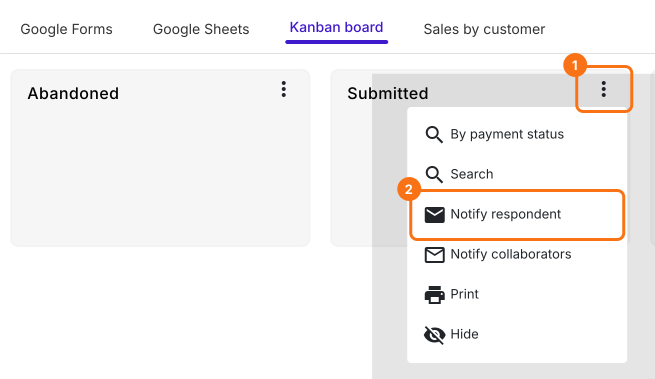
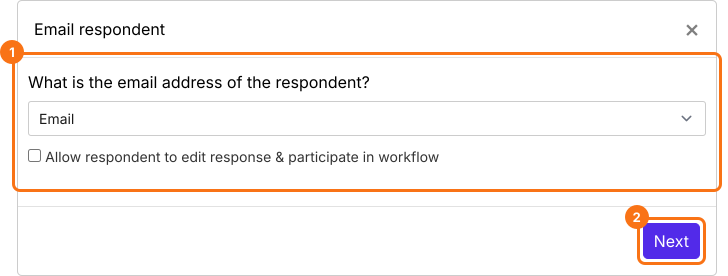
- Under What is the email address of the respondent?, pick the email question from the list and click Next.
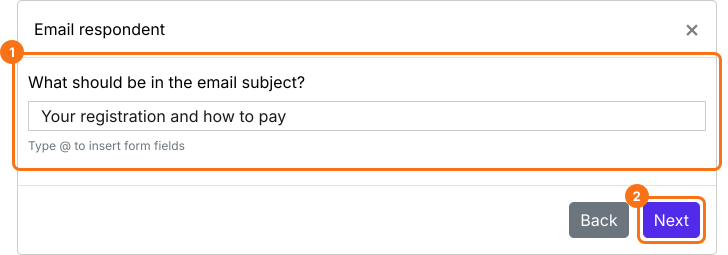
- Type a subject. You can add answers such as their name, order id or amount to it. Click Next.
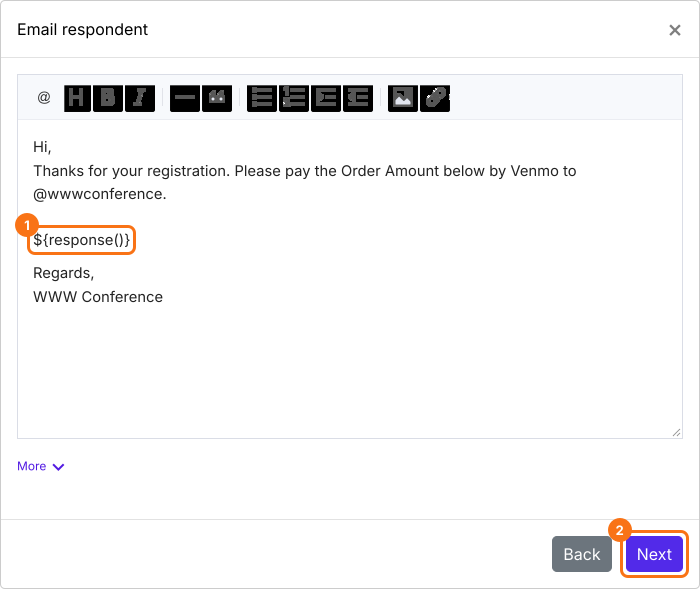
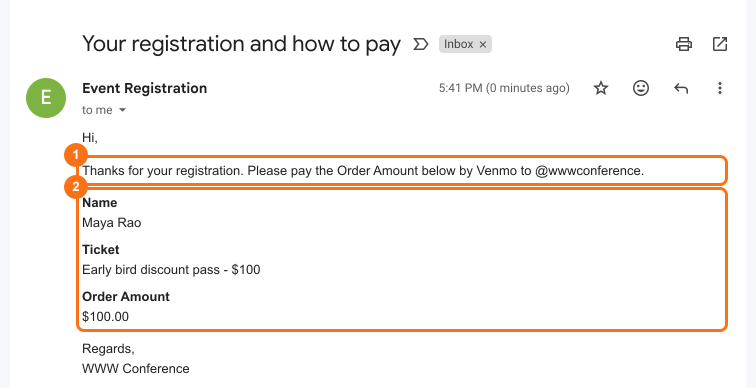
- The message starts with all their answers. Add how to pay you, and keep ${response()}, because it adds their answers and their Order Amount. Click Next.
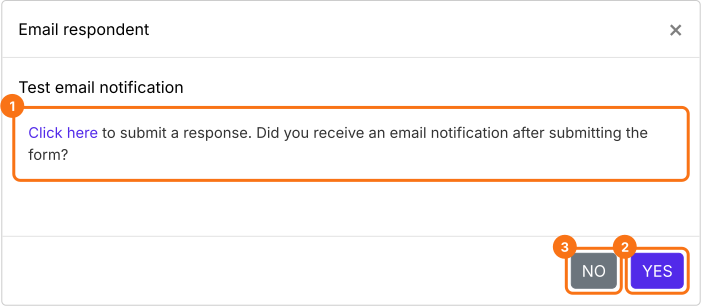
- Click "Click here" and submit a test response with your own email address. If the email reaches you, click YES. If not, click NO.
Each person gets your email with the amount and how to pay as soon as they submit the form.
Summary
When people register on your form, Google's copy of their answers can't tell them how much to pay or how, and a script is one more thing to look after. With Neartail, you write your own confirmation email once and each person gets it as soon as they submit. Create your form and complete the steps above.
Last updated: