How to view and manage responses?
"Is there a way to mark a form as Approved/Declined after it has been submitted?"- Google Docs Editors Community
Orders and registrations that arrive through a form each have to move from received to done. Google Forms only lists the responses; it has no way to mark one as served or approved. So you copy them to a spreadsheet and keep a status column by hand. With Neartail, every order sits on a Kanban board and moves to the next status when you drag it. You can add as many statuses as you need, so the board follows the way you work.
Let's start. Create your form and follow the steps below.
Submit a test order
- On the page that opens, click Enter your form name, type a name and click Generate.
- Check the outline it suggests and click Proceed. Your form opens on the Edit tab.
- If it asks "Do you want to collect payment on form submit?", click No.
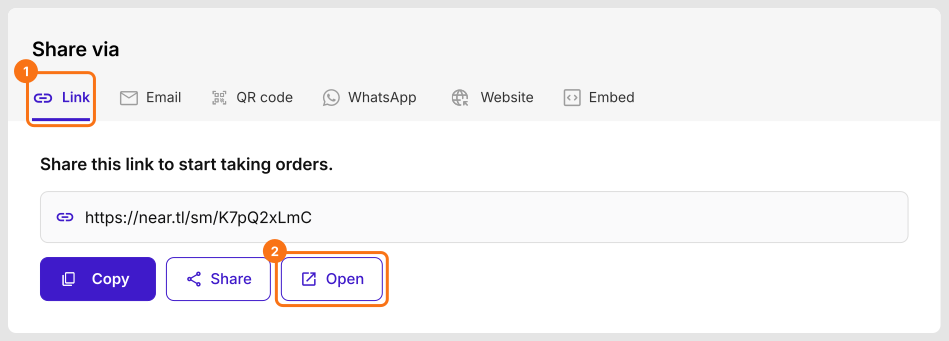
- A new form has no orders, so submit one first. Click Share.

- Click Link, then Open.
- Select a product, fill in the details and click Submit.
View orders
- Click Orders.

- Click Kanban board.

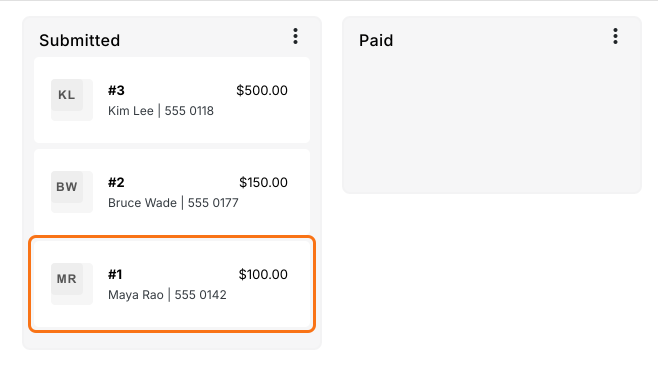
The board starts with four statuses, and a fifth, Paid, once you turn on payments. You can't rename, delete or reorder these.
- Abandoned: someone started the form but didn't submit it. You can't delete or submit these drafts.
- Submitted: the order is in. You can move it to Completed, Trash or a status of your own.
- Paid: the payment is verified. This column shows once you turn on payments.
- Completed: move an order here once you've done it.
- Trash: move orders you don't need here. They are left out of the Reports.
- Click an order to see its details.
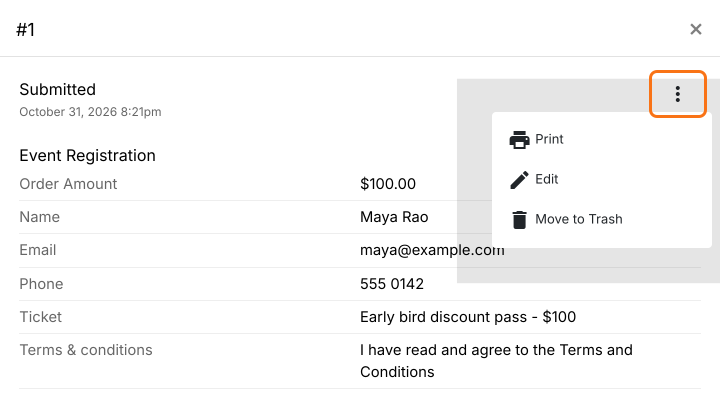
In the order's details, click the ⋮ icon to edit or print it.
Add a status
- Click + Status at the bottom right of the board.
- Type the new status and click Save.
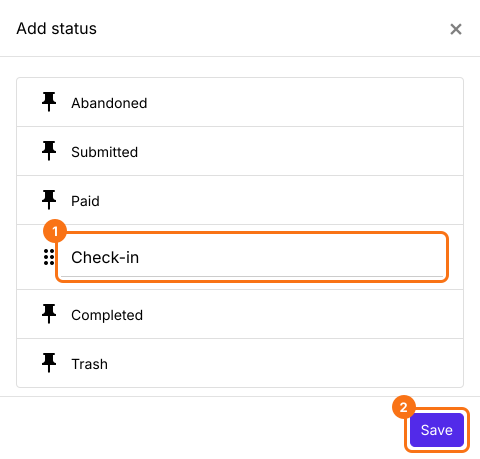
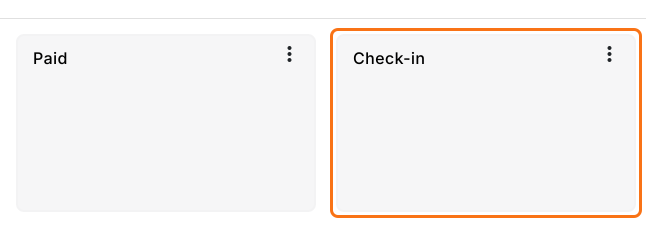
The new status is a column on the board. Add as many as you need.
Move orders
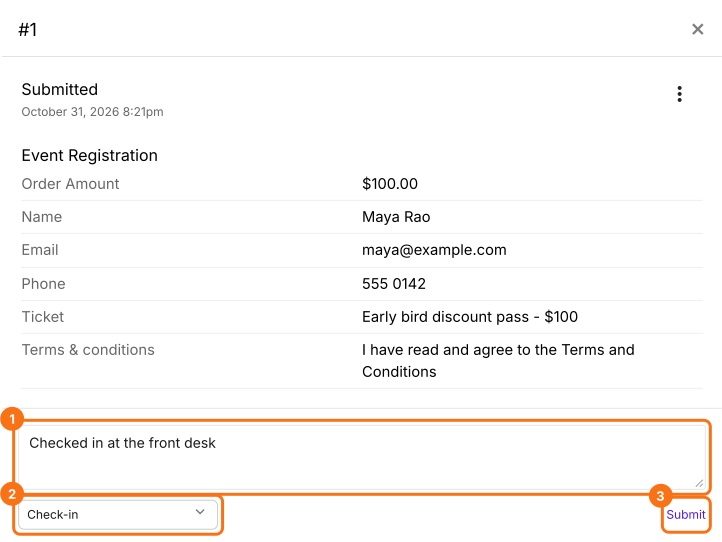
Click an order, add a comment if you want, pick a status under Move to and click Submit.
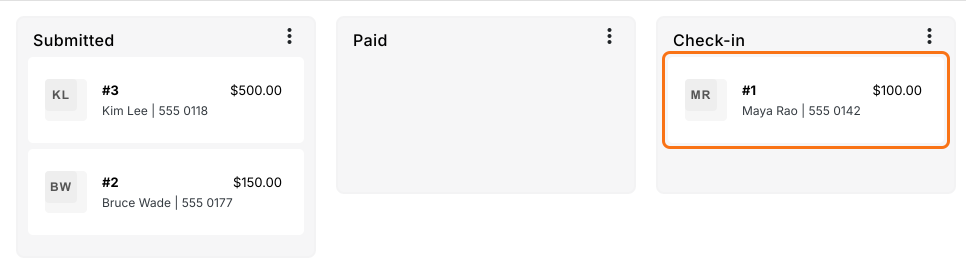
Or drag the order to another column.
Summary
Google Forms only lists responses, so tracking what's done means a status column kept by hand. With Neartail, each order sits on a Kanban board under its status, you add your own statuses and you move an order by changing its status or dragging it. Create your form and complete the steps above. If you have any questions, write to support.
Last updated: