How to connect two Google Forms: Step-by-Step guide
"the second form builds upon the data already filled in first form"- Google Docs Editors Community
Your field team fills in one form, and the next day another team picks up each job in a second form that should start from what the first recorded. Or a registration form has to lead to a payment form. Google Forms ends with a plain confirmation message. You can paste the second form's link there or use sections instead, but a link leaves people to find it and type their name and email again. With Formfacade, you can send people to the second form when they submit and prefill it with their answers from the first.
Below are four ways to connect two Google Forms, and where each one falls short.
- The simplest approach: add the link in the confirmation message
- The native solution: use sections instead of a second form
- Redirect to the second form with Formfacade
- Prefill the second form with the answers from the first
1. The Simplest Approach: Add the link in the confirmation message
The simplest way to connect forms is to paste the second form's URL directly into the confirmation message of the first form. After submission, users see the text and can click the link to continue to the next form.
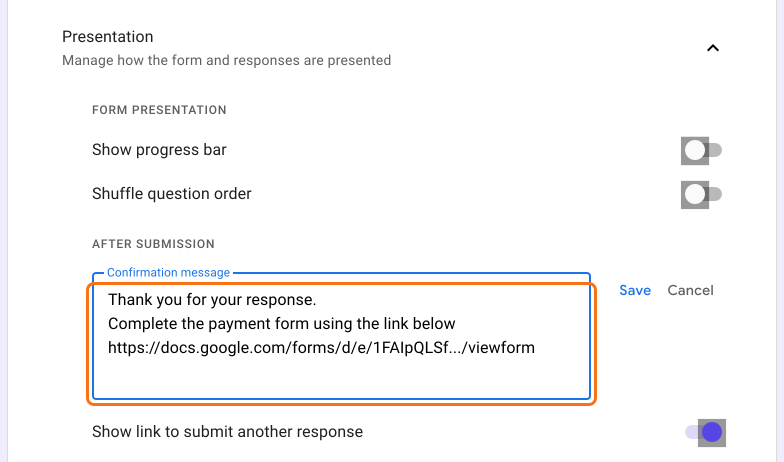
How it works: Users click a link displayed immediately after they hit "Submit" on the first form.
Cons: Limited customization. You can't give the link a proper name or style it, which can look unprofessional.
2. The Native Solution: Use sections instead of a second form
Before creating another form, see if you can manage it all within one. Google Forms offers two built-in ways to control flow between sections:
- Go to section based on answer: Route users to specific sections depending on their responses.
- Set section flow: At the bottom of each section, use the dropdown ("Continue to next section") to direct users to another section or submit the form after that section.
In some cases, this means you don't actually need a second Google Form
Cons: Managing too many sections can become complicated as the form expands.
3. Redirect to the second form with Formfacade
Google Forms can't send people to another page after they submit, or change much on its thank-you page. Formfacade can.
With Formfacade, you can:
- Send people to another Google Form (or any other webpage) when they submit.
- Add a link on the thank-you page, with your own text, colours and layout, so the next form looks like part of the same flow.
- Click Create your form, name your form, click Create form and click Proceed.
- In the Prefill & email dialog, click No.
- At the end of the form, click the gear icon on the last "After page" row, above the Submit button. It says "After page 1" on a form with one page.
- Click On submit, select Redirect to a webpage, enter the link of your second form and click Save.
- Click the Share tab and share this form's link. The redirect works through this link, not through the Google Forms link.
4. Prefill the second form with the answers from the first
Imagine your first and second forms both collect the same details: Name, Email, Phone Number and Address. Asking users to fill them out again feels unnecessary and slows things down. Formfacade can carry them over.
Use ${LINKFORM('PASTE-SECOND-FORMFACADE-LINK')} in the message shown after submit to connect your second form and automatically prefill it with data from the first form.
- At the end of the form, click the gear icon on the last "After page" row, above the Submit button. It says "After page 1" on a form with one page. Click On submit and select Show customized message for this button.
- Type the formula in the message, with the link from the Share tab of your second form, and click Save.
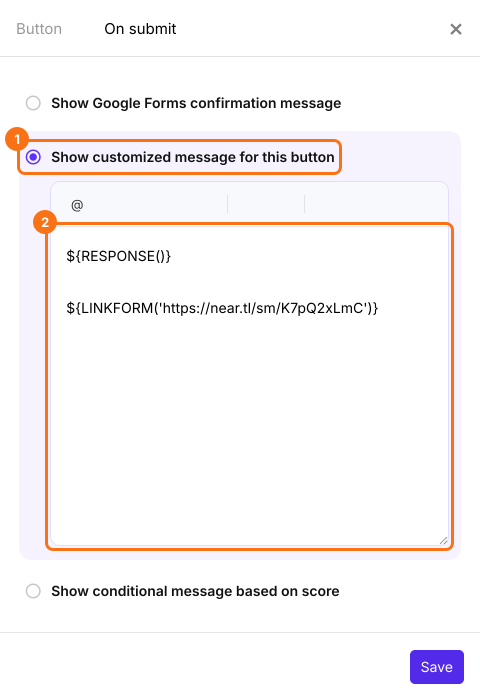
There are two ways to prefill:
- Set up the mapping in both forms for common fields like Name, Email, Phone Number, Address and Signature, so they are prefilled.
- For other fields, keep the same field names in both forms. They are prefilled in the second form.
After submit, users see the link as a long address. When they open it, the second form opens with the same-named questions filled in.
People go on to the second form without typing their details again.
Summary
When people have to fill in a second form after the first, Google Forms leaves them to find it and type their details again. With Formfacade, you send them to the second form when they submit and prefill it with their answers from the first. Create your form and connect it to your second form. If you have any questions, write to support.
Last updated: