How to send bulk emails with personalized google forms prefill link?
"Using links to pre-filled forms within the mail merge add-on"- Google Docs Editors Community
This is a common question, and 45 people on Google's forum have asked it. Your list is in Google Sheets, and each person should get an email with a link to the form already filled in with their details. Google Forms makes one prefilled link at a time and can't email it. A mail merge add-on can send the emails, but you still build each link with a formula. With Formfacade, you add your list as contacts, tick the people and send. Each person gets an email with their name in it and their own prefilled link.
Below are three ways to email each person their own prefilled link, and where each one falls short.
3 ways to email a prefilled link to each person
1. Google's Pre-fill form and your own email
Make a prefilled link for each person in Google Forms and paste it into an email to them.
Where it falls short: One link and one email per person, by hand.
2. A formula and a mail merge add-on
Build each person's link in a column of your Sheet with a formula, then send the emails with a mail merge add-on that reads that column.
Where it falls short: Someone has to write the formula, and the values are in each link. On Google's forum, people report the links come out too long or break on dates and on characters such as &.
3. Formfacade: your contacts and one email
You add the list once, tick the people and send. Each person gets their own prefilled link.
How to add your customers?
- Click Create your form, name your form, click Create form and click Proceed.
- If the Prefill & email dialog asks "Do you want to prefill this form and send them as email to your contacts?", click No.
- Click the Share tab

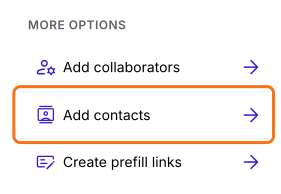
- Under More options, click Add contacts
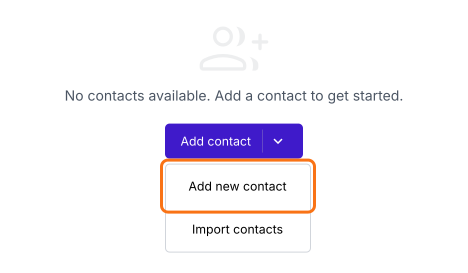
- Click Add contact, then Add new contact
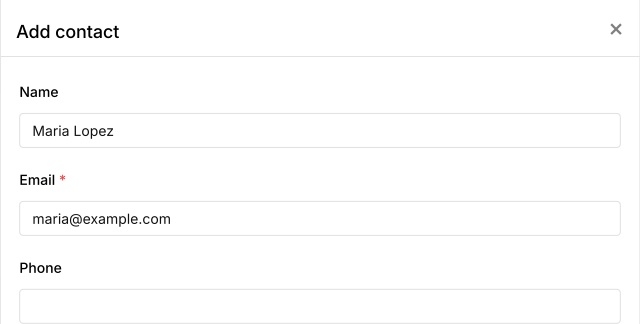
- Enter the name and email of the customer and click Save
- Do this for each customer
How to import your list from Google Sheets?
- On the Contacts page, click Add contact, then Import contacts
- Click "this google sheet" in the popup to open your contacts sheet
- Enter the email, name and phone of each customer
- The first time, click Extensions > Add-ons > Get add-ons, search for "Formfacade - Prefill & email" and click Install
- Click Extensions > Formfacade - Prefill & email > Import contacts
- Click Sync now in the panel on the right
How to send bulk emails with prefilled links?
- On the Contacts page, tick the customers you want, or tick the top box to select all
- Click Compose
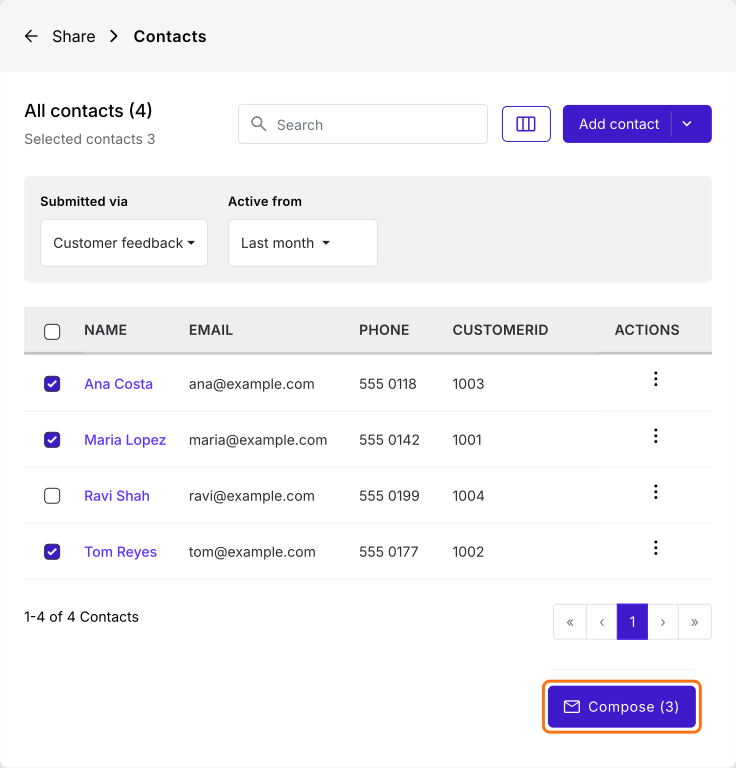
- Check the message and click Send email
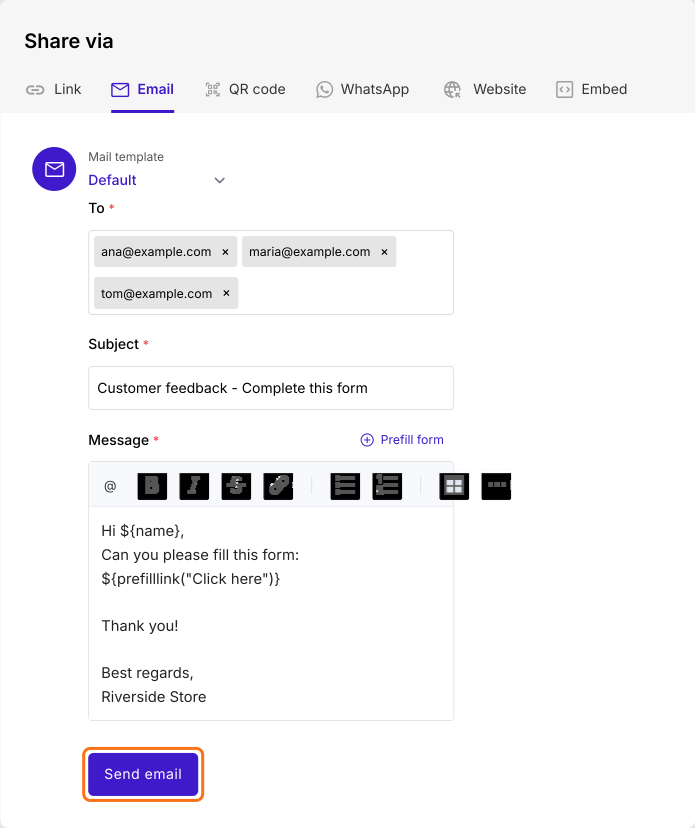
Each customer gets the email with their name in it and their own link. When they click on it, the form opens with their name and email already filled in.
Summary
When everyone on a list needs their own prefilled link, Google Forms leaves you to build each link and send each email. With Formfacade, you add the list as contacts, select them and send each person an email with their own prefilled link. Create your form and complete the steps above. If you have any questions, write to support.
Last updated: