How to add your logo to Google Forms?
"high quality .jpg image at 800 x 200 px, but it still comes out pixellated"- Google Docs Editors Community
A logo in Google Forms has to go in the header image, and Google crops and scales that image to fit its own banner. You make a sharp .jpg at 800 x 200 and it still comes out pixellated and cut off: 1,535 people on Google's forum have reported the same problem. With Formfacade, you add your logo as it is. It shows sharp at the top of your form with your business name beside it, and the responses are still collected in your Google Form.
Create your form and follow the steps below.
1. Open the Preview tab
On the page that opens, name your form, click Build form and click Proceed. Your form opens on the Preview tab.

2. Add your logo and business name
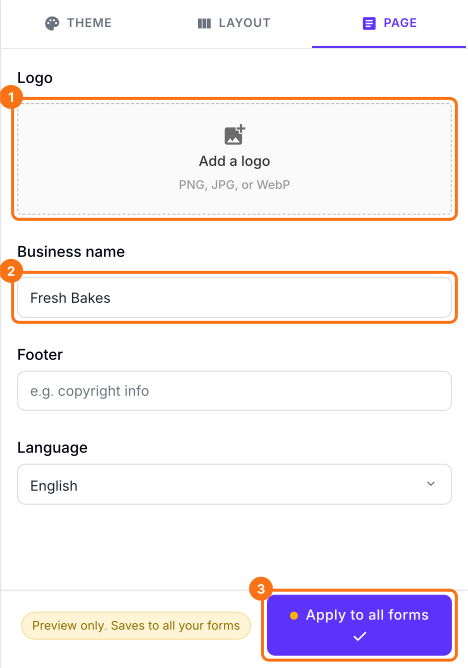
Click PAGE, then Add a logo and choose your logo as it is, with no need to make it 800 x 200. Type your name under Business name and click Apply to all forms, which puts this logo and name on every live form on your account, not only this one.
3. See your logo on your form
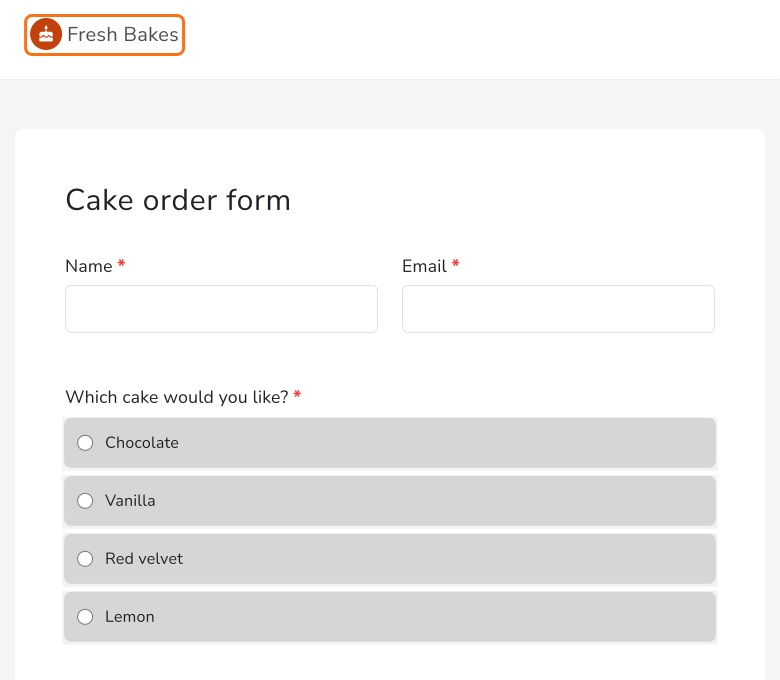
Open SHARE and click Open. Your logo keeps its shape at the top of your form, beside your business name.
Summary
A logo in Google's header image is cropped and scaled to fit Google's banner, so it comes out pixellated or cut off. With Formfacade, you add your logo and business name as they are and they show sharp at the top of your form. Create your form and complete the steps above.
Last updated: