Time & Duration
"I can see the AM/PM option, but some of my colleagues don't"- Google Docs Editors Community
For a survey on sleep or a log of how long a task takes, you need times you can compare. A short answer box gets you 10pm, 22:00 and ten at night. The time question in Google Forms fixes the format, but there is no 24 hour setting, and one person on Google's forum found the AM/PM choice showed for them and not for their colleagues. In Formfacade you add a time question for a clock time, switch it to Duration for hours, minutes and seconds, or use a short answer with the regular expression below to accept only 24 hour time.
Create your form and follow the steps below.
How to add a time question?
- Click on Create your form, name your form, click Build form and click Proceed.
- Click on the "Edit" tab

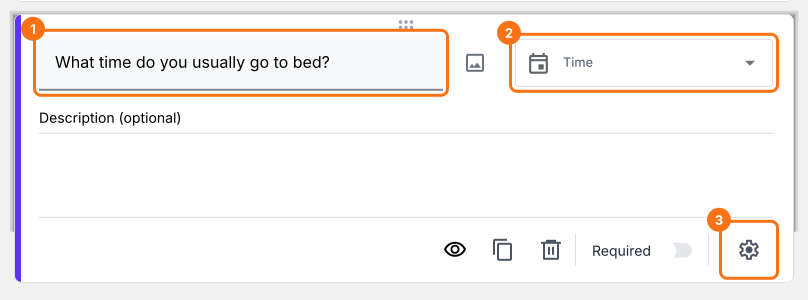
You can use the time question to capture time in 12hr AM/PM format by following the steps below.
- Click on the + icon (Add field) in the toolbar on the right and enter your question
- Select Time in the question type list
- Enable the Required toggle button to make this a mandatory question
What your users see
Time question allows users to enter the time in 12 hr am/pm format. You can also let users enter duration [of an activity] in hours, minutes and seconds.
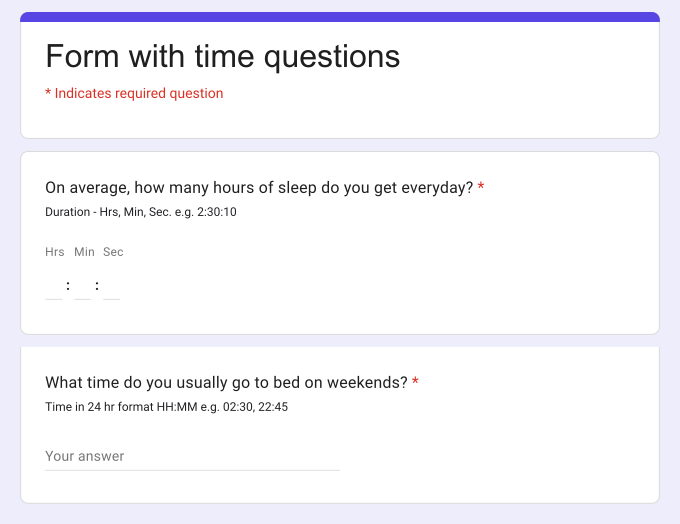
For example, if you want to conduct a survey to determine the sleep habits, you can ask users about their sleeping schedule using time questions. What time do they usually go to bed? What time do they wake up? How much time after they go to bed do they actually sleep?
How to add a time question to capture duration?
You can use the time question to capture duration by following the steps below.
- Click on the + icon (Add field) in the toolbar on the right
- Select Time in the question type list
- This option is only in Google Forms. Click on the form's title, click on the ⚙️ icon, select the "Advanced" tab and click Launch next to "Edit this form with Google Forms"
- In Google Forms, click on the ⋮ icon on the question and select Duration
- Enable the Required toggle button to make this a mandatory question
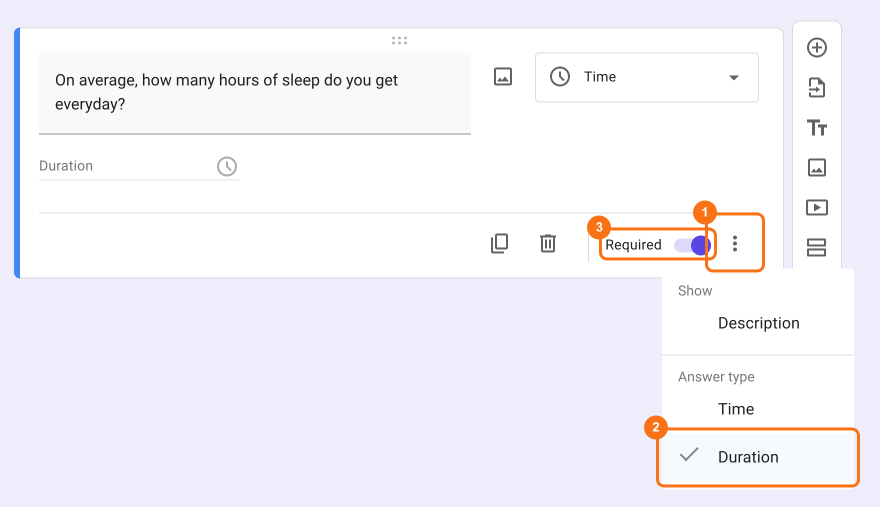
- Reload the form's "Edit" tab in Formfacade, so that your form picks up the change.
How can I change the time format to 24 hr (HH:MM) military time?
Google Forms time question offers limited customization. You can either accept time in 12 hr am/pm format or duration in hours, minutes and seconds. However, you can use the short answer question with regular expression validation to accept time in 24 hr HH:MM military time format.
- Click on the + icon (Add field) in the toolbar on the right
- Leave the question type as Short answer
- Enable the Required toggle button to make this a mandatory question
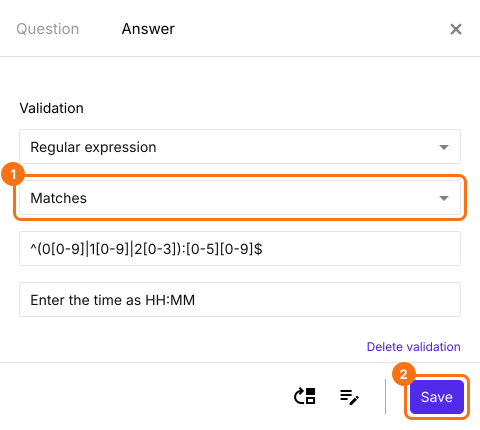
- Click on the ⚙️ icon at the bottom right of the question, select the "Answer" tab and click Configure under Validation
- Select Regular expression, select Matches and enter the pattern ^(0[0-9]|1[0-9]|2[0-3]):[0-5][0-9]$ as shown below
- Click Save
Summary
If you need a time or a duration from your users, a short answer question will give you answers in many formats. With the time question in Formfacade, users enter the time in 12 hr am/pm format or a duration in hours, minutes and seconds and you can use regular expression validation for 24 hr time. Create your form and complete the steps above.
Last updated: