Can I change the language for the button text in Formfacade?
"is there a way to 'enforce' that the button always appears in English?"- Google Docs Editors Community
Google Forms picks the language of its buttons for each respondent, from their own settings. A survey written in English can show Submit in French to one person and in Spanish to the next, and 357 people on Google's forum have asked how to fix the button's language. Google Forms has no setting to choose it for your form. Formfacade supports major international languages, and you choose one for each form, so Next, Back and Submit are in the language your form is written in.
Create your form and follow the steps below.
How to change the language of the buttons?
- On the page that opens, name your form, click Build form and click Proceed. It can take about a minute.
- You will land on the form's "Preview" tab.
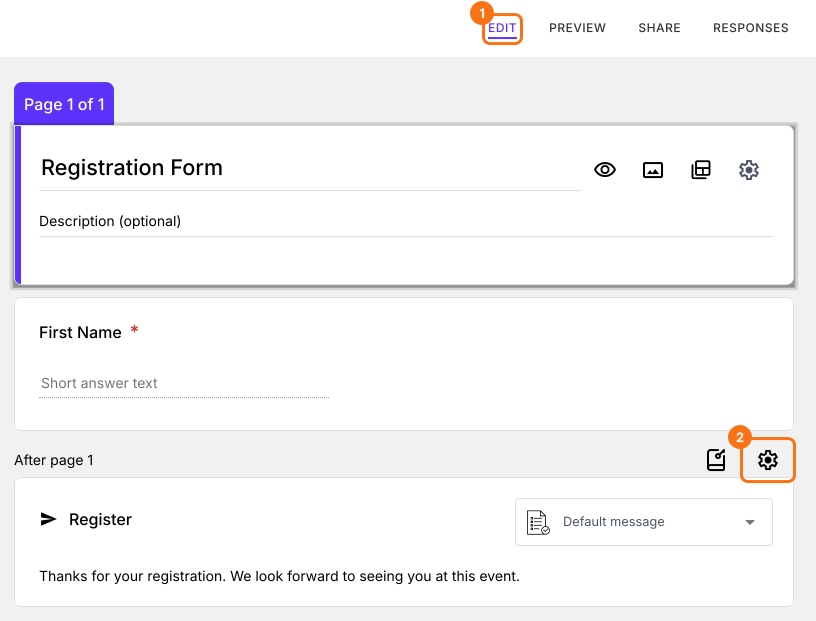
- Click on "Edit" tab

- Scroll down to the end of the form and click on the gear icon on the last "After page" row. It says "After page 1" on a form with one page.
- Select the required "Language" from the dropdown. It applies to this form only.
- Click on the "Save" button.
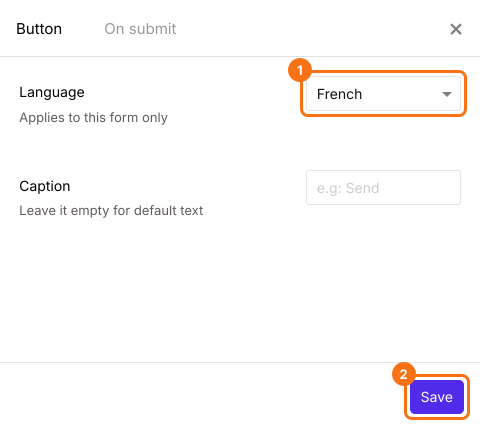
The buttons on your form will now be in that language. For example, with French, Next becomes SUIVANT, Back becomes RETOUR and Submit becomes ENVOYER.
There is another Language list under the PAGE tab in Preview. That one has the "Apply to all forms" button, so it applies to all your forms.
Summary
Google Forms shows its buttons in each respondent's own language, and you can't choose it for your form. With Formfacade, you select the Language in your form's button settings and everyone sees the buttons in that language. Create your form and complete the steps above.
Last updated: