How to calculate the days between two dates?
Leave requests, bookings and rentals all need the number of days between two dates. When people count the days themselves they count them differently or get them wrong, and Google Forms only records the two dates, so you work it out later in a sheet. With Formfacade, you subtract the start date from the end date in the Calculate option, and your users see the number of days as soon as they enter both dates. The number reaches Google Sheets with the response, with no formula to write there.
Create your form and follow the steps below. The example is a leave request form with a Leave From and a Leave Till date.
How to calculate the number of days?
- On the page that opens, name your form, click Build form and click Proceed.
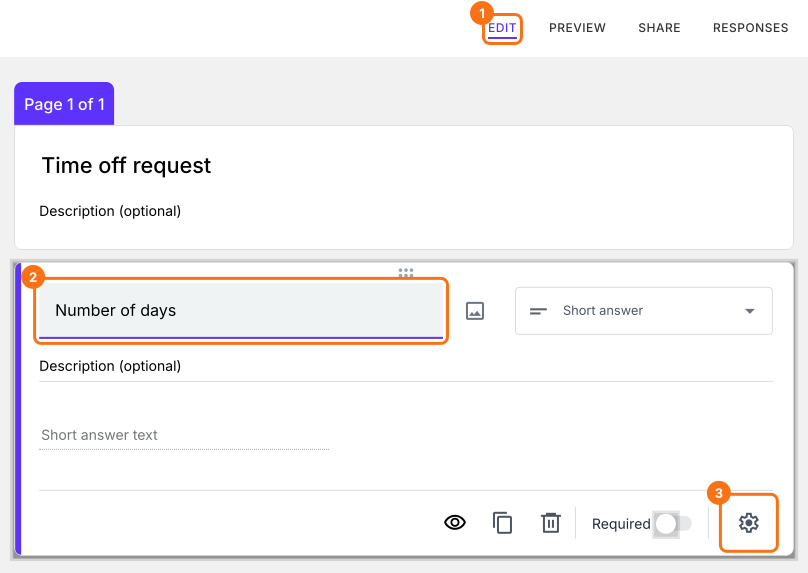
- Click on the "Edit" tab.

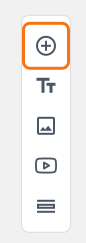
- Click on the + icon (Add field) in the toolbar on the right.
- Enter "Leave From" as the question and select Date in the question type list
- Click on the + icon again
- Enter "Leave Till" as the question and select Date in the question type list
- Click on the + icon again
- Enter "Number of days" as the question. It is already a Short answer.
Click on the ⚙️ icon at the bottom right of the Number of days question.
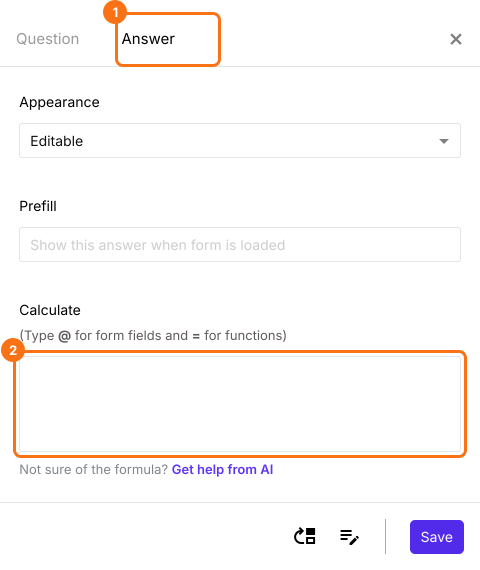
Select the "Answer" tab.
Number of days between two dates
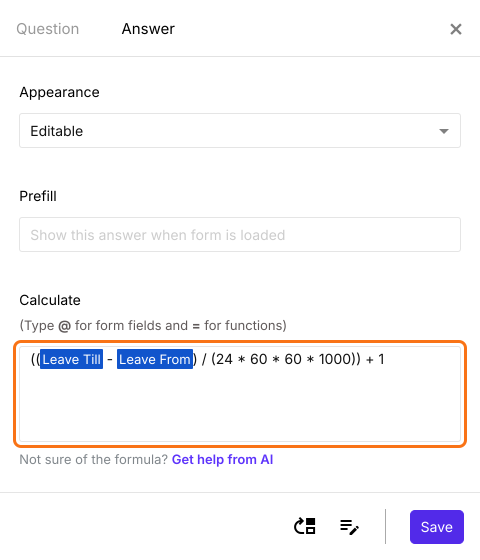
When you subtract the start date from the end date, the result will be in milliseconds. You can divide the answer by 24 * 60 * 60 * 1000 to convert it into number of days. Please note that you must add 1 to the results to include the start date.
((Leave Till - Leave From) / (24 * 60 * 60 * 1000)) + 1
- Divide by 1000 to convert into seconds
- Divide by (60 * 1000) to convert into minutes
- Divide by (60 * 60 * 1000) to convert into hours
- Divide by (24 * 60 * 60 * 1000) to convert into days
Write the formula in the Calculate option as shown below. Click Save.
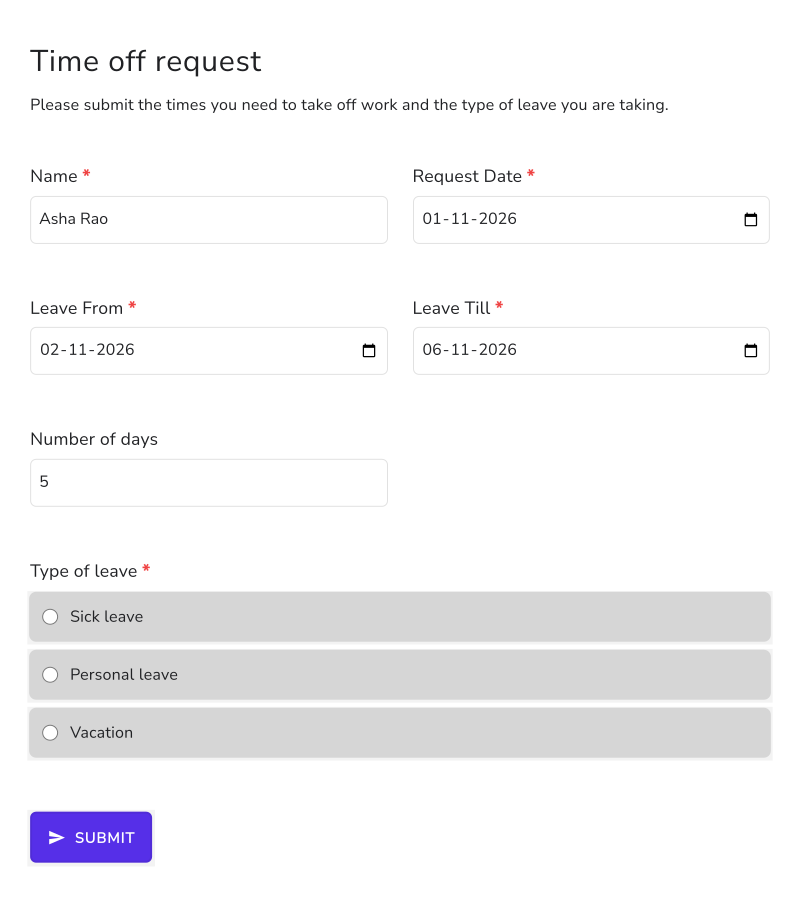
Once both dates are entered, the form shows the number of days. For example, 2 November to 6 November gives 5.
Summary
If you need the number of days between two dates, Google Forms cannot calculate it. With Formfacade, you can subtract the start date from the end date in the Calculate option and the number of days will be displayed as soon as the user enters the dates. Create your form and complete the steps above. If you have any questions, write to support.
Last updated: