How to calculate the number of days left in a month?
Part-month charges, rent and subscriptions often depend on how many days are left in the month. That number changes every day and depends on the month, and Google Forms has no way to work it out, so you count it by hand. With Formfacade, you calculate the days in this month with the DATE function and subtract today's day of the month, and your users see the days remaining. The form works it out again each day, so you never have to update it.
Create your form and follow the steps below.
How to calculate the number of days in this month?
- On the page that opens, name your form, click Build form and click Proceed.
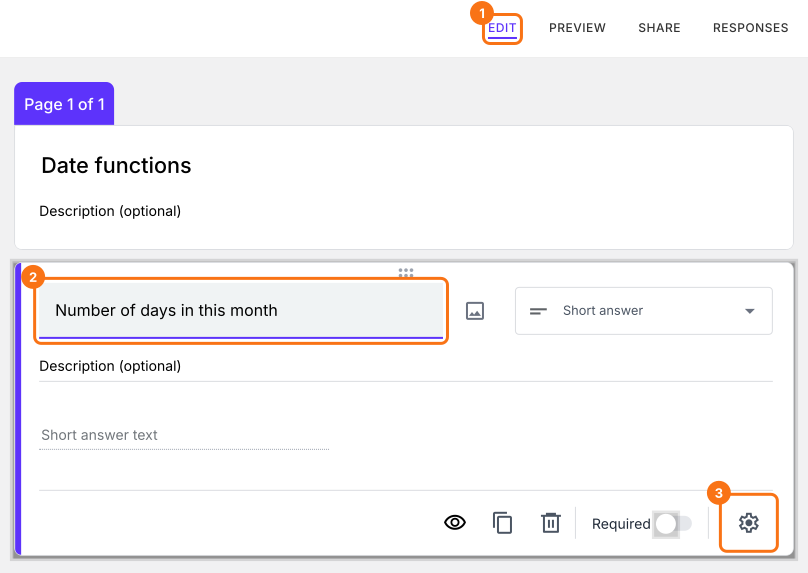
- Click on the "Edit" tab.

- Click on the + icon (Add field) in the toolbar on the right.
- Enter "Number of days in this month" as the question. It is already a Short answer.
Click on the ⚙️ icon at the bottom right of the question.
Select the "Answer" tab.
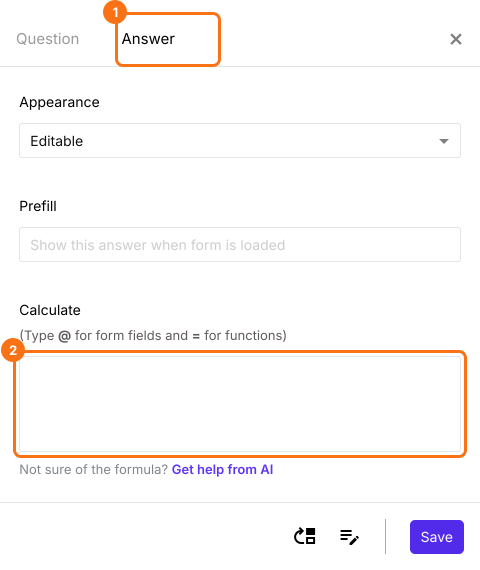
Use DATE function to calculate the days in this month
The first step is to calculate the last date of this month. We can pass the year, month and day to the date function.
TODAY().year() will return the current year
TODAY().month() will return the current month
DATE(TODAY().year(), TODAY().month()+1, 1) will return the first day of next month.
We can then use the SUBTRACT function to find the last day of this month.
DATE(TODAY().year(), TODAY().month()+1, 1).subtract(1,"days")
There is another way to calculate the last day of this month without using the SUBTRACT function.
DATE(TODAY().year(), TODAY().month()+1, 0) will return the last day of this month.
We can use the getDate() or date() function to find the day of the month for a specified date.
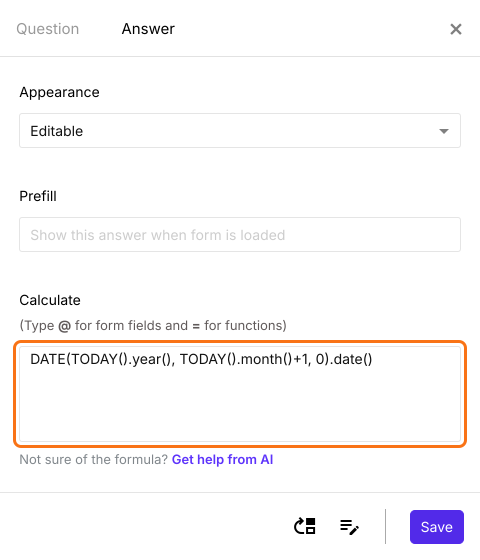
DATE(TODAY().year(), TODAY().month()+1, 0).date() will return the last day of the month.
Write the above formula in the Calculate option as shown below. Click Save.
How to calculate the number of days remaining in this month?
- Click on the + icon (Add field) in the toolbar on the right.
- Enter "Number of days remaining in this month" as the question. It is already a Short answer.
Click on the ⚙️ icon at the bottom right of the question.
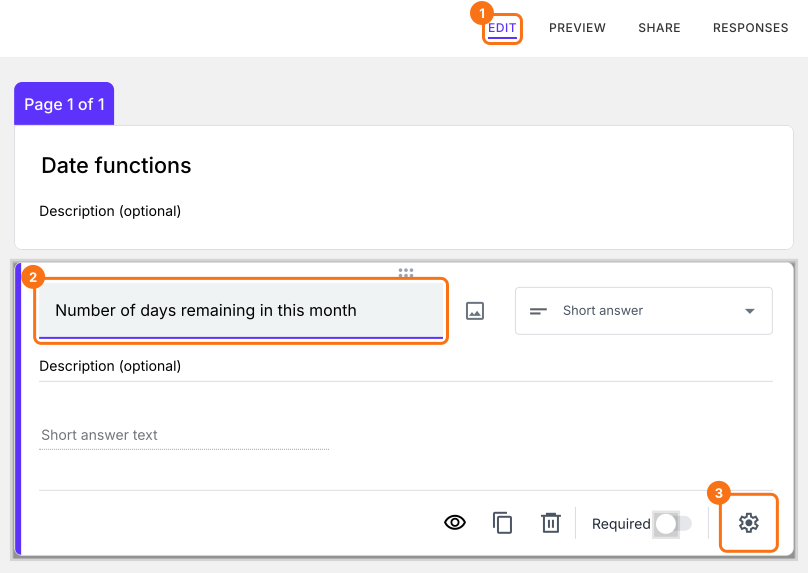
Select the "Answer" tab.
Use DATE function to find the day of this month
We can use the getDate() or date() function to find the day of the month for a specified date. TODAY().date() will return the current day. To calculate the remaining days in the month, we can use the below formula.
DATE(TODAY().year(), TODAY().month()+1, 0).date() - TODAY().date()
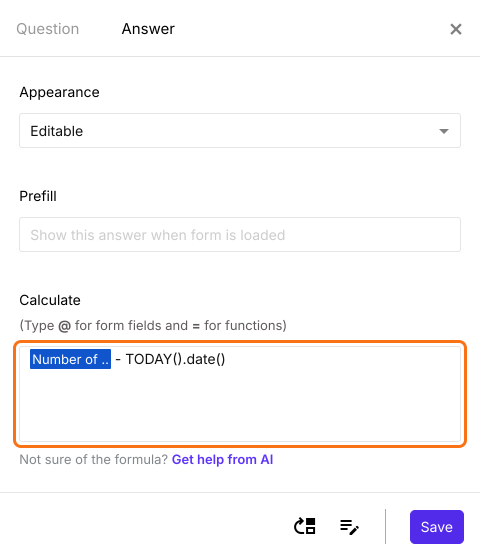
Since we have already calculated the number of days in this month as an answer for a question in the form, we can refer that instead of writing the formula again.
days_in_this_month - TODAY().date()
Note: To enter days_in_this_month, type @ in the calculate option and select the number of days in this month question from the list.
Write the above formula in the Calculate option as shown below. Click Save.
The form now shows the days in this month and the days remaining.
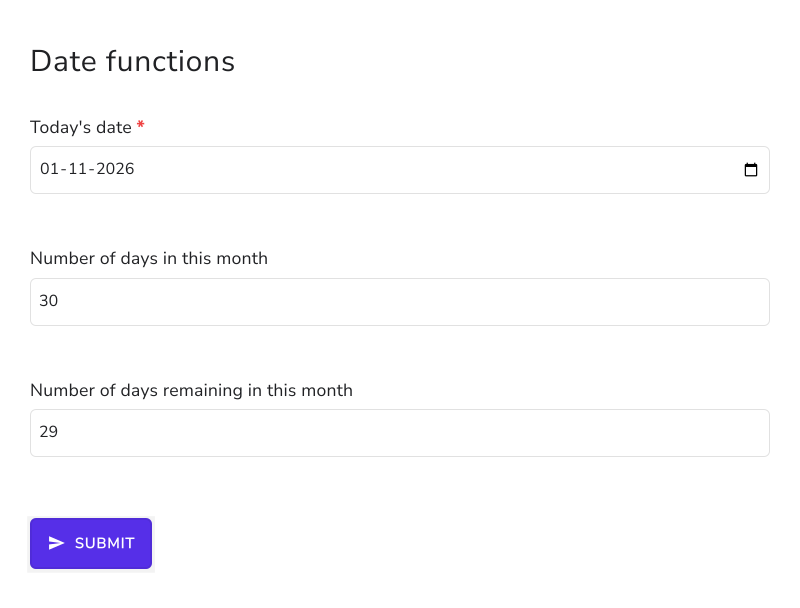
Summary
If you need the days left in a month, Google Forms cannot calculate them. With Formfacade, you can write the DATE and TODAY formula in the Calculate option and the form will show the days in the month and the days remaining. Create your form and complete the steps above. If you have any questions, write to support.
Last updated: