How to calculate the end date based on the start date and term duration selected by the user?
"Set date question that defaults to 1 year from date of submission"- Google Docs Editors Community
When people sign up for a membership or a subscription in Google Forms, they want to know when it ends as soon as they pick a start date and a term. Google Forms has no calculated field, so the form can't tell them. You can work it out later in the linked Google Sheet, but by then they have submitted, and you send each end date yourself. With Formfacade, a Calculate formula with the ADD function adds the term to the start date, and the end date appears in the form the moment they choose. It is saved with the response, so you can sort your renewals by end date in Google Sheets.
Below are three ways to get an end date from a start date and a term, and where each one falls short.
Let's take the example of a subscription form. The users select the start date and their preferred subscription term and the form should automatically display the end date based on this selection. We will use the ADD function to dynamically add the months from the subscription question to the start date entered by the user and calculate the end date.
3 ways to get the end date
1. Ask for the end date in a second date question
Add another Date question and ask people to enter the date their subscription ends.
Where it falls short: people count the months differently, so you have to check every answer.
2. Calculate it in the linked Google Sheet
Link the form to a Google Sheet and add a column next to the responses with =EDATE(start date, number of months).
Where it falls short: the end date exists only after the form is submitted. The person filling in the form never sees it, and you have to send it to them.
3. Show the end date in the form with Formfacade
- Click on Create your form, name your form, click Build form and click Proceed.
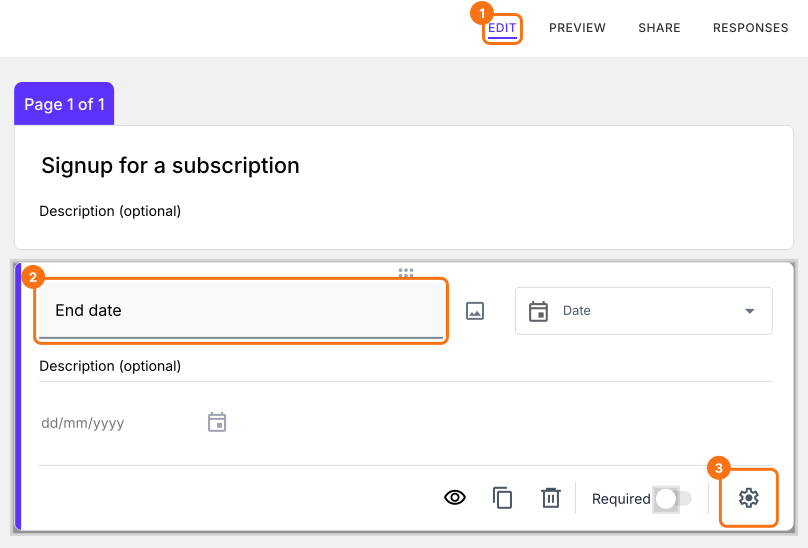
- Click on the "Edit" tab

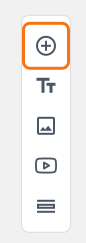
- Click on the + icon (Add field) in the toolbar on the right.
- Enter "Start date" as the question and select Date in the question type list
- Click on the + icon again
- Enter "Choose the number of months (subscription)" as the question and select Dropdown in the question type list
- Type 3 in the first box, then click Add option and type 6. Click Add option again and type 12.
- Click on the + icon again
- Enter "End date" as the question and select Date in the question type list
Click on the End date question, then click on the ⚙️ icon.
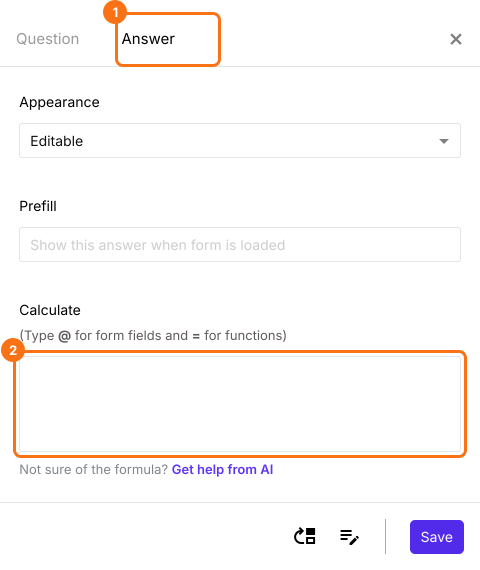
Select the "Answer" tab and write the formula to add subscription chosen to the start date.
Number answer choices in the subscription question
The subscription is a dropdown question with three number answer choices: 3, 6 and 12. We can use this directly to add the months to the start date and calculate the end date.
You can add months to a date by specifying "months" as the term in the ADD function.
Syntax:
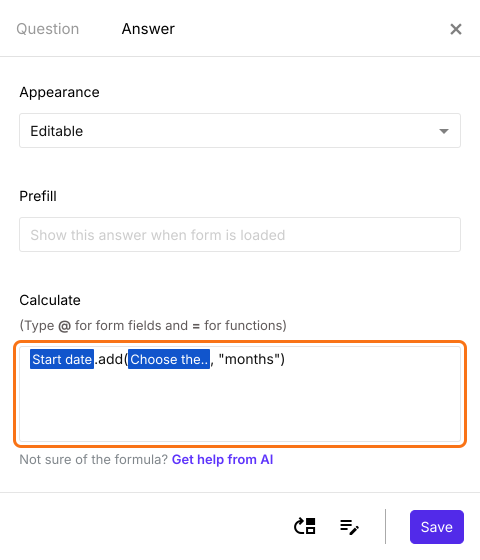
start_date.add(number_of_months, "months")
Note: To enter start_date and number_of_months, type @ in the calculate option and select the start date and subscription question from the list.
Write the formula in the Calculate option for end date question as shown below. Click Save.
Text answer choices in the subscription question
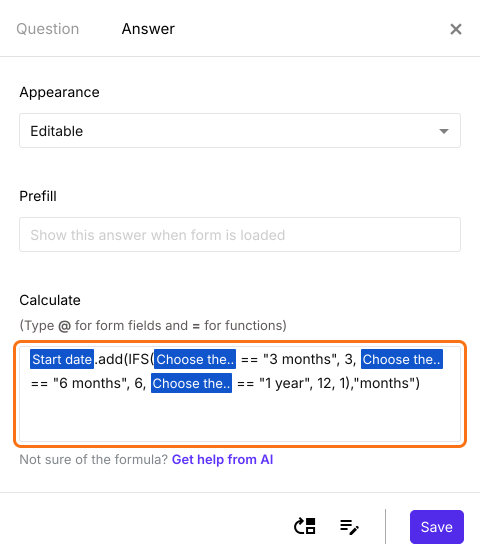
If you want to use text answer choices such as 3 months, 6 months and 1 year for the subscription dropdown question, you will have to use the IFS function to assign the numerical values for each of the text answer choices. For example:
start_date.add(IFS(subscription == "3 months", 3, subscription == "6 months", 6, subscription == "1 year", 12, 1),"months")
Note: To enter start_date and subscription, type @ in the calculate option and select the start date and subscription question from the list.
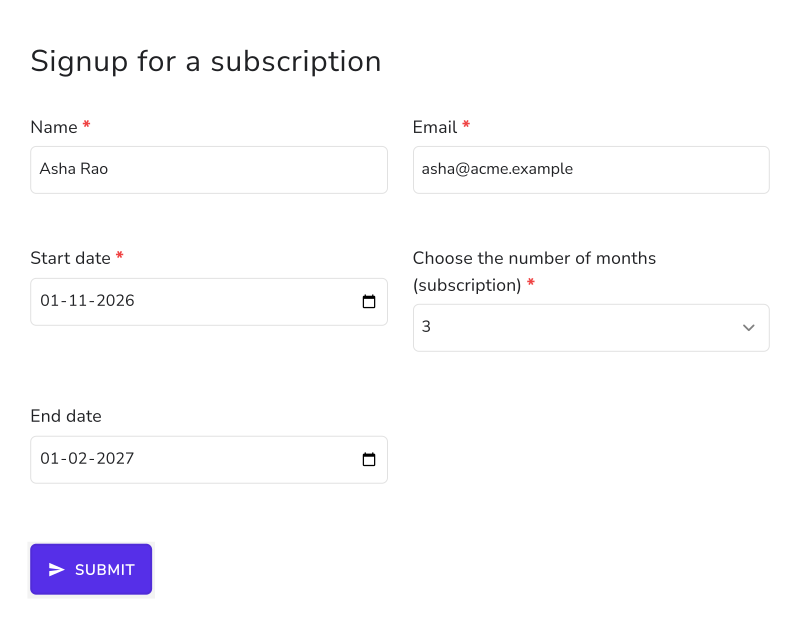
You can use ADD and IFS function to dynamically calculate the end date as shown below.
As soon as the user selects the start date and the subscription, the form shows the end date.
Summary
When people choose a start date and a term, Google Forms can't show them the end date, and a formula in Google Sheets works it out only after they submit. With Formfacade, you write an ADD formula in a field's Calculate option and the form shows the end date as soon as they make their choice. Create your form and complete the steps above. If you have any questions, write to support.
Last updated: