Multiple choice
When you need one answer from each person, a short answer box gives you spellings and answers you didn't expect, and you end up sorting them by hand. A multiple choice question lets people pick one of your choices with a click. In Formfacade you add it from the Edit tab, add an Other option when your list may not cover everyone, and use Go to page to send people to the page that fits their answer, so they skip questions that don't apply.
Create your form and follow the steps below.
How to create a multiple choice question?
- Click on Create your form, name your form, click Build form and click Proceed.
- Click on the "Edit" tab

- Click on the + icon (Add field) in the toolbar on the right and enter your question
- Select Multiple choice in the question type list
- Type the first answer choice in the first box, then click Add Option and type the next one. Do this for each answer choice.
- Enable Required toggle button to make this a mandatory question as shown below
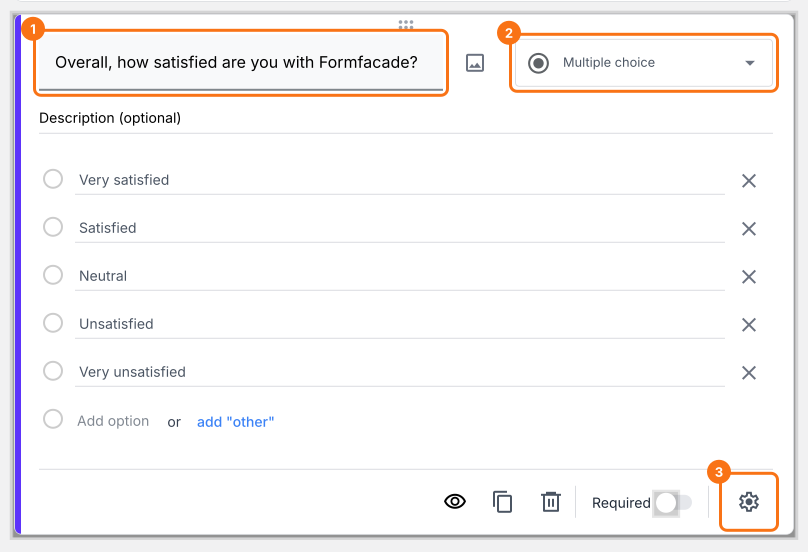
Multiple choice question allows users to select only one answer from the available choices. This is ideally suited for questions with limited answer choices (<10). You could use this for longer list of choices as well, but it is not recommended; you should use dropdown question in such cases.
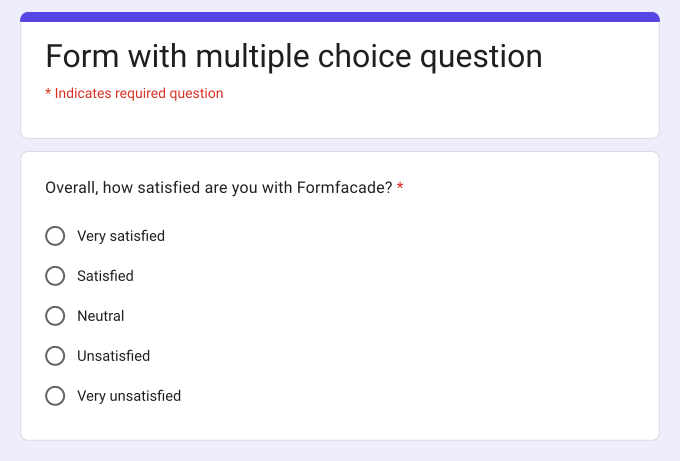
Multiple choice question with predefined answer choices
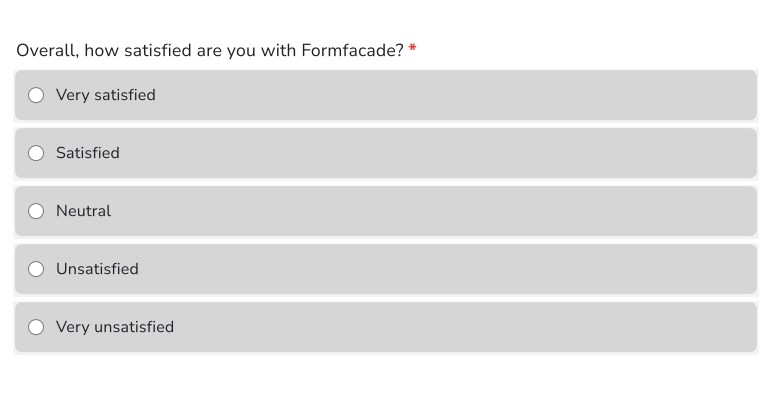
Here is how this question looks to your users.
How can I include "Other" as an option?
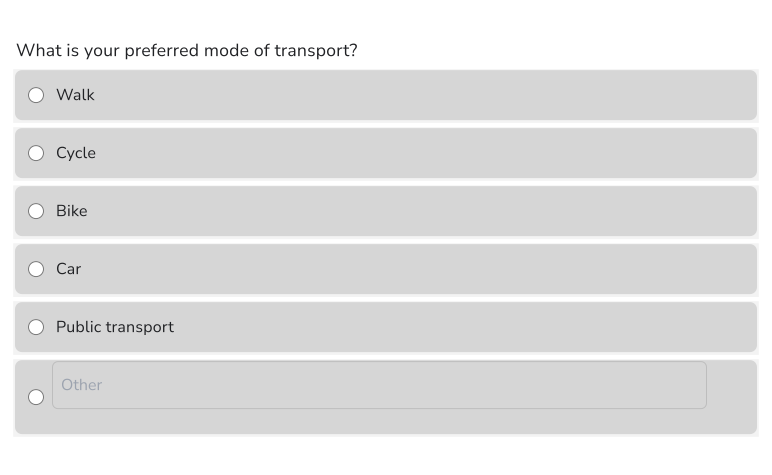
Once you have added the answers to the multiple choice questions, click on add "Other" link (highlighted in the image below). Your users will be able to choose one of the existing answer choices or type their own short answer.
- Click on the + icon (Add field) in the toolbar on the right
- Select Multiple choice in the question type list
- Type the first answer choice in the first box, then click Add Option and type the next one. Do this for each answer choice.
- Click on the add "Other" link as shown below
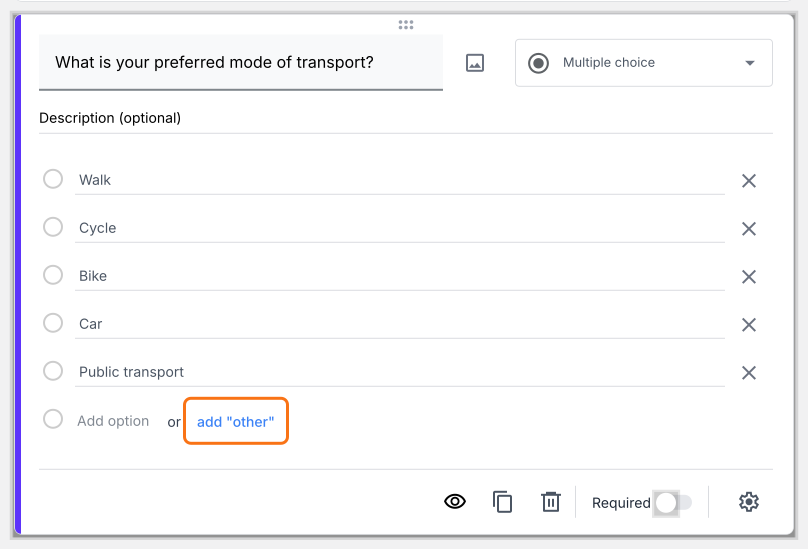
Multiple choice question with "Other" option
Here is how this question looks to your users.
How can I show different questions based on the answer chosen by the user?
You can use the + Go to page option for multiple choice question so that users only see certain pages based on their answers.
- Click on the + icon (Add field) in the toolbar on the right
- Select Multiple choice in the question type list
- Type the first answer choice in the first box, then click Add Option and type the next one. Do this for each answer choice.
- Enable Required toggle button to make this a mandatory question (if required)
- Click on the ⚙️ icon at the bottom right of the question and click + Go to page. If your form has only one page, first click Add page in the toolbar on the right.
- For each answer choice, select Continue to next page, a page or Submit form and click Save
When a user selects that answer and clicks Next, the form goes to the page you selected.
Summary
If you want only one answer from each user, a short answer question is hard to count. With the multiple choice question in Formfacade, users select one answer from your choices and you can add an "Other" option or show different pages based on the answer. Create your form and complete the steps above.
Last updated: