How to submit Google Forms responses to WhatsApp on desktop
"I need to find a way to track my responses on WhatsApp"- Google Docs Editors Community
16 people on Google's forum have asked how to track their form's responses on WhatsApp. Your work runs on WhatsApp, but responses to your Google Form wait in the form or your inbox, so a new one can sit there unseen, and Google Forms has no option to send a response to WhatsApp. Many people fill in forms on a computer, where WhatsApp isn't always open. Neartail handles that: after they submit, the form shows a QR code. They scan it with their phone, or click the link below it if WhatsApp is on that computer, and their response opens as a message to your number, ready to send.
Let's start. Create your form and follow the steps below.
How to send responses to your WhatsApp?
- On the page that opens, click "Enter your form name". Type your form's name and click Generate.
- Check the outline it suggests and click Proceed.
- You land on the form's "Edit" tab. If it asks "Do you want to preview this form?", click No.
- If you imported a Google Form, it makes a copy of your form. If it says "Your form is private or protected", click Next and give access or publish your form in Google Forms and paste that link. Select your currency and click Continue. When it says "Your order form is ready", click Preview your form, then Edit form.

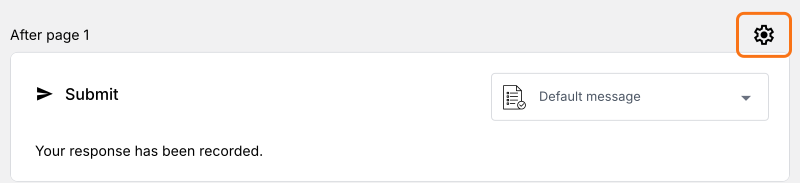
- Click the gear icon in the last After page row, above the Submit button. Your form doesn't send responses to WhatsApp until you set your number here.
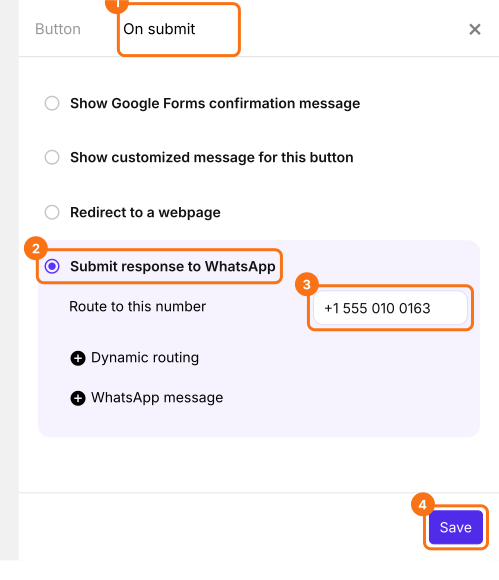
- Click On submit and select Submit response to WhatsApp.
- Under Route to this number, enter your WhatsApp number with your country code and click Save.
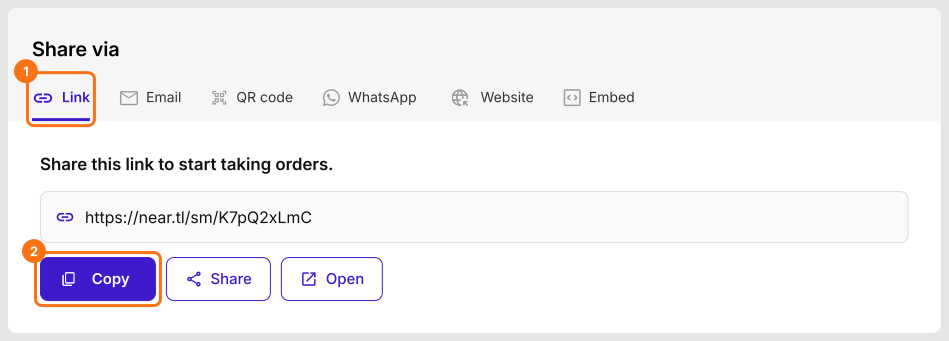
- Click the Share tab, click Link and copy the form link. This is the link people will open.
How to use Neartail Google Forms on your computer?
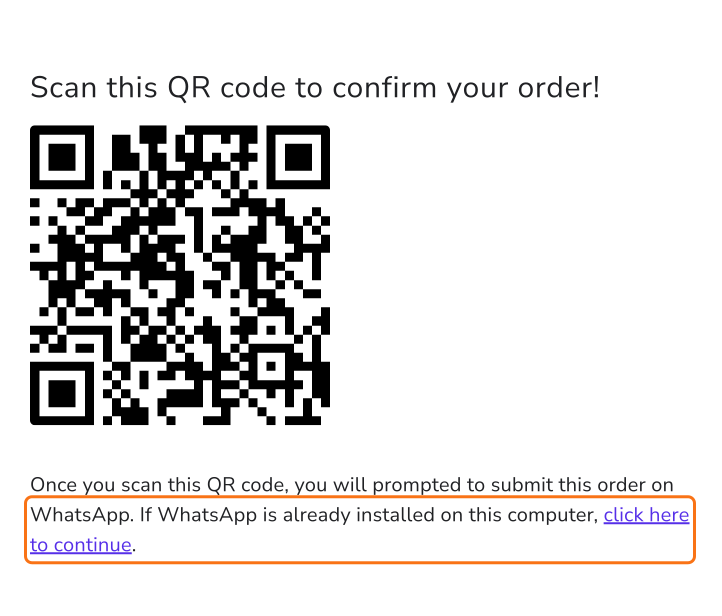
When someone fills in the form on a computer and clicks Submit, the form shows a QR code. Scanning it, or clicking the link below it, opens their response as a WhatsApp message to your number.
- Open the form link.
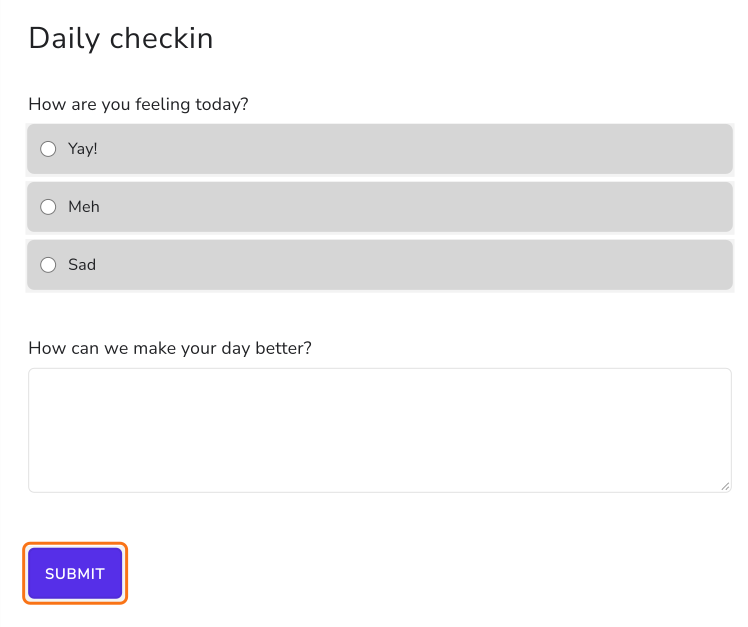
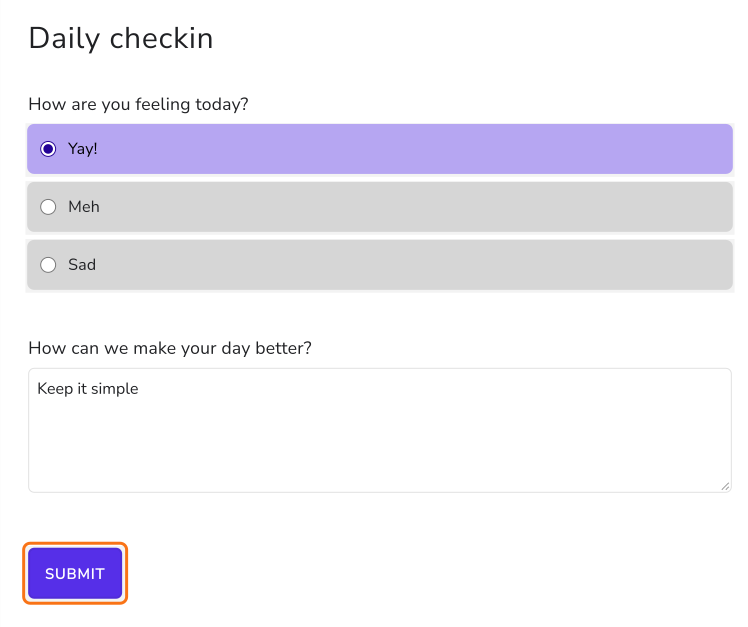
- Fill in the form and click Submit.
- It shows "Scan this QR code to confirm your order!". Scan it with your phone. If WhatsApp is installed on this computer, click "click here to continue" below the code.
- Click Continue to chat.
- If WhatsApp isn't installed on the computer, it offers to download WhatsApp or use WhatsApp Web. Click the WhatsApp Web link.
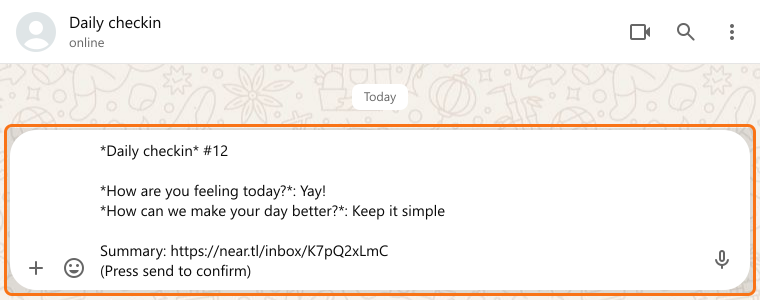
- The response is written out in the message box. Click Send.
Summary
Google Forms can't send a response to WhatsApp, and people on a computer often don't have WhatsApp open. With Neartail, the form shows a QR code after Submit and the response opens as a WhatsApp message to your number, ready to send. Create your form and complete the steps above. If you have any questions, write to support.
Last updated: