How to assign different points for multiple choice questions and calculate total score?
"I need to assign individual point values to multiple choice answers, from zero to five."- Google Docs Editors Community
In a Google Forms quiz, a multiple choice question has one right answer and every other choice earns nothing. That works for a test, but not for a questionnaire where "Daily" should count for more than "Once a week" and the total shows how active someone is. On the thread above, 5 people on Google's forum asked for points from zero to five on each choice. Adding them up in a Google Sheet means a formula to maintain, and the person who answered never sees the total. With Formfacade, you give each choice in a multiple choice question its own points, and the total score shows on the form as people answer. You can also hide it until they submit and write the message they see.
Let's start. Create your form and follow the steps below.
How to assign points and calculate scores using Formfacade?
- On the page that opens, name your form, click Create form and click Proceed.

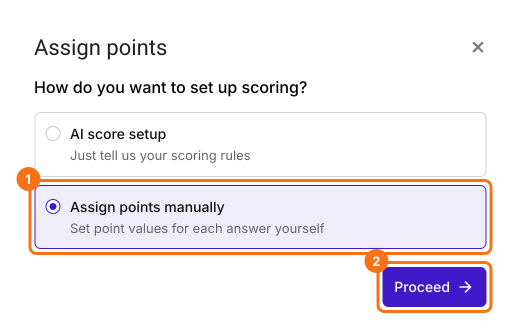
- In the Assign points dialog, under "How do you want to set up scoring?", select "Assign points manually" and click Proceed.
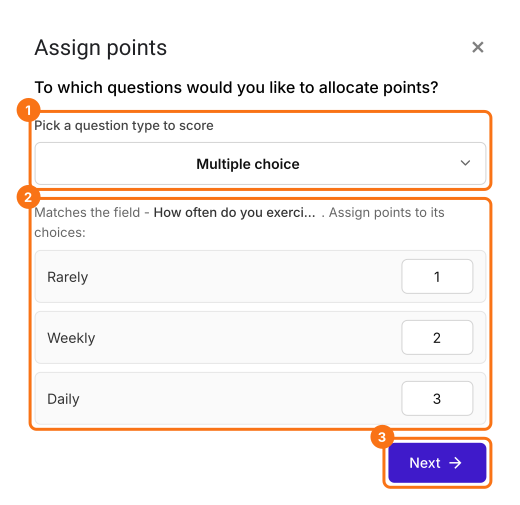
- Pick Multiple choice as the question type to score, assign points to its choices and click Next. The same points go to every multiple choice question in your form.
- Under "How do you want to show the score?", leave both options ticked and click Next.
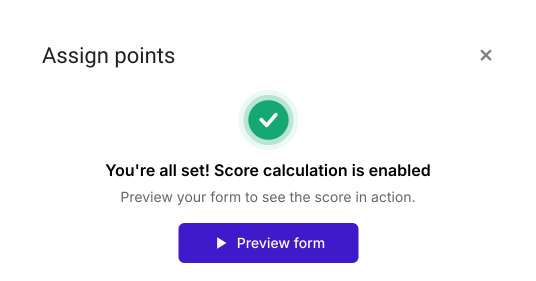
- Click the × on "You're all set" to go back to the "Edit" tab.
- (a) 5+ hrs
- (b) 4 to 5 hrs
- (c) 3 to 4 hrs
- (d) 2 to 3 hrs
- (e) Less than 2 hrs
- (a) Once or twice in a month
- (b) Once a week
- (c) Thrice a week
- (d) 5 days in a week
- (e) Daily
- (a) Not much
- (b) A moderate amount
- (c) Average
- (d) Intense
- (e) Very intense
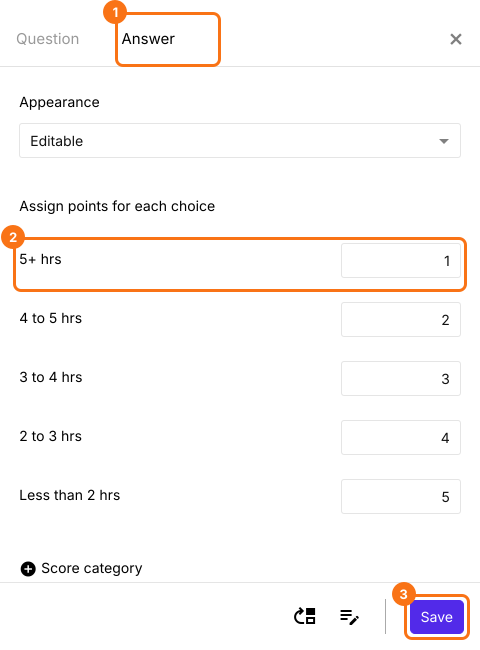
- Answer choice (a) - 1 point
- Answer choice (b) - 2 points
- Answer choice (c) - 3 points
- Answer choice (d) - 4 points
- Answer choice (e) - 5 points
- Click on each question in the Edit page and enter these questions and answer choices. Delete the questions you do not need. Your form may have many, so you can also keep its own multiple choice questions and follow the steps with those.
Assign points
- In the Edit page, click on the question, then click on the gear icon.
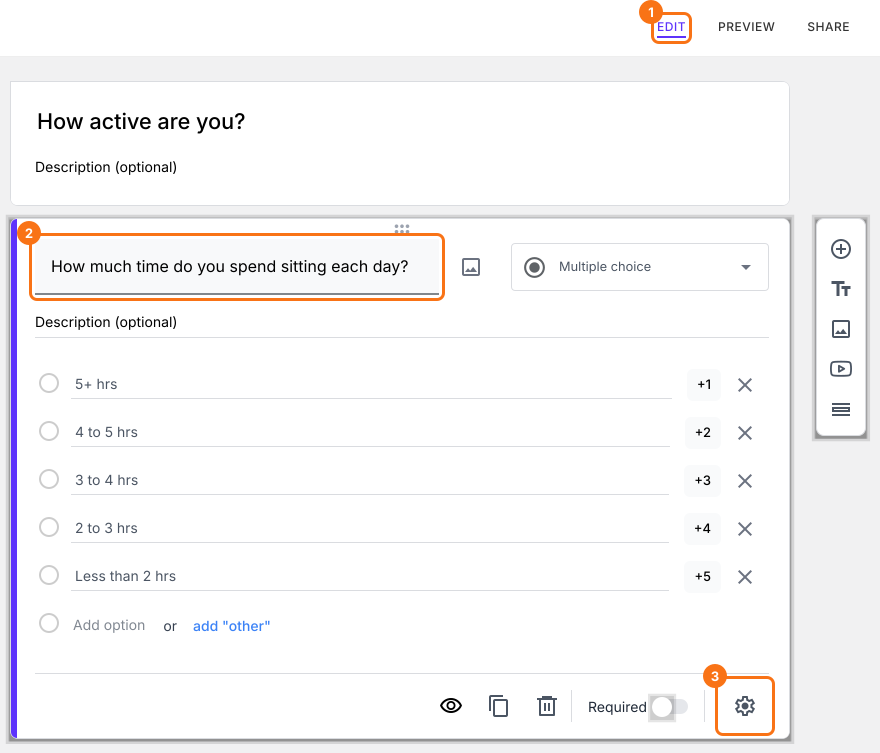
- Click Answer. Assign points for the different answer choices and click Save.
Show or hide score
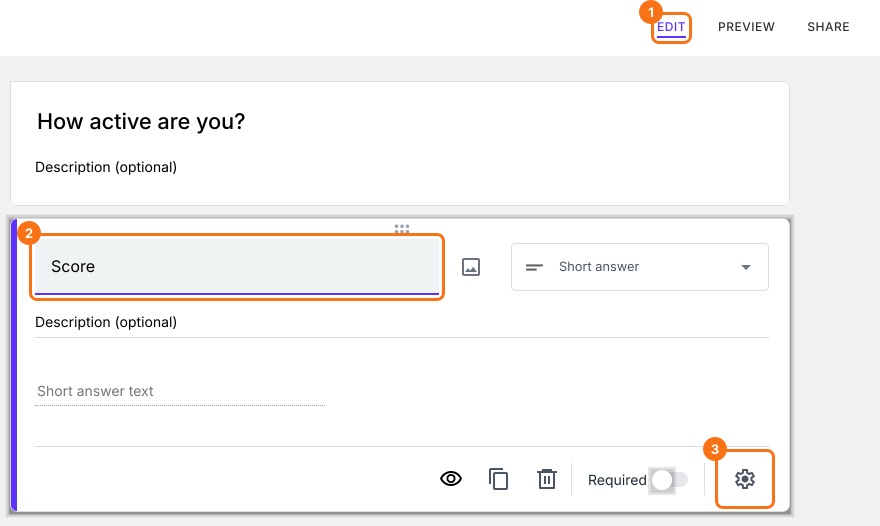
- Click on the Score question, then click on the gear icon.
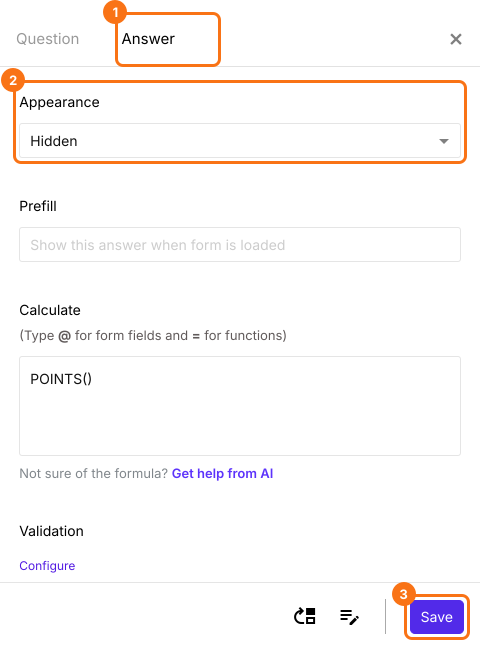
- Click Answer, change the Appearance to hidden and click Save.
Customize confirmation message
- Scroll down to the end of the form and click on the gear icon on the last "After page" row, above the Submit button. It says "After page 1" on a form with one page.
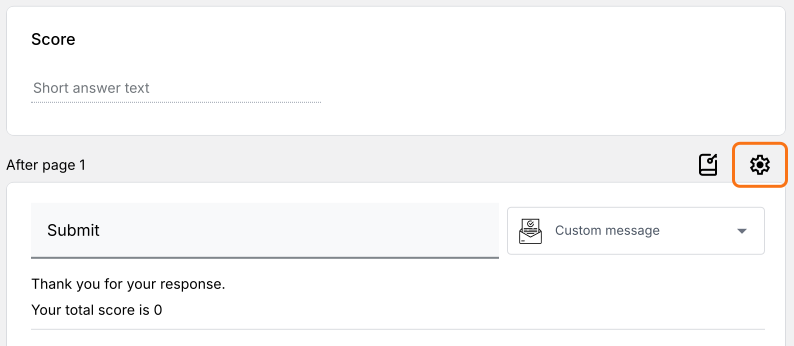
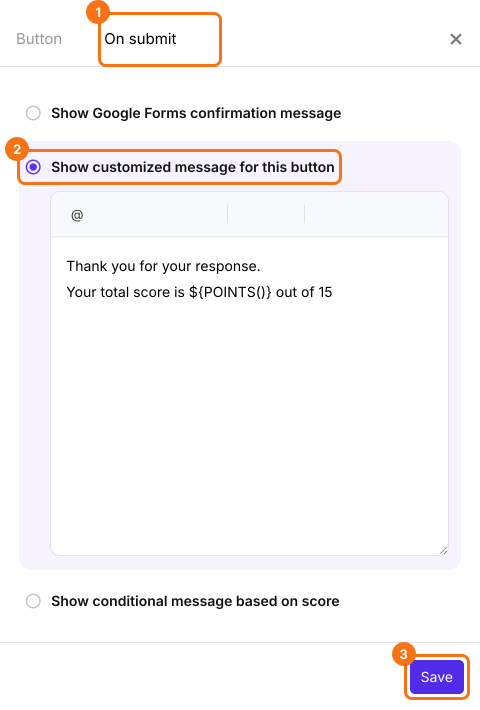
- Click On submit. Select Show customized message for this button. Update the message and click Save.
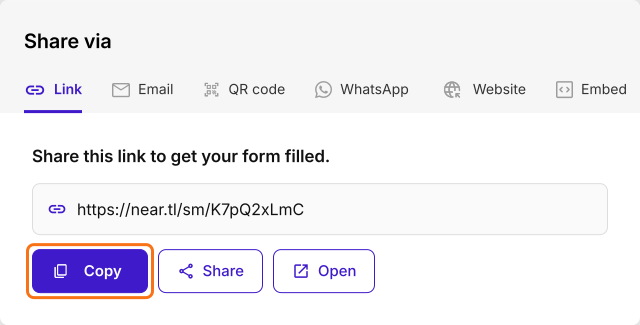
- Click on "Share" tab. Copy the short link and share it with your users to collect responses.
Summary
Last updated: