How to assign points for a checkboxes question?
"a point for each correct answer you pick and -1 point for each wrong answer"- Google Docs Editors Community
Some checkboxes questions need a value on every box: +10 for daily exercise and -5 for sweets in a habit challenge, or -1 for each wrong answer on a test. A Google Forms quiz can't do either. It gives the question's points only when the exact set of right boxes is ticked, so partial credit and penalties are out. With Formfacade, the SCORE function lists a value for each choice in your checkboxes question and adds up the values of the boxes someone ticks. You write it once in the Calculate option of the Score question, and people see their score change as they tick.
Let's start. Create your form and follow the steps below.
How to assign points using the SCORE function?
- On the page that opens, name your form, click Create form and click Proceed.

- In the Assign points dialog, AI score setup is picked under "How do you want to set up scoring?". Click Proceed.
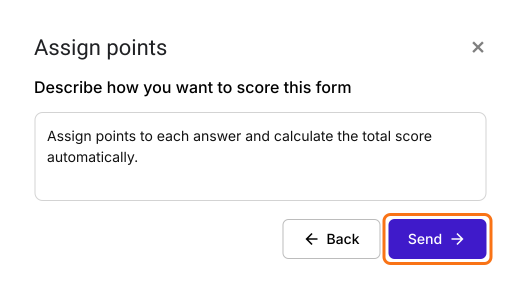
- "Describe how you want to score this form" is filled in. Click Send and click Next.
- Click the × on "You're all set" to go back to the "Edit" tab.
Let's change this form into a simple form for slash the sugar challenge. The purpose of this form is to track the daily activity and assign positive or negative points for each of the activity. We will use a checkboxes question with different activities as answer choices that users can select. Please follow the instructions below to assign points and calculate the score.
- Click on a question and change it to Checkboxes in the list of question types. Enter your answer choices. Delete the questions you do not need.
- Your form already has a Score question, which may be named Total Score. Click on the score question, then click the ⚙️ icon.
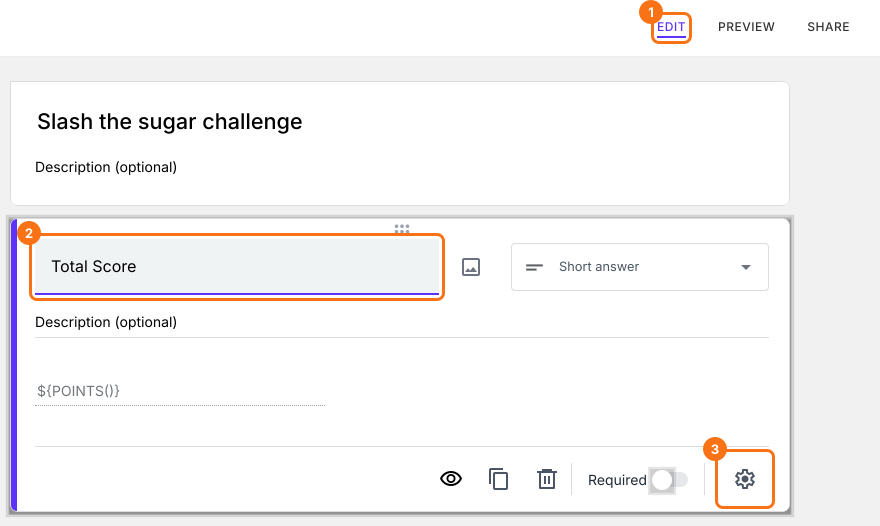
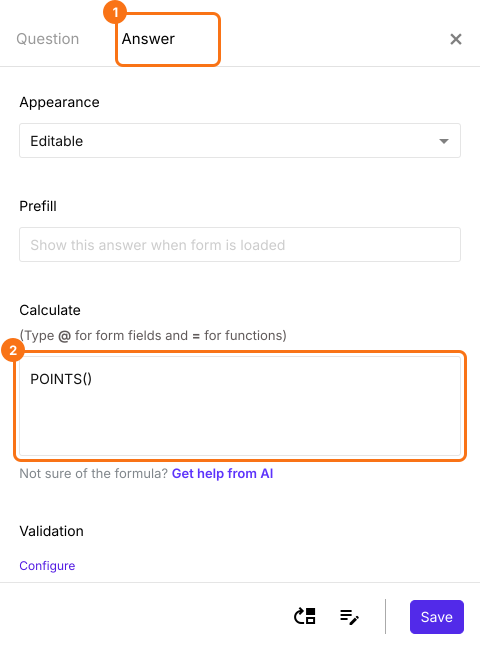
- Select the "Answer" tab and write the formula to assign points and calculate the score.
SCORE function
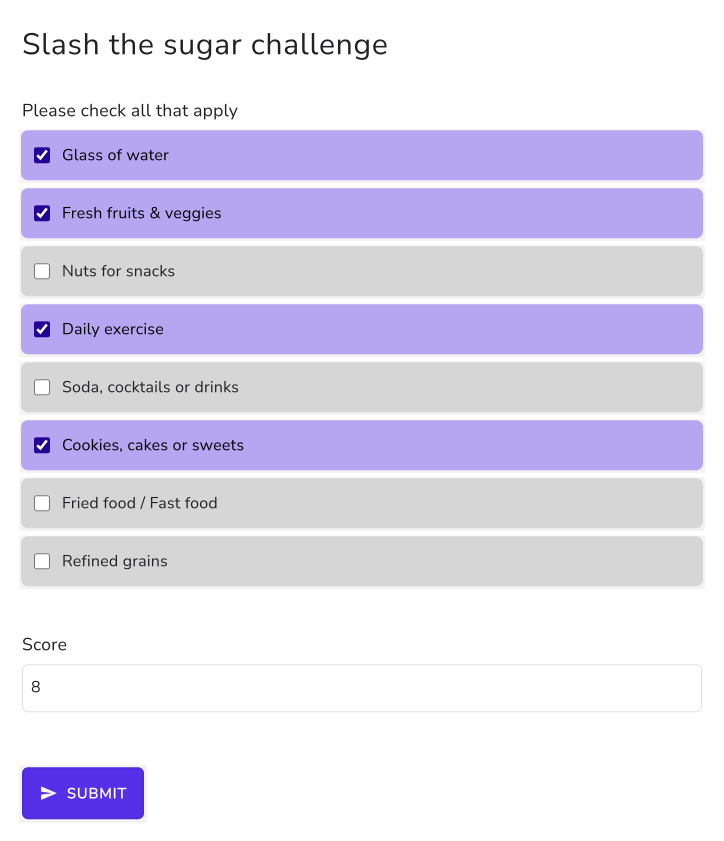
The form is used to track the daily activity and assign positive or negative points for each of the activity. Positive points indicate that users are successful in reducing the sugar intake. You can assign points to the answer choices in checkboxes question using SCORE function.
- Glass of water = 1
- Fresh fruits & veggies = 2
- Nuts for snacks = 2
- Daily exercise = 10
- Soda, cocktails or drinks = -3
- Cookies, cakes or sweets = -5
- Fried food / Fast food = -6
- Refined grains = -1
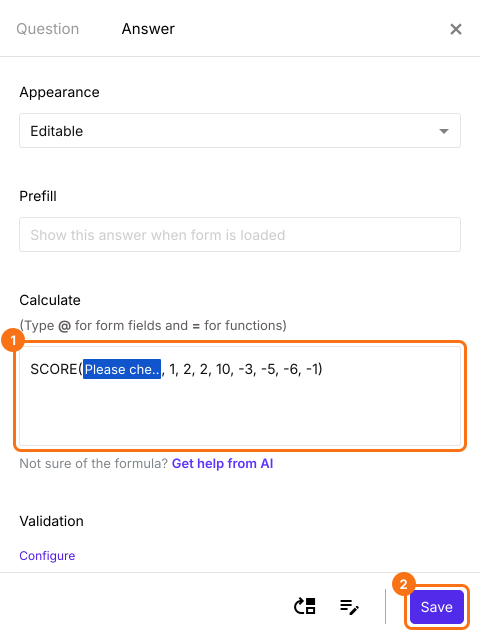
- SCORE(entry#id, 1, 2, 2, 10, -3, -5, -6, -1)
Note: Type @ and select the required checkboxes question from the list to add its entry #id in the above formula.
- The Calculate option already has POINTS(). Delete it and write the SCORE function in the Calculate option as shown below and click Save.
The score is calculated as users select their answers.
Summary
A Google Forms quiz scores a checkboxes question all or nothing, so it can't add a different value for each box ticked or take points away for a wrong one. With Formfacade, you write the SCORE function in the Score question with a value for each choice, and the score is the sum of the ticked boxes. Create your form and complete the steps above. If you have any questions, write to support.
Last updated: