How to assign points for a linear scale question?
"I need to add all the linear scale responses automatically for each form response."- Google Docs Editors Community
If your form is a questionnaire made only of linear scales, the result is usually the total. The P4 pain questionnaire, for one, adds four 0 to 10 answers into a score from 0 to 40. Google Forms records each number but has nowhere to add them up, so the total gets worked out in the Sheet, one response at a time, and 6 people on Google's forum have asked how to add them automatically. With Formfacade, the Score question's Calculate option adds up the answers of your linear scale questions, and each person sees their total on the form as they answer. Sync the responses to Google Sheets and the total arrives in its own column.
Let's start. Create your form and follow the steps below.
How to calculate the score for Linear scale questions?
- On the page that opens, name your form, click Create form and click Proceed.

- In the Assign points dialog, AI score setup is picked under "How do you want to set up scoring?". Click Proceed.
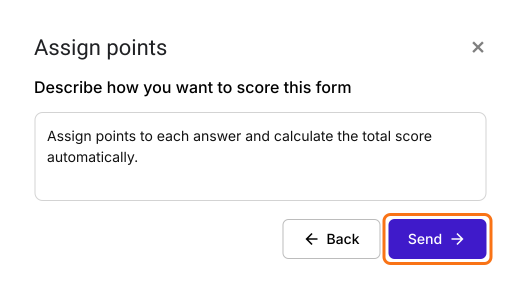
- "Describe how you want to score this form" is filled in. Click Send and click Next.
- Click the × on "You're all set" to go back to the "Edit" tab.
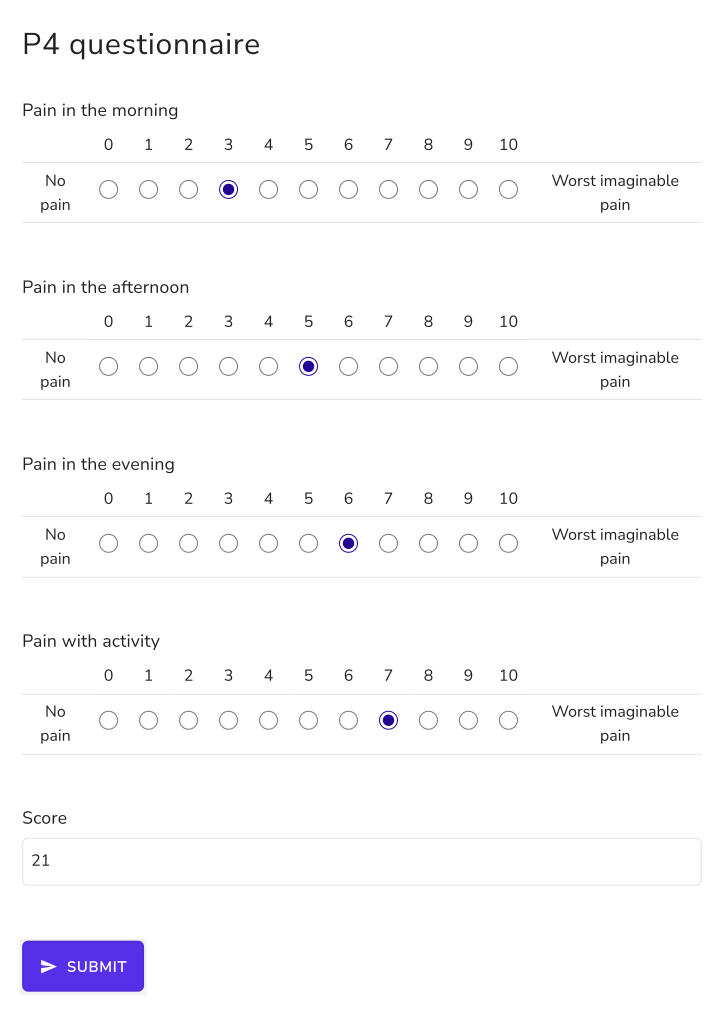
Let's change this form into the P4 questionnaire to measure the pain intensity. The P4 consists of 4 items that address pain intensity in the morning, afternoon, evening and with activity over the past 2 days. Each item is scored on an 11-point numeric scale.
We will use a linear scale question that starts from 0 and ends on 10. The end points of the linear scales can be named to provide a reference for the users. 0 = No pain, 10 = Worst imaginable pain
- Click on a question and change it to Linear scale in the list of question types. Set it from 0 to 10 and enter No pain and Worst imaginable pain as the two labels. Do this for all the 4 items and delete the questions you do not need.
- Your form already has a Score question, which may be named Total Score. Click on the score question, then click the ⚙️ icon.
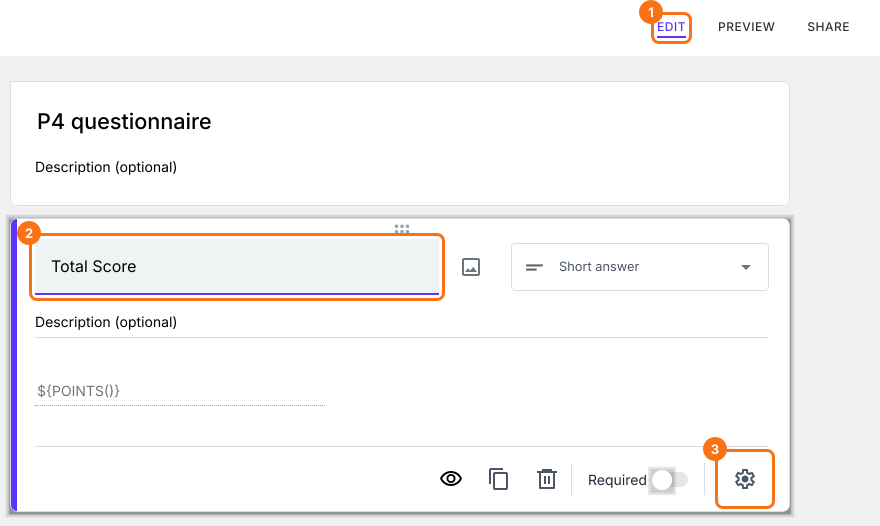
- Select the "Answer" tab and write the formula to assign points and calculate the score.
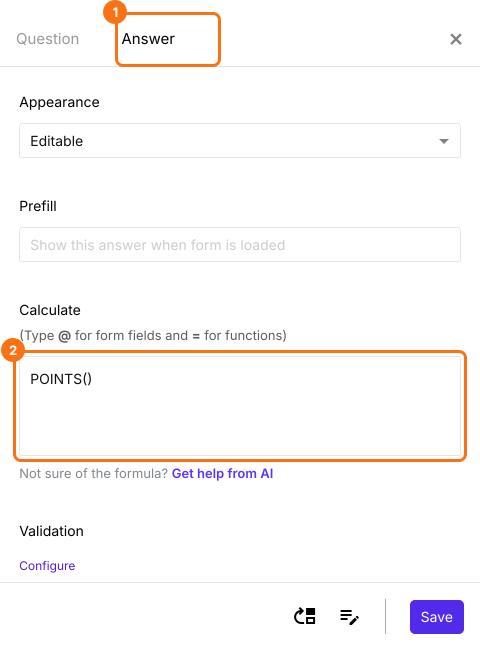
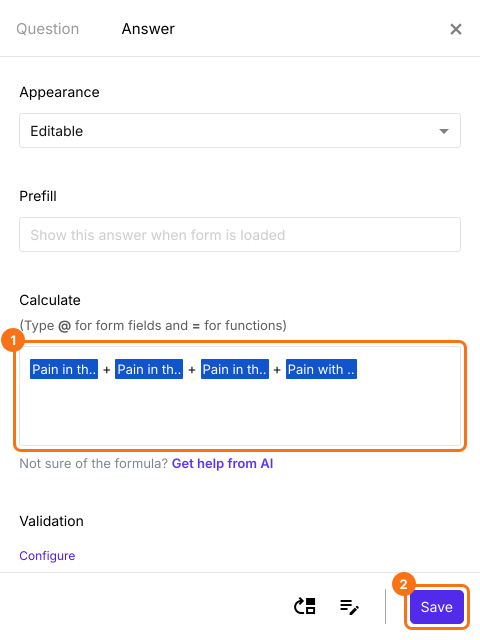
- The Calculate option already has POINTS(), so delete it. To calculate the score, add the answers for all the 4 linear scale questions as shown below and click Save. The total P4 scores can vary from 0 (no pain) to 40 (the highest possible pain level).
Users will see the total as they answer the questions.
Summary
Google Forms records each linear scale answer but can't add them into a total in the form. With Formfacade, you add up the linear scale answers in the Calculate option of the Score question and people see the total as they answer. Create your form and complete the steps above. If you have any questions, write to support.
Last updated: