How to assign points for a Likert scale question?
"How to add scores according to respondent's answer in a Likert scale?"- Google Docs Editors Community
A customer feedback form in Google Forms often asks how satisfied someone is on a five-step Likert scale, from Extremely satisfied to Extremely dissatisfied. To compare customers, each answer needs a number, 5 down to 1. A Google Forms quiz gives points only to a correct answer, so it can't score a scale where every answer counts, and 12 people on Google's forum have asked how to score by the answer picked. With Formfacade, the SCORE function in the Score question gives each answer its points, SCORE(entry#id, 5, 4, 3, 2, 1), and the score is worked out as each customer fills in the form.
Let's start. Create your form and follow the steps below.
How to assign points using the SCORE function?
- On the page that opens, name your form, click Create form and click Proceed.

- In the Assign points dialog, AI score setup is picked under "How do you want to set up scoring?". Click Proceed.
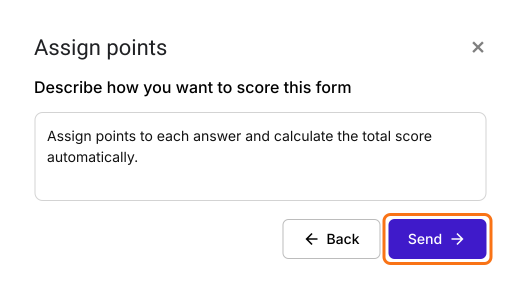
- "Describe how you want to score this form" is filled in. Click Send and click Next.
- Click the × on "You're all set" to go back to the "Edit" tab.
Let's change this form into a simple form to collect feedback on ordering experience. We will use a multiple choice question with a 5 point likert scale for satisfaction as answer choices. Please follow the instructions below to assign points and calculate the score.
- Click on a multiple choice question in the Edit page and enter the 5 answer choices. Delete the questions you do not need.
- Your form already has a Score question, which may be named Total Score. Click on the score question, then click the ⚙️ icon.
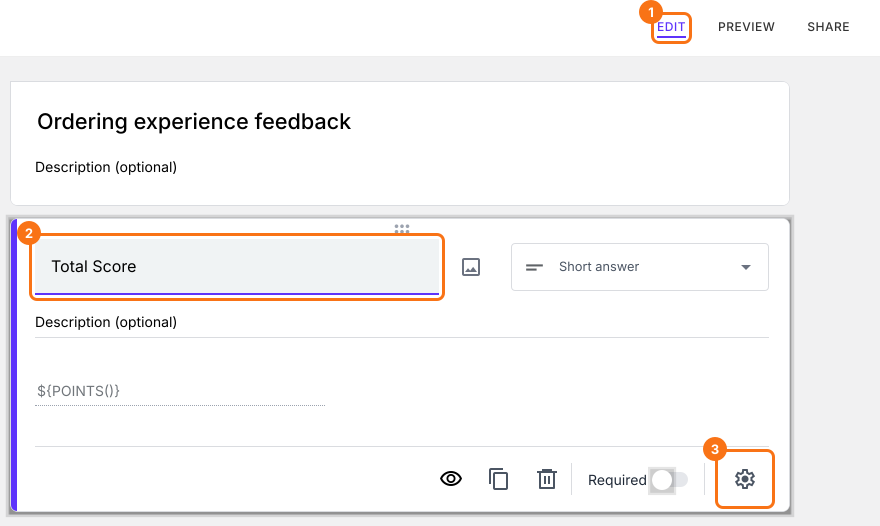
- Select the "Answer" tab and write the formula to assign points and calculate the score.
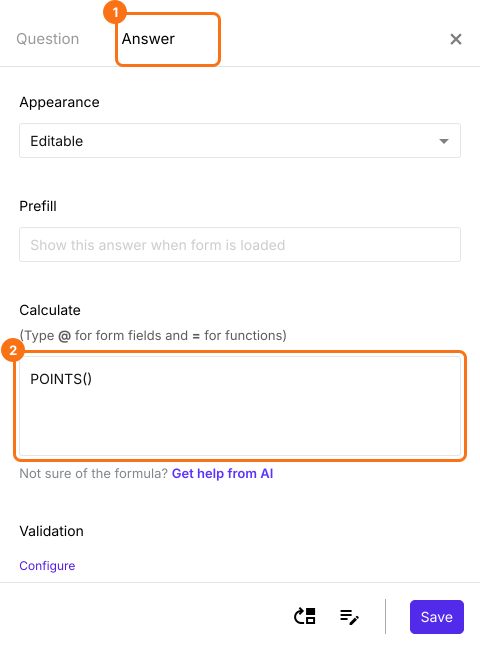
SCORE function
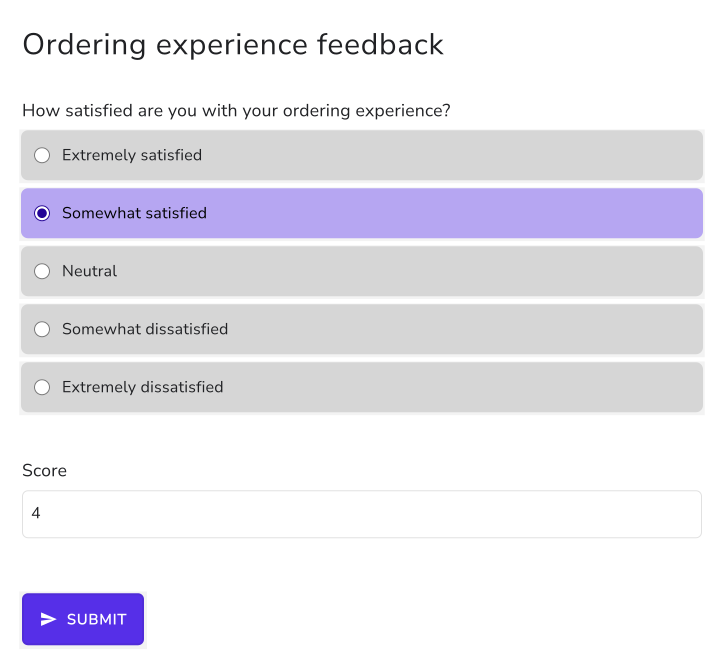
The form is used to collect feedback from users about their ordering experience. A 5 point likert scale is used to measure customer satisfaction. You can assign points to the answer choices in multiple choice question using SCORE function.
- Extremely satisfied = 5
- Somewhat satisfied = 4
- Neutral = 3
- Somewhat dissatisfied = 2
- Extremely dissatisfied = 1
- SCORE(entry#id, 5, 4, 3, 2, 1)
Note: Type @ and select the required multiple choice question from the list to add its entry #id in the above formula.
- The Calculate option already has POINTS(). Delete it and write the SCORE function in the Calculate option as shown below and click Save.
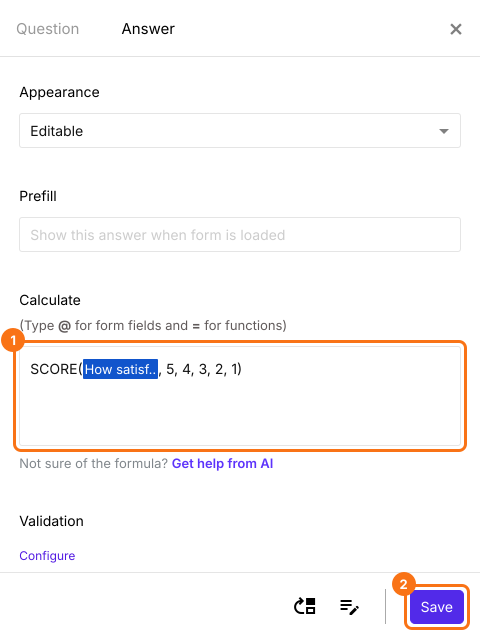
The score is calculated as users select their answers.
Summary
A Google Forms quiz can't give each answer on a Likert scale its own points, because it only knows right and wrong. With Formfacade, you write the SCORE function with the points for each answer choice and the score is calculated as the form is filled in. Create your form and complete the steps above. If you have any questions, write to support.
Last updated: