How to sync google forms responses to google sheets?
"Are new responses added if the linked sheet is open?"- Google Docs Editors Community
You work from a Google Sheet, so each new response has to land there while the Sheet is open, and a download is out of date by the next answer. Google Forms links a spreadsheet from its Responses tab, a new one or one you already have, and adds new responses as rows as they come in. If your form is on your website with Formfacade, turn on Submit to Google Forms first, then link the spreadsheet in Google Forms. Formfacade's own Link to Sheets makes a new Sheet in one click, but it brings in new responses only when you click Sync to Sheets.
Below are two ways to send your responses to Google Sheets, and where each one falls short.
Sync responses automatically from Google Forms
You can create a new spreadsheet for responses in Google Sheets or choose from your existing spreadsheet in Google Sheets to store responses. Once you link your google form with a spreadsheet, the new responses will automatically be synced.
- Open your form in Formfacade, click on "Responses" tab and click Google Forms
- Click Submit to Google Forms and click Proceed, so that responses reach Google Forms
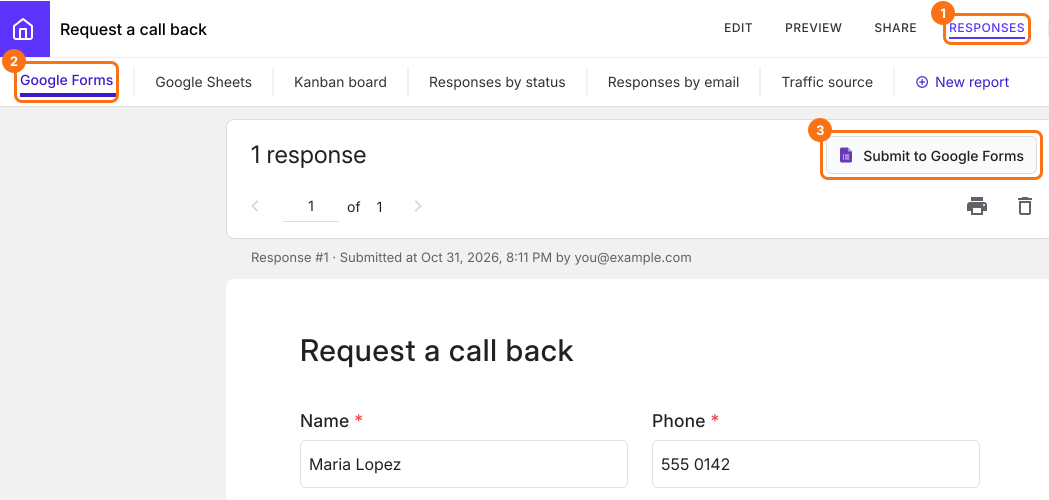
- Click View in Google Forms. Your form's responses open in Google Forms

If you imported your form, this is Formfacade's copy of it, not your original form, so link the spreadsheet here.
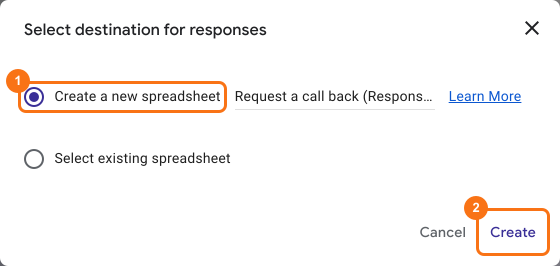
- Click Link to Sheets
- Select Create a new spreadsheet
- Click Create

To use your existing spreadsheet:
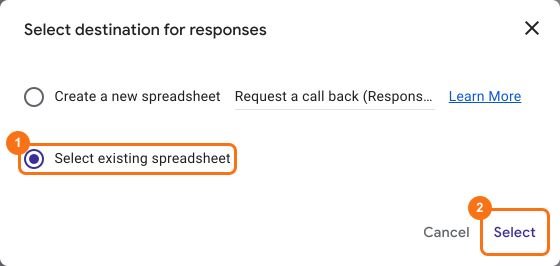
- Click on "Select existing spreadsheet"
- Click Select
- Click on the spreadsheet where you want to sync responses
- Click Select
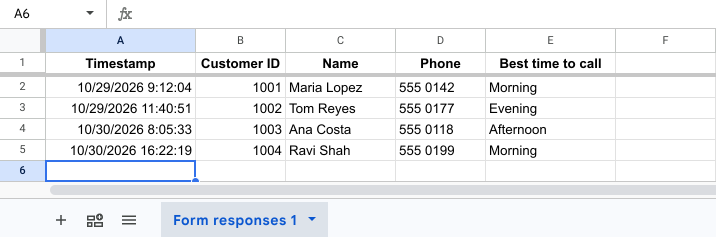
See your responses in Google Sheets
Each question has its own column in the spreadsheet, including any you prefilled, so you can sort by a column such as Best time to call. If you prefilled a question such as Customer ID, its column shows who sent each response. The new responses will be added as new rows, even while the spreadsheet is open.
Sync responses from Formfacade
- Open your form in Formfacade and click on "Responses" tab

- Click Google Sheets
- Click Link to Sheets
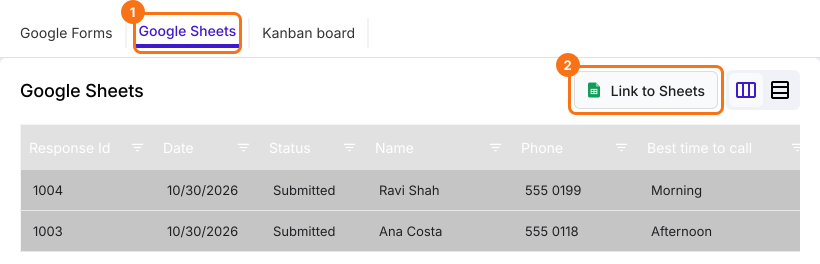
- Click Proceed on "Sync all responses to sheets"
- When your responses have synced, click View sheets to open your Google Sheet
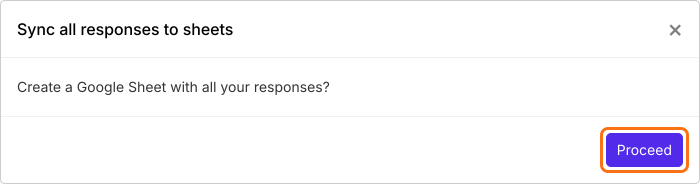
This always creates a new Google Sheet, named after your form's title. To use your existing spreadsheet, link it in Google Forms as shown below.
Where it falls short: the button now says Sync to Sheets, and this Sheet is not updated by itself. A new response reaches it only when you click Sync to Sheets.

Summary
If you work from a Google Sheet, each new response has to reach it while you work, and downloads and copying by hand fall behind. With Formfacade, you turn on Submit to Google Forms and link the spreadsheet in Google Forms, and new responses are added as rows by themselves. Formfacade's own Link to Sheets needs a click on Sync to Sheets for new ones. Create your form and complete the steps above. If you have any questions, write to support.
Last updated: