How to generate an order number or unique id for each response?
"generate unique confirmation number for each form submission"- Google Docs Editors Community
Google Forms doesn't number its responses, and 39 people on Google's forum have asked how to give each one a unique number. You can add a number later in the response Sheet, but the customer never sees it, so when they write about their order you search by name and date. An Apps Script can do better, as long as someone writes it and keeps it working. In Neartail, the SEQUENCE function gives each order on your Google Form its own number, such as 10001, 10002, and you can put letters in front for an id like NT10001. The customer sees it on the form, and it can go in the confirmation email too.
Below are three ways to give each Google Form order a number, and where each one falls short.
3 ways to number your orders
- Number the rows in the response Sheet
- Write an Apps Script
- Put the order number on the form with Neartail
Option 1: Number the rows in the response Sheet
In the Sheet linked to your form, add a column that numbers each row with a formula, or type the numbers in yourself.
Where it falls short: the number only exists in the Sheet. The customer never sees it, and sorting or deleting rows can change it.
Option 2: An Apps Script
A script that runs when the form is submitted can write the next number into the Sheet and email it to the customer.
Where it falls short: someone has to write the script, give it permission and fix it when it stops.
Option 3: An order number on the form with Neartail
Neartail's SEQUENCE function gives each order a number on the form itself. These are the steps.
How to generate an order number?
- On the page that opens, click Enter your form name, type your form's name and click Generate.
- Check the outline it suggests and click Proceed. Your form opens on the Edit tab.

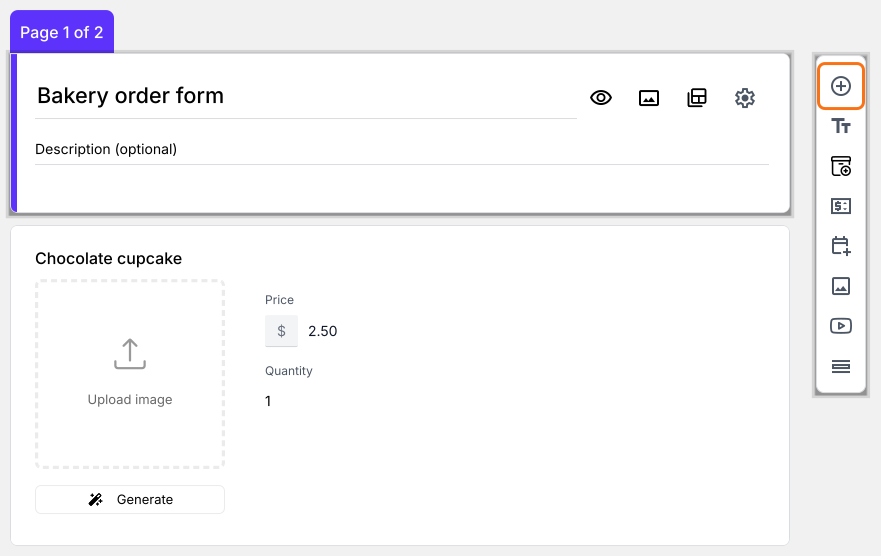
- Click on the Order Quantity question, then click Add field in the toolbar on the right
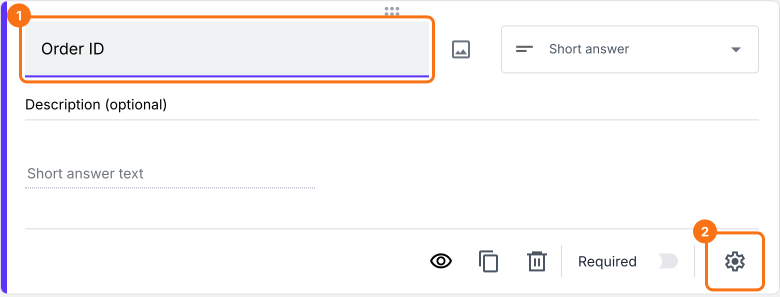
- Enter Order ID as the new question's title, then click the ⚙️ icon
- In Field settings, select the Answer tab and write the formula to generate the order number.
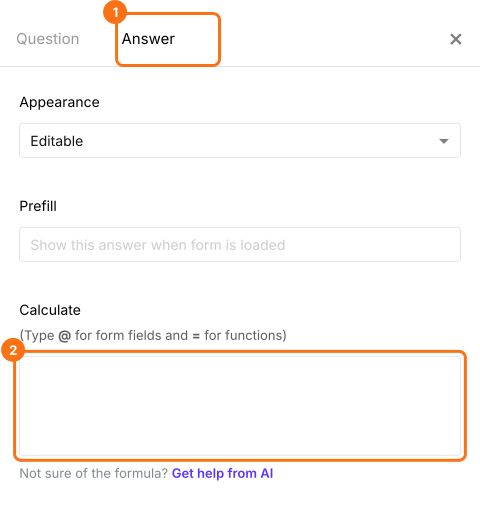
Use SEQUENCE function to generate order number
SEQUENCE function generates a number that is auto incremented by 1 for each response. If you would like the order number to start from 10001, then you can add the below formula in the calculate option:
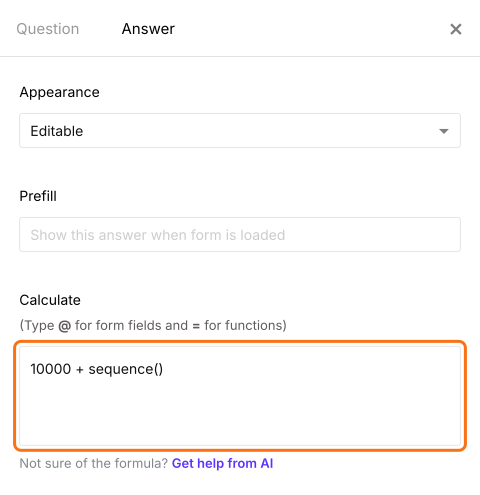
10000 + sequence()
Please note that the order number is generated when the user starts filling the form and not when the user submits the form. Hence the order number for the submitted orders may not be in sequence. The missing sequence represents the orders that were abandoned by the users.
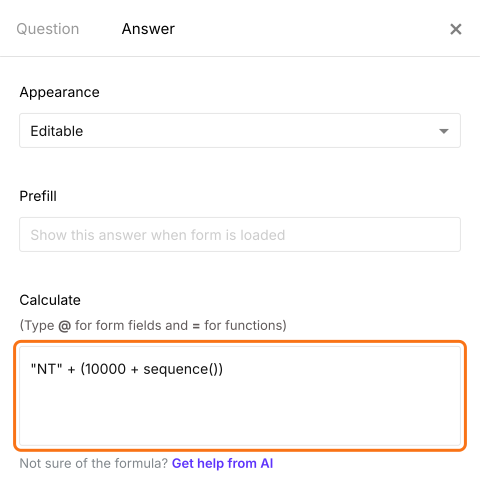
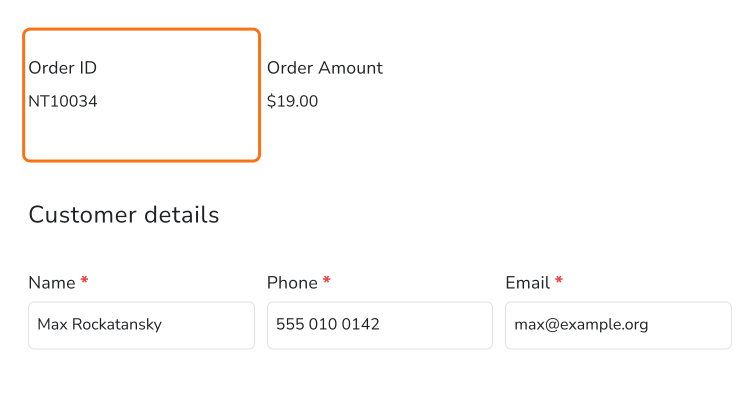
You can also add a text identifier to generate an order id instead of just a number. For example, you can append "NT" with the order number to generate a unique order id such as NT10001 etc. The formula for generating this order id would be as follows:
"NT" + (10000 + sequence())
- Write the sequence formula in the Calculate option as shown below to generate an order number. Click Save
You can also concatenate text to generate a unique order id as shown below.
Each order gets its own number on the form.
Summary
A Google Form doesn't give orders a number, and a number added later in the Sheet never reaches the customer. With Neartail, the SEQUENCE function numbers each order on the form, with any letters you want in front, and the number can go in the confirmation email. Create your order form and complete the steps above. If you have any questions, write to support.
Last updated: