How to add your logo in the order confirmation email?
The email a Google Form sends after a response is a plain copy of the answers. Your form's header image doesn't appear in it and there's no way to add a logo, so a customer who orders from three small shops gets three emails that look the same. With Neartail, you write your own order confirmation email and put your logo at the top, with the image button in the message editor or an image shortcode that sets its size.
Create your order form and follow the steps below.
How to get to the message editor?
- On the page that opens, click Enter your form name, type your form's name and click Generate.
- Check the outline it suggests and click Proceed. Your form opens on the Edit tab.

- Click on "Orders" tab

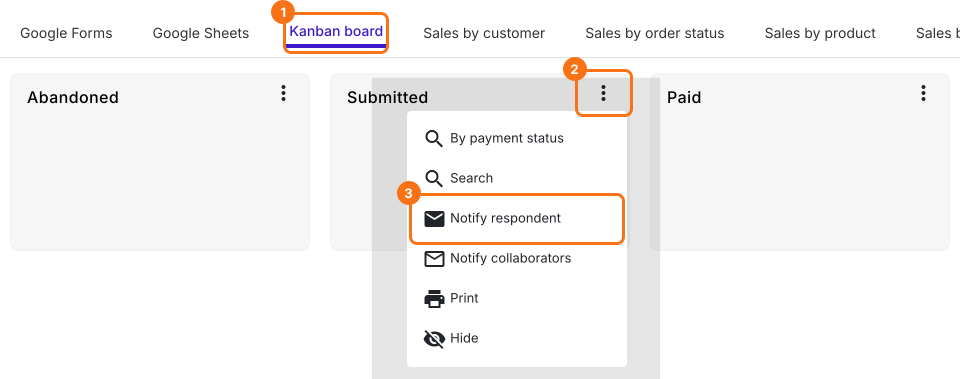
- Click Kanban board, click the ⋮ on Submitted and select Notify respondent
- Your form's Email question is already selected. Click on the Next button
- Your subject is already filled in. Click on the Next button
Option #1: Use the image option in the message editor
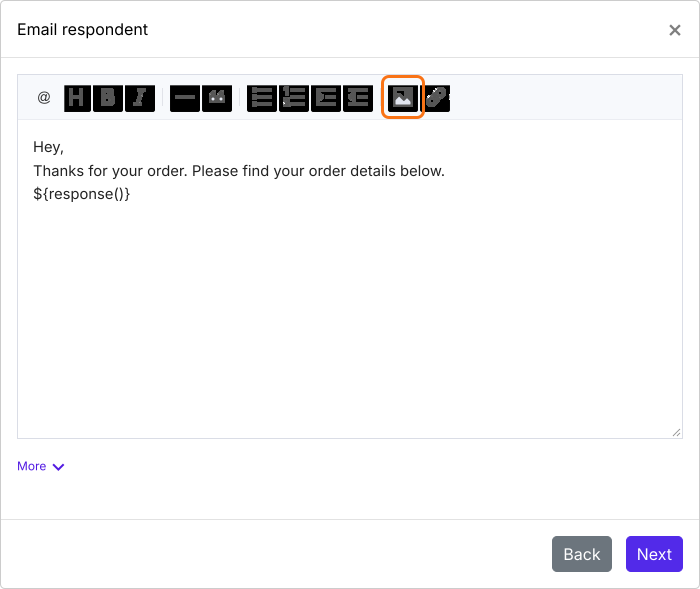
- Click at the top of the message, then click on the image icon in the message editor
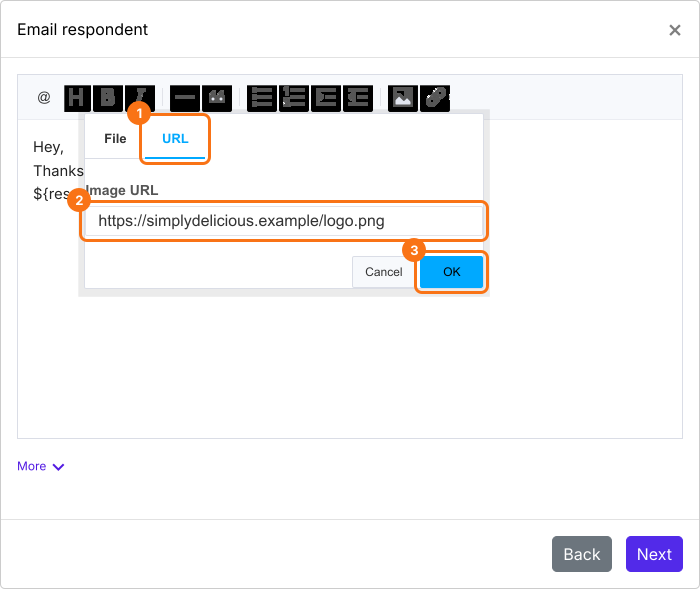
- Click URL, paste the url for the image and click on OK
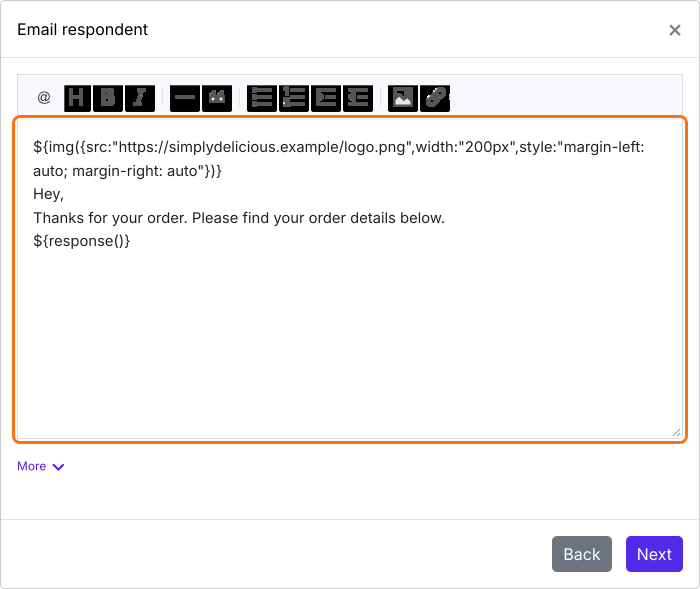
Option #2: Use the image shortcode
The shortcode sets the image size and style. Replace the url in the shortcode below and put it at the top of the email.
${img({src:"https://imageurl...",width:"200px",style:"margin-left: auto; margin-right: auto"})}
- Click on the Next button, click on "Click here", submit a test response with your own email address in the form and click on the YES button if the email arrives
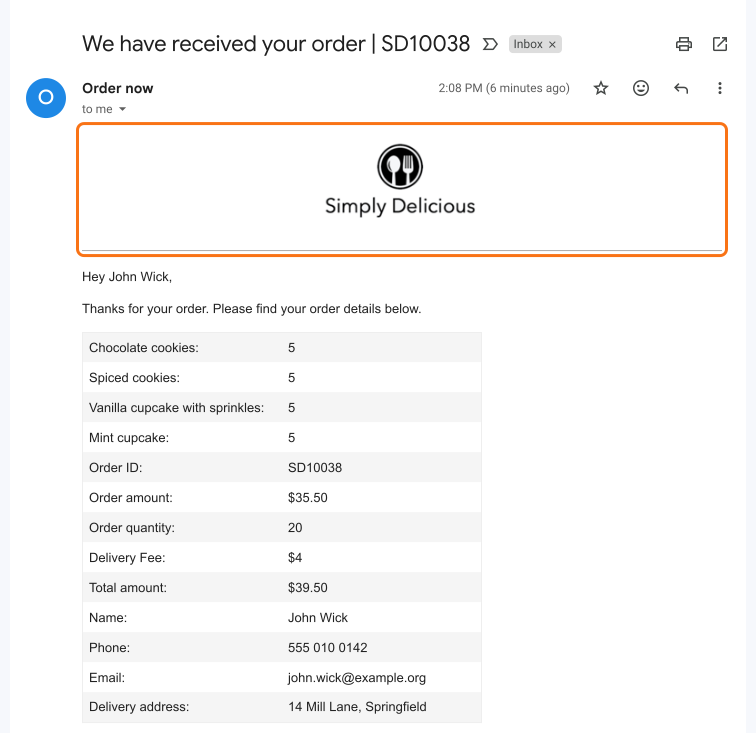
Your customers will see your logo at the top of the confirmation email.
Summary
The response email from Google Forms can't carry your logo. With Neartail, you add it to your confirmation email with the image button or an image shortcode, so each email shows who it's from. Create your order form and complete the steps above. If you have any questions, write to support.
Last updated: