How to show an order summary including the customer details?
One wrong digit in a phone number or address can cost a failed delivery, and a Google Form never shows the customer what they typed before they submit. They can't spot the mistake, and you find it on delivery day. Neartail's review page can show the whole order back: with SUMMARY(true, true), it lists the products and the Order Amount along with every detail the customer filled in, so they check it all before they place the order.
Let's start. Create your order form and follow the steps below.
How to show the complete order details filled by the user?
- On the page that opens, click Enter your form name, type your form's name and click Generate.
- Check the outline it suggests and click Proceed. Your form opens on the Edit tab.

- Your form already has a Review and place order section. Click on the section, then click the ⚙️ icon.

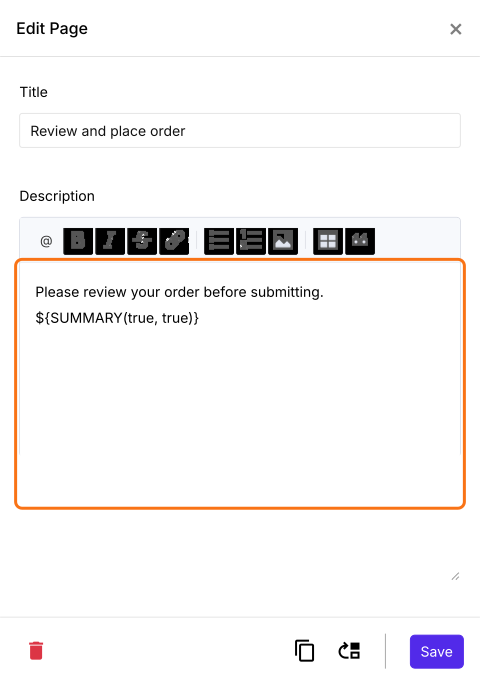
- In Edit Page, the description has the ${BILL()} formula. Replace it with the ${SUMMARY(true, true)} formula as shown below and click Save. Use it when customers should check their contact and delivery details, or when your products have options to choose.
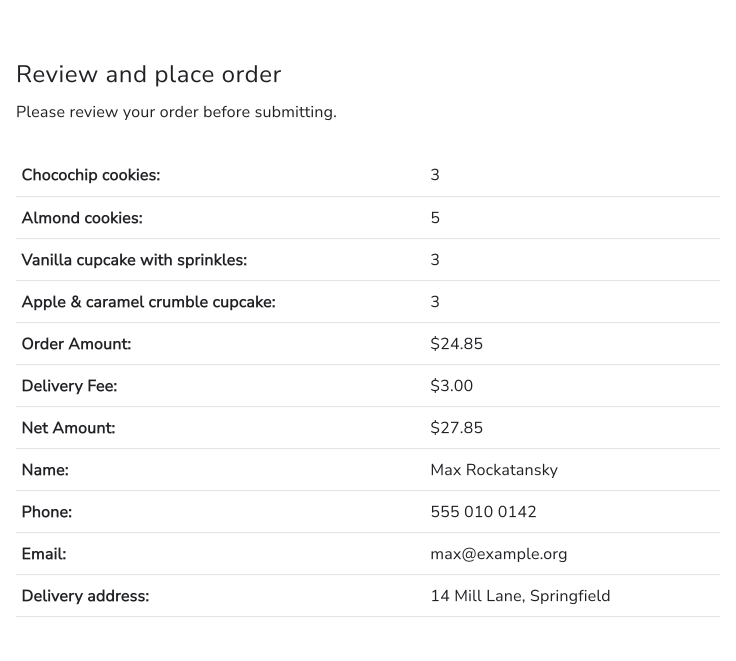
Your customers will see the products with their quantities, the Order Amount and the details they filled in before they place the order.
Summary
Google Forms doesn't show customers their answers before they submit, so a wrong address goes unnoticed. With Neartail, SUMMARY(true, true) on the review page shows the products, the amount and the details they filled in, for them to check first. Create your order form and complete the steps above. If you have any questions, write to support.
Last updated: