How to add products sold by quantity?
"I wanted to give respondents the option of entering their own quantity"- Google Docs Editors Community
Google Forms has no quantity box. If you sell packets, jars or snacks and a customer wants three of one thing and one of another, you end up with a question for each product, a list of numbers as its choices and no price beside them. The form can't add up the order either, so you work out each total by hand. With Neartail, you mark a product as sold by quantity. Customers pick how many they want when they add it to the cart, and the cart adds up the total as they go. You can also upload your menu or price list as a PDF or an image and Neartail turns it into your form.
Let's start. Create your order form and follow the steps below.
How to add a product sold by quantity?
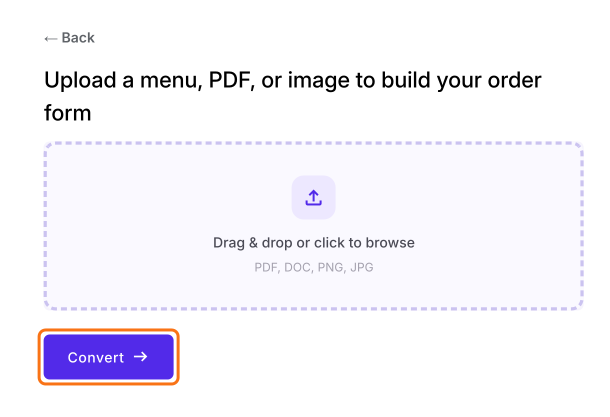
- On the page that opens, upload your menu, a PDF or an image and click Convert. If you don't have one, click Back, click "Enter your form name", type your form's name, click Generate and then Proceed.
- You land on the form's "Edit" tab. If it asks "Do you want to preview this form?", click No.

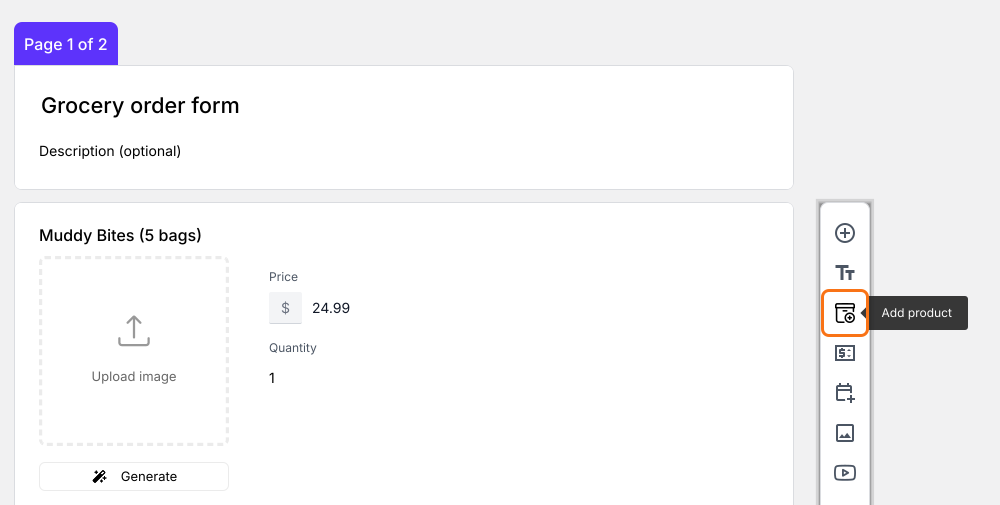
Click Add product. The new product goes after the question you clicked last.
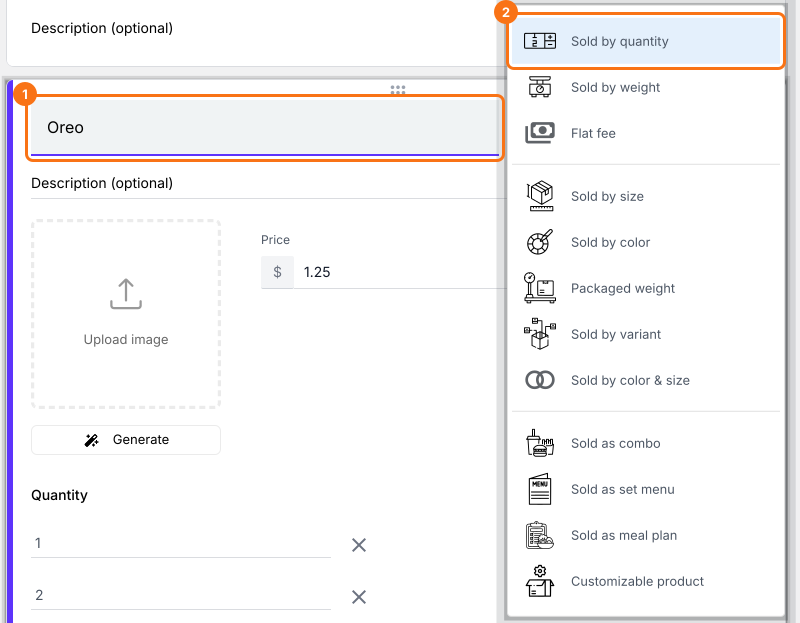
Enter the product name and select Sold by quantity.
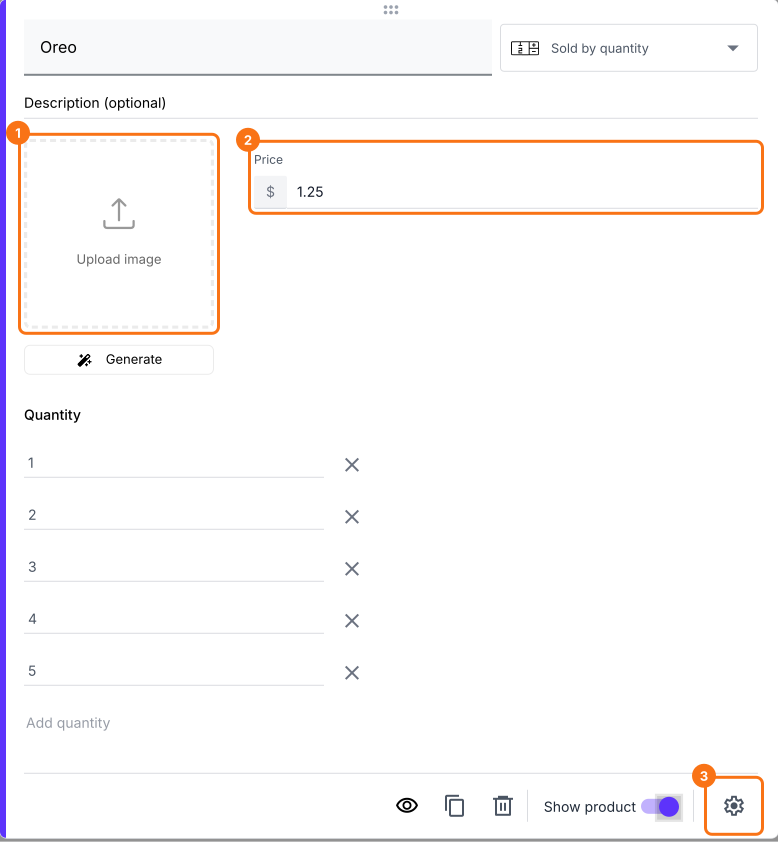
Enter the product price and upload an image. You can also change the product description, or click Advanced setting to add a full price for promotional products.
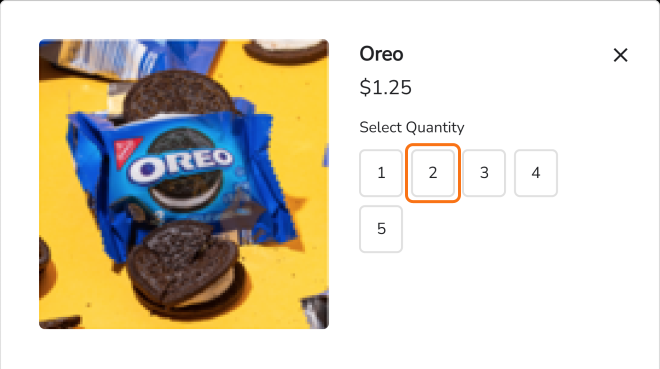
When customers add a product sold by quantity to the cart, they select how many they want.
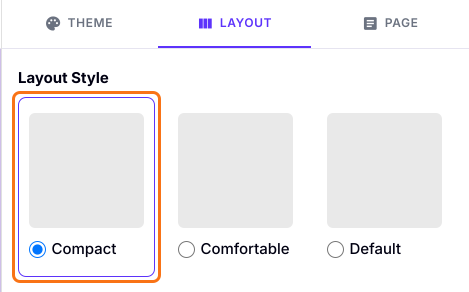
Product descriptions don't show in the Comfortable layout. To show them, click the "Preview" tab, click LAYOUT, choose the Compact layout and click Apply to this form.
Summary
Google Forms has no quantity box, can't show a price beside each choice and can't add up an order. With Neartail, you add a product as sold by quantity, customers pick how many they want as they add it to the cart and the cart adds up the total. Create your order form and complete the steps above.
Last updated: