How to customize the form layout, fonts and colors?
A registration or payment form with a dozen short questions becomes a long scroll in Google Forms, because every question takes a full row. Google Forms lets you change the fonts, the colors and the header, but not the layout. With Neartail, you choose a compact or comfortable layout, and short questions such as name, email and phone sit side by side, so people scroll less. The responses are still collected on your Google Forms, so your link to Google Sheets keeps working.
Let's start. Create your form and follow the steps below.
Change the layout
- On the page that opens, click Enter your form name, type a name and click Generate.
- Check the outline it suggests and click Proceed. Your form opens on the Edit tab.
- If it asks "Do you want to collect payment on form submit?", click No.

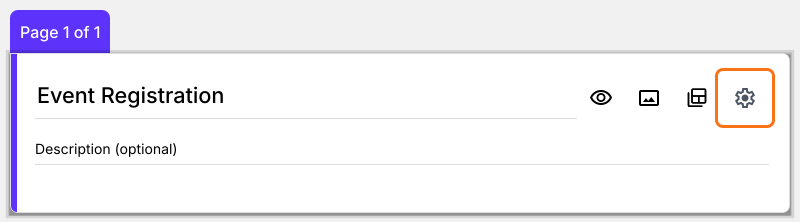
- Click the form title, then click the gear icon.
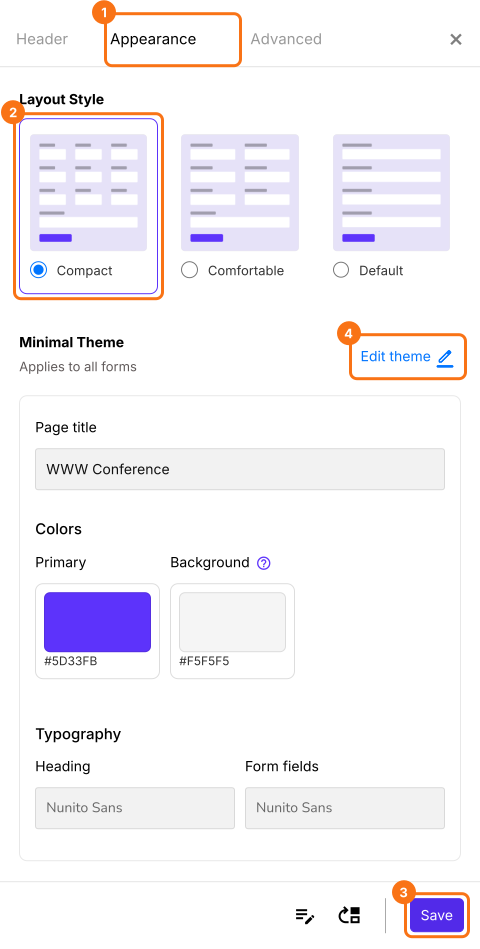
- Click Appearance, select Compact or Comfortable and click Save. To change the fonts, colors and font size as well, click Edit theme. A saved theme restyles every live form on your account, not only this one.
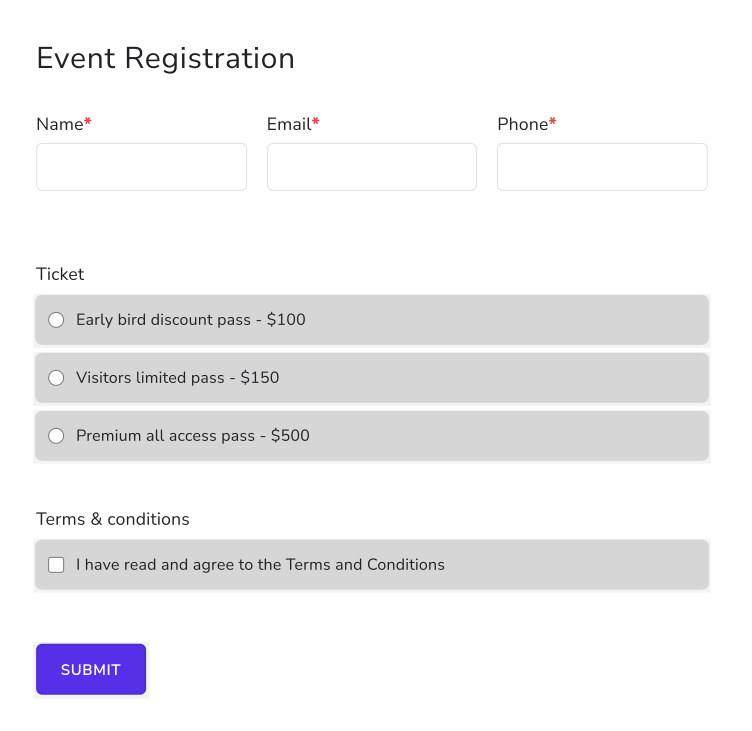
With the compact layout, short answer, dropdown and date questions sit three to a row, while multiple choice, checkbox and paragraph questions keep a row each.
Summary
If your form is a long scroll, the theme options in Google Forms can't change its layout. With Neartail, you select the compact or comfortable layout and update the fonts and colors, and short questions sit side by side. Create your form and complete the steps above.
Last updated: