How to autofill Google Forms with data from Google Sheets?
"use data in an existing Google Sheet to populate a set of Google Forms"- Google Docs Editors Community
This is a common question, and 185 people on Google's forum have asked it. Your customers, students or staff are already rows in a Google Sheet, and each of them should get a form with their own details filled in. Google Forms can't read a Sheet. Its Pre-fill form makes one link at a time, and a formula that builds the links in Sheets puts every value in the link, where anyone can read it and change it. With Formfacade, you enter the details in Google Sheets and it makes a prefill link for each row. Each person opens their own link and sees their details already filled in, and you can make those fields read only so they come back the way you sent them.
Below are three ways to prefill a Google Form from a Google Sheet, and where each one falls short.
3 ways to prefill a Google Form from Google Sheets
- Google's Pre-fill form, one link at a time
- A formula in Google Sheets that builds a link for each row
- Formfacade, which makes a link for each row of your Sheet
1. Google's Pre-fill form
2. A formula in Google Sheets
3. Formfacade: a prefill link for each row
- Click Create your form, name your form, click Create form and click Proceed.
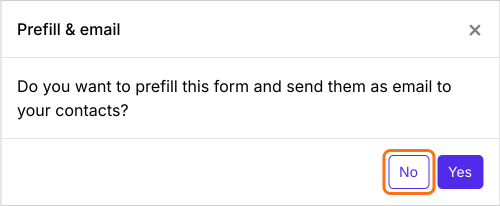
- In the Prefill & email dialog that asks "Do you want to prefill this form and send them as email to your contacts?", click No.
- Click the Share tab

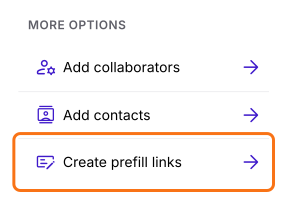
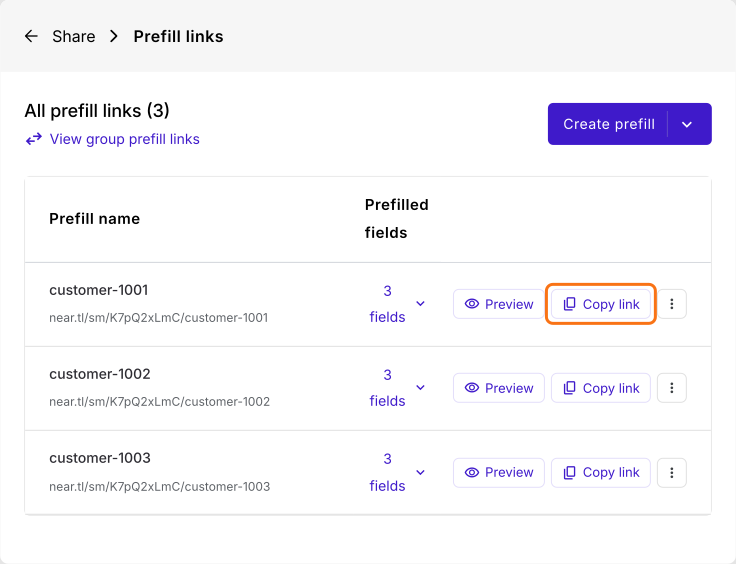
- Under More options, click Create prefill links
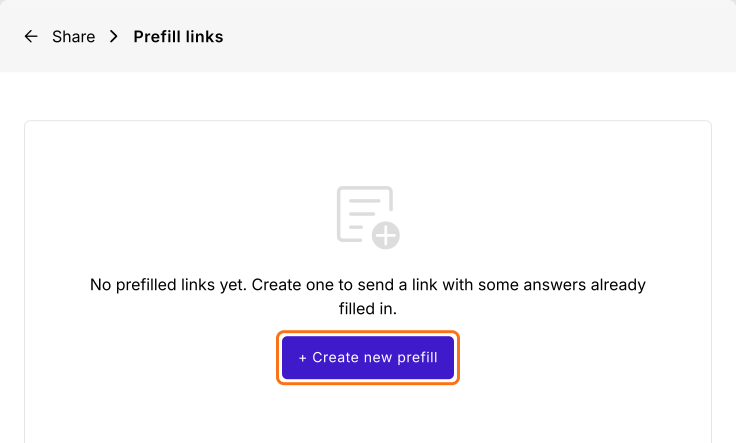
- Click + Create new prefill
- Enter a unique name for your first link and click Create prefill link
- Click Create prefill, then Import prefill, then View Sheets
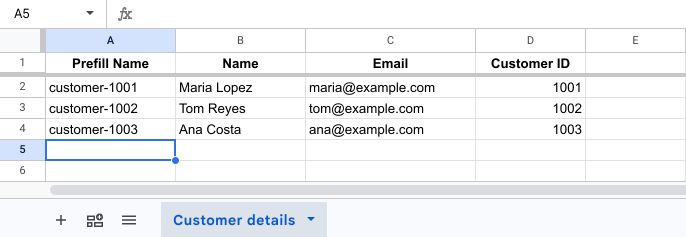
- In the Google Sheet, enter the Prefill Name, email and name of each customer
- The first time, click Extensions > Add-ons > Get add-ons, search for "Formfacade - Prefill & email" and click Install
- Click Extensions > Formfacade - Prefill & email > Import prefill
- Check the rows and click Proceed
Summary
Last updated: