How to edit individual products pages?
"to make a website or a web page for each company product"- Quora
If all your products sit in one order form, someone searching Google for one of them has nowhere to land. Building a page for each product on Google Sites takes hours, and every price change means editing that page too. When you turn your Neartail order form into a website, each product gets its own page with its name, price, description, stock and photo, taken from the form. You add a longer description and more photos from the product's settings, and once you have more than 3 products, each page goes into your website's sitemap so Google can find it.
Let's start. Create your site and follow the steps below.
How to see your product pages?
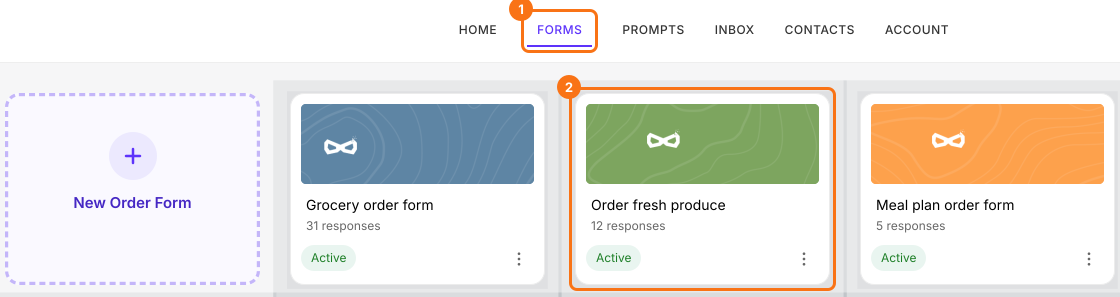
- If you just created your site and it says "Your website is live", click Edit site and skip the next two steps. Otherwise log in to Neartail, click Forms and click your form.
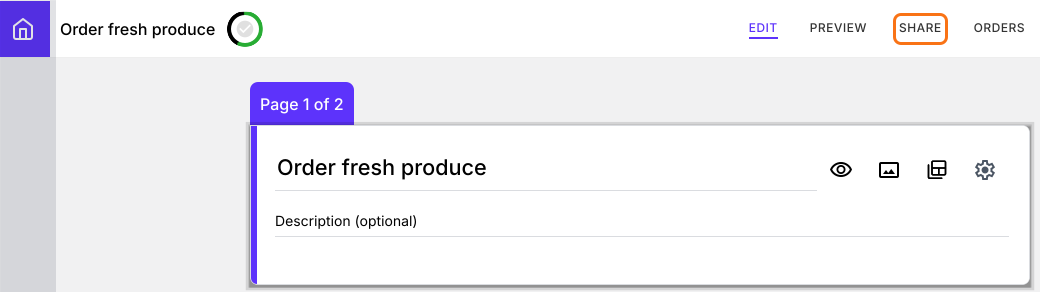
- Click SHARE.
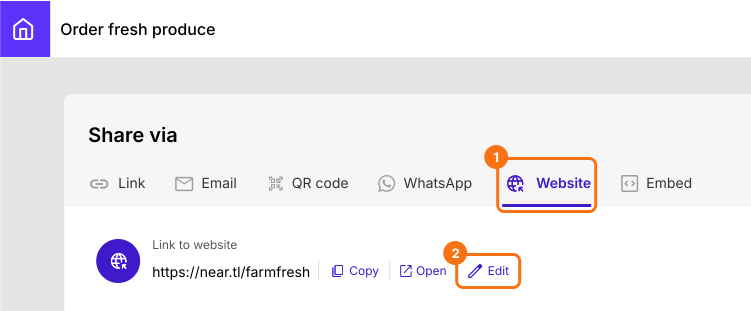
- Click Website, then click Edit.
- In your website's editor, click Products in the left menu.
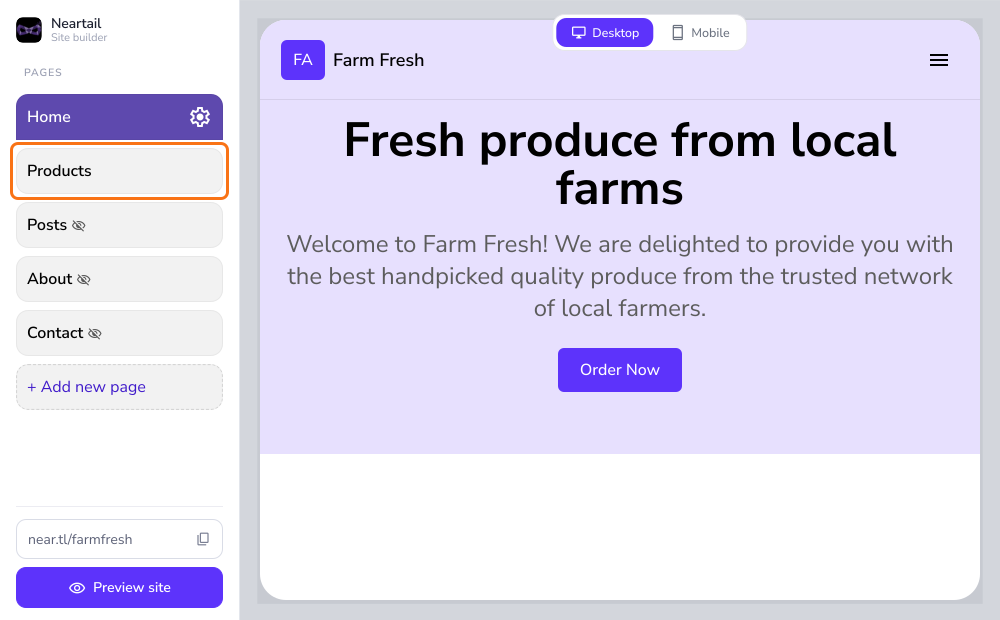
With more than 3 products in your form, Products is added to your website's menu by itself. What the Products page shows depends on how your form is set up.
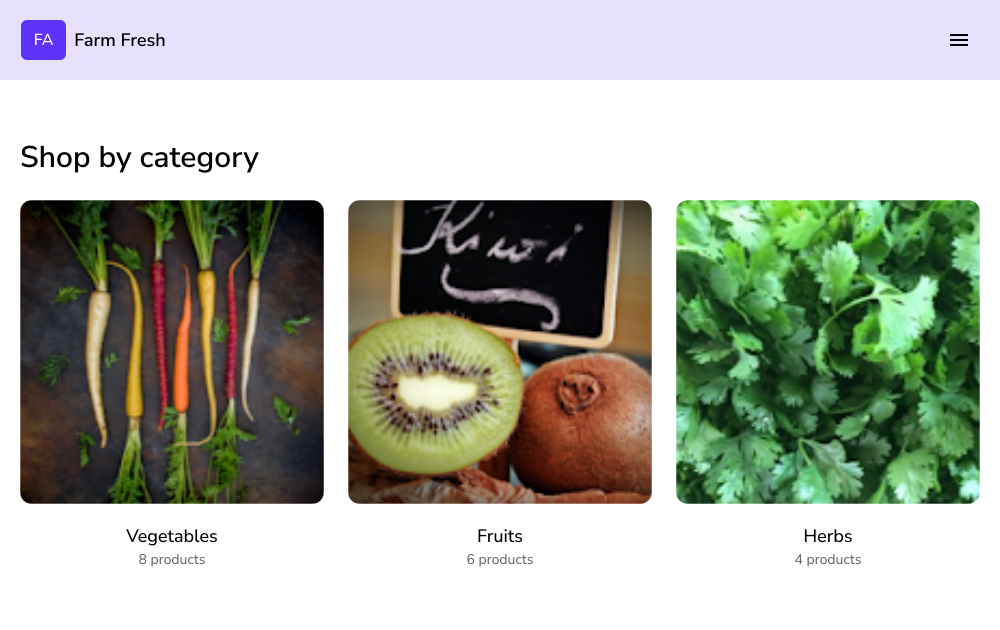
If you have created a multiple page form with products organized by category, Products page will display the list of categories. Users can click on a category to view the products in that category (shown below).
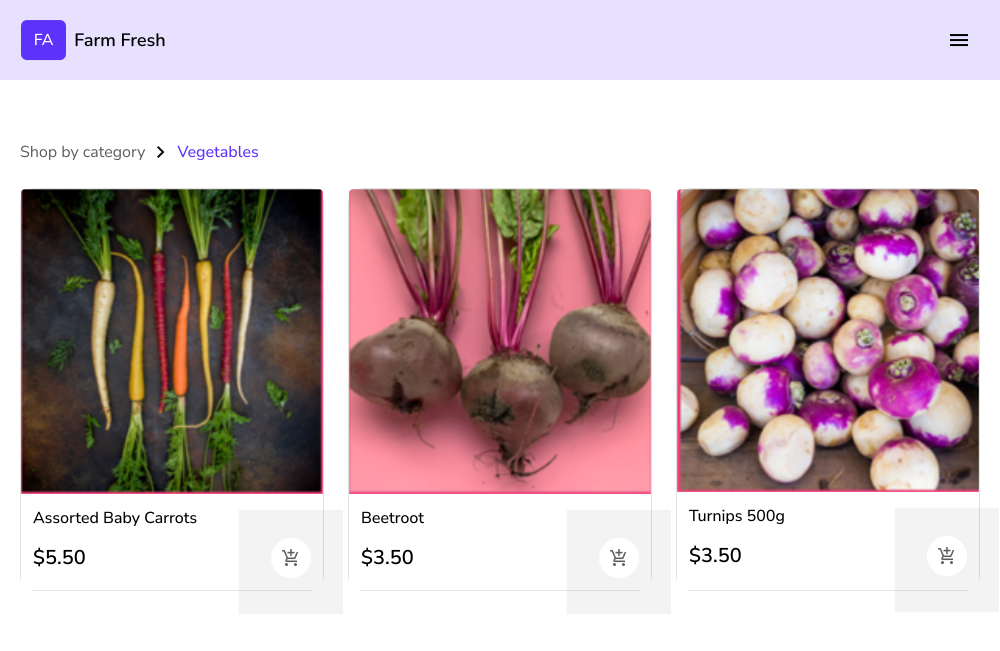
If you have created a simple form with products listed in a single page, then the Products page will directly list all the products in your form. Users can click on a product to view the details (shown below).
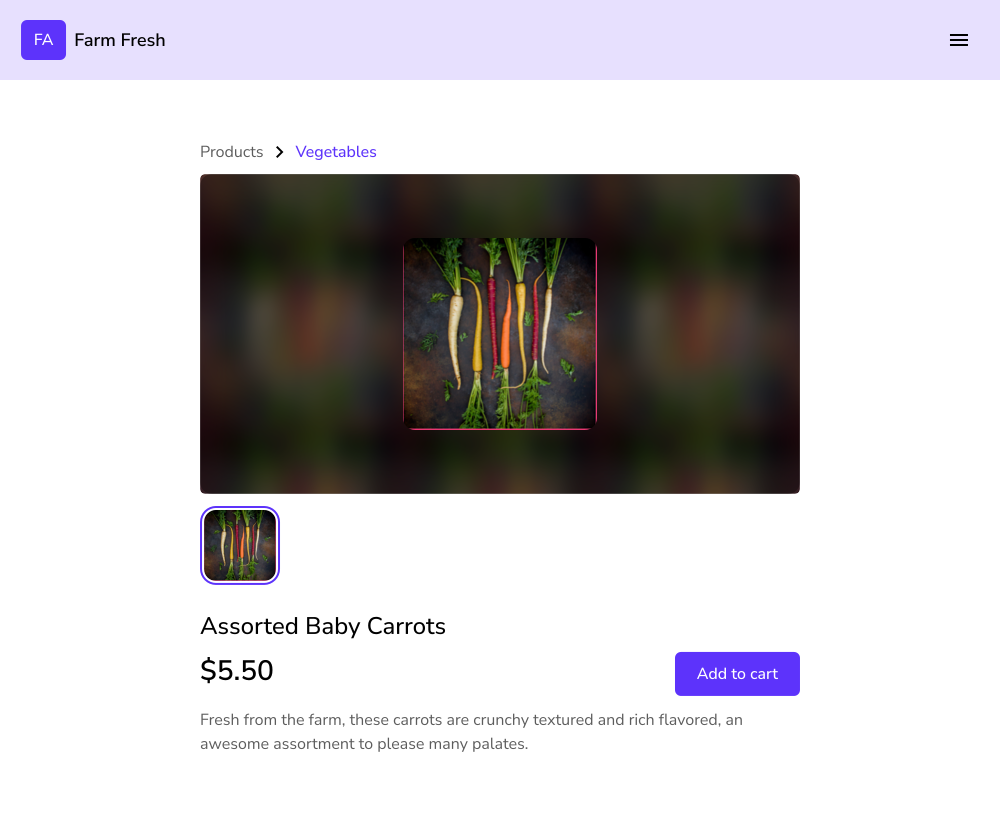
Individual product pages
By default, a product page includes the name, price, description, stock availability and the product image uploaded in the form. You can customize this page to add detailed descriptions and upload multiple product images.
- To add to a product's page, open your form's EDIT tab, click the product and click the gear at the bottom of its card.
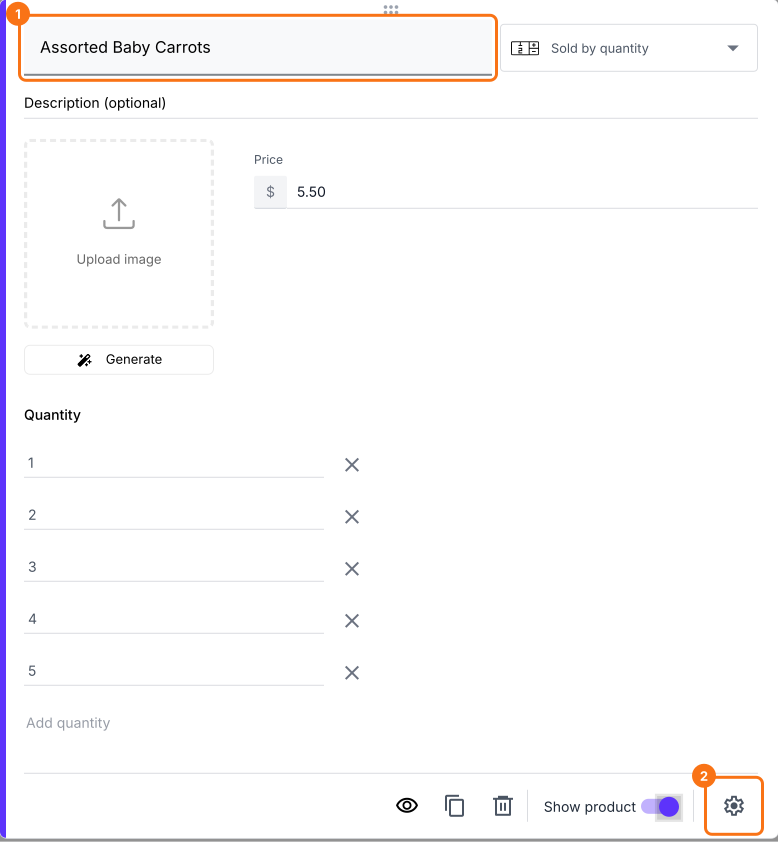
- Click + Description and + Additional images to add a longer description and more photos, then click Save.
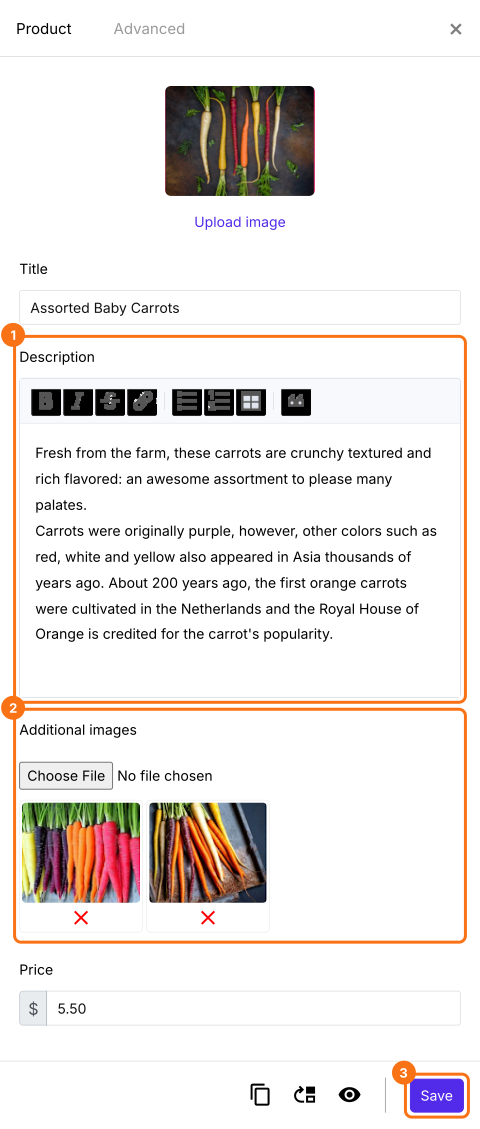
The photos show at the top of the product's page with the description below them. Customers can click a photo to zoom in.
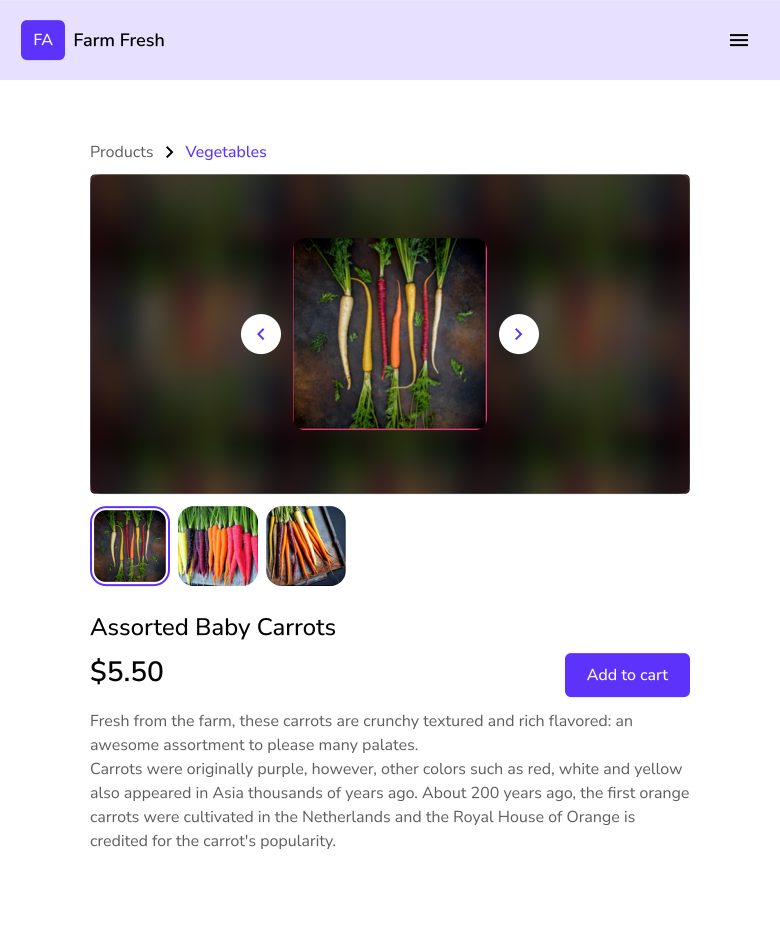
The product title and description will also be used in the search listing of this page. If you have more than 3 products, each product page will also be added to your website's sitemap, so people can find it when they search on Google.
Summary
When all your products sit in one form, nobody searching for one of them finds a page for it, and building a page per product by hand takes hours. With Neartail, your website gives each product its own page from your form, and you add descriptions and photos from the product's settings. Create your site and complete the steps above. If you have any questions, write to support.
Last updated: