How can I change the fonts in Google Forms?
"Change font size for form answer fields"- Google Docs Editors Community
You've picked fonts for your brand, and your Google Form doesn't use them. Google Forms gives you a font style and size for the header, questions and text, but no font color, so the form still looks like every other Google Form. With Formfacade, you choose the fonts for headings and paragraphs, their size and color, and you can embed the form in your webpage with no iframe, so it sits next to your own text.
Create your form and follow the steps below.
How to change the font?
- On the page that opens, name your form, click Build form and click Proceed. Your form opens on the "Preview" tab.

- Open the THEME tab.
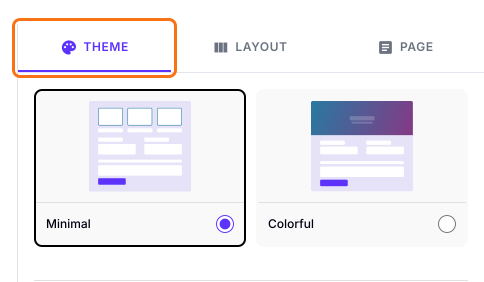
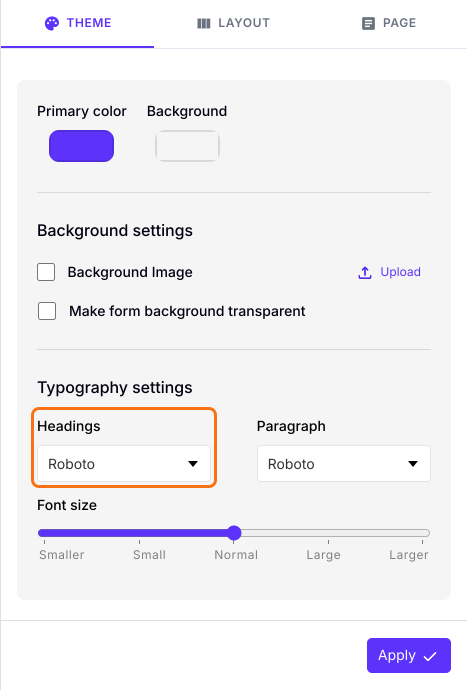
- Scroll down to Typography settings.
- Choose the font you want to use for Headings and Paragraph from the list of fonts shown in the dropdown. For example: Roboto.
- You can also change the Font size.
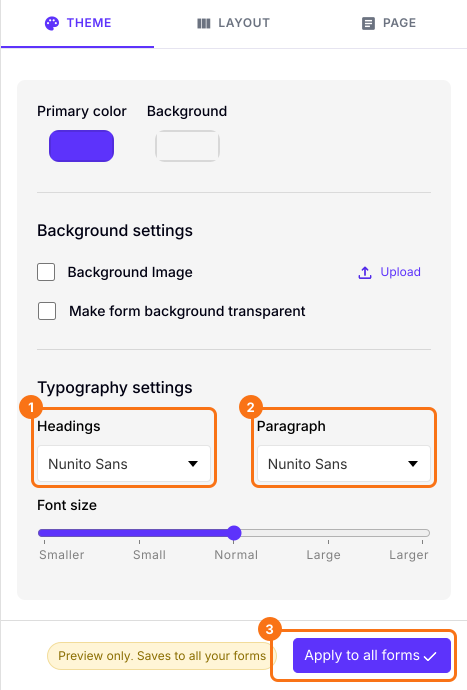
- Click on the "Apply to all forms" button, which changes the font on every live form on your account, not only this one.
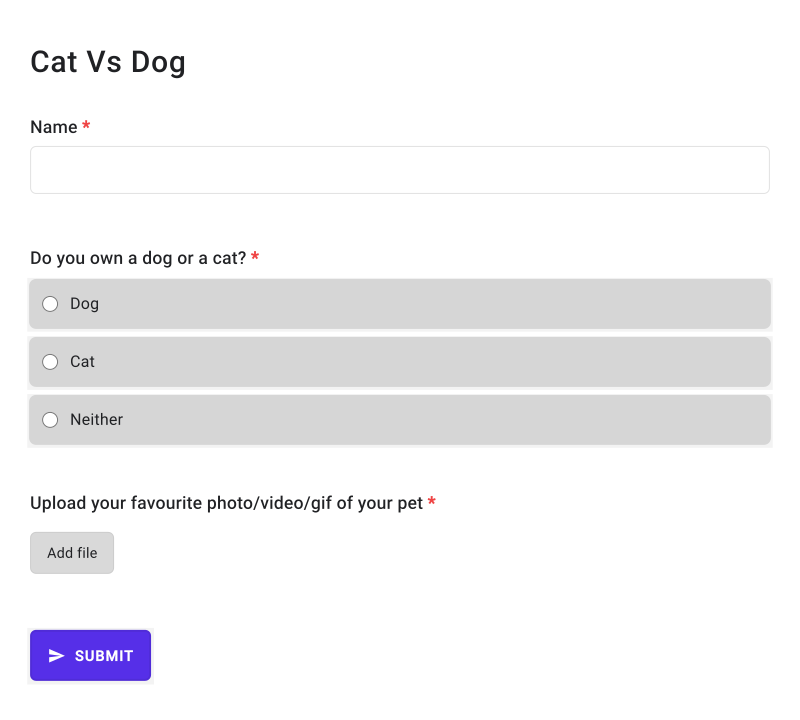
Your form will show the font you chose.
Summary
The fonts in Google Forms only go so far, and the form still looks like Google's. With Formfacade, you choose the fonts for headings and paragraphs and the font size, and apply them to your forms. Create your form and complete the steps above.
Last updated: