How can I change the Submit button text in Google Forms?
Submit tells people nothing about what happens next. On a registration form, Register says it better, and on an order form, Place Order does. Google Forms has no setting for this text, so every form you make ends with the same Submit button. With Formfacade, you type your own words in the button's Caption and your users see them in place of Submit. You can also send them to your own thank-you page after they click it.
Create your form and follow the steps below.
How to change the default "Submit" button text?
- On the page that opens, name your form, click Build form and click Proceed. It can take about a minute.
- You will land on the form's "Preview" tab.
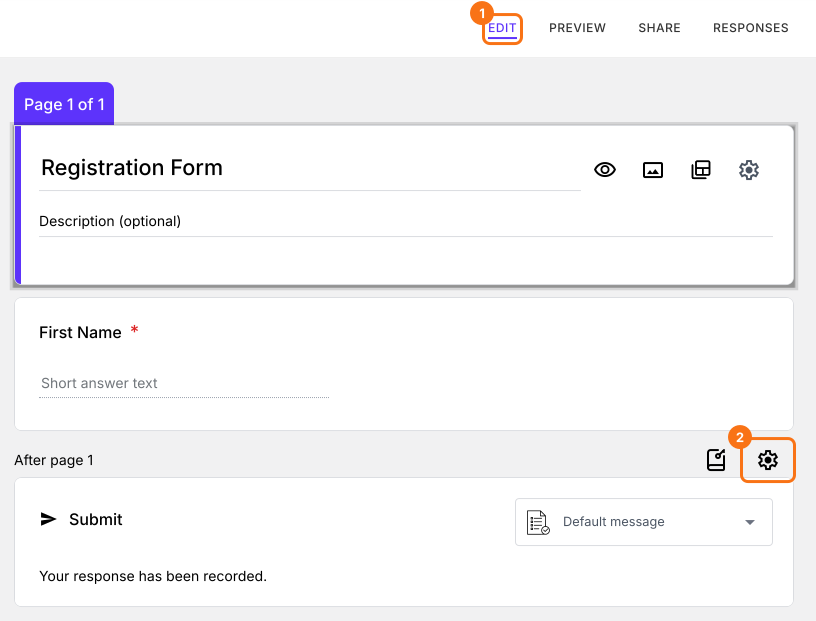
- Click on "Edit" tab

- Scroll down to the end of the form and click on the gear icon on the last "After page" row. It says "After page 1" on a form with one page.
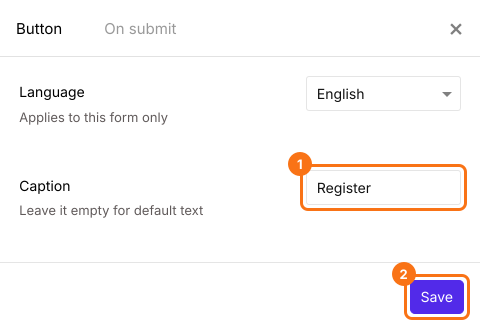
- Enter the required button text in Caption and click on the Save button.
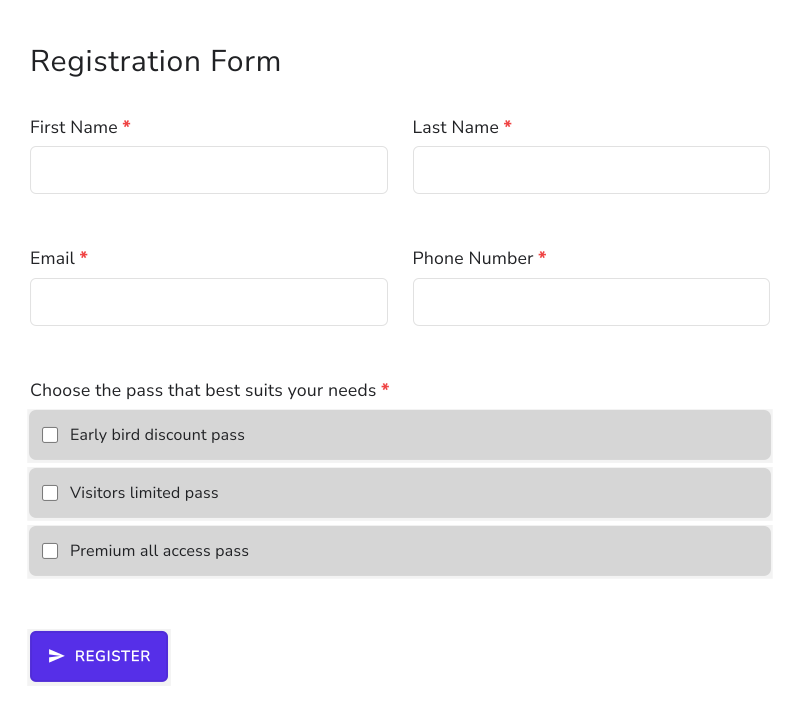
The default "Submit" button text will be replaced with the text added in Caption. For example, you can have a "Register" button in your registration forms.
Summary
Google Forms ends every form with a Submit button and you can't change its text. With Formfacade, you enter your own button text in Caption, such as Register, and your users see it in place of Submit. Create your form and complete the steps above.
Last updated: