How to add a simple calculated field to a google form?
"is there a way to aggregate totals on a Google Form"- Google Docs Editors Community
Order and booking forms need a total, and in Google Forms each answer stays on its own. The form can't multiply a price by a quantity, so people work the total out themselves or you do it later in a sheet. 6 people on Google's forum have asked for totals on their form. With Formfacade, you write an expression such as Price * Quantity in the Calculate option of a short answer question, and your users see the value as they fill in the form. The value is saved in your Google Form with the rest of the response.
Create your form and follow the steps below.
How to use form fields in the Calculate option?
- On the page that opens, name your form, click Build form and click Proceed.
- Click on the "Edit" tab.

- Click on the + icon (Add field) in the toolbar on the right.
- Enter "Price" as the question. It is already a Short answer.
- Click on the + icon again.
- Enter "Quantity" as the question. It is already a Short answer.
- Click on the + icon again.
- Enter "Total amount" as the question. It is already a Short answer.

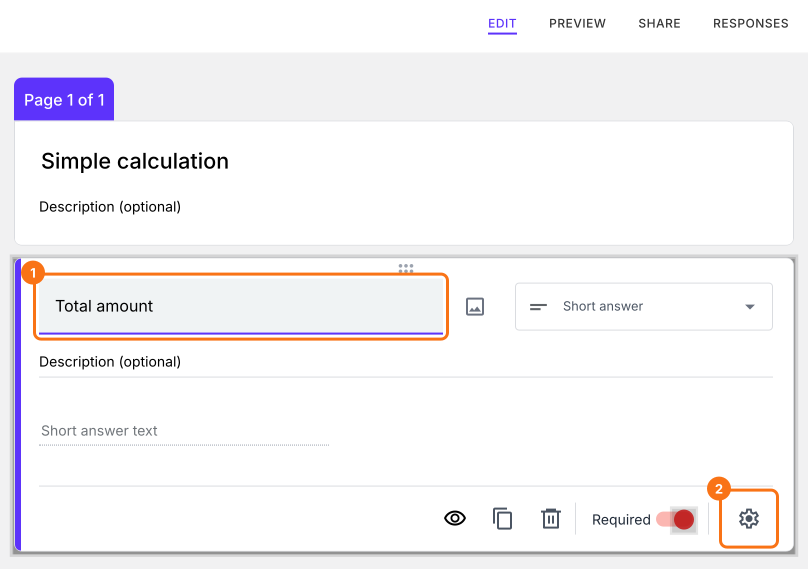
Click on the Total amount question, then click on the gear icon to open field settings screen.
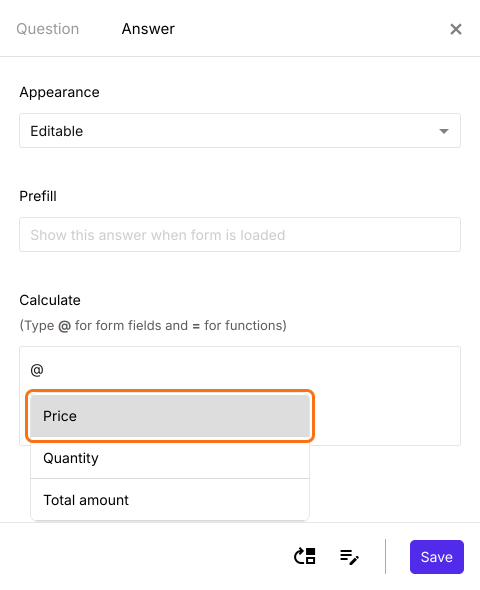
Select the "Answer" tab and write the text/expression in the "Calculate" option. When you enter @, you will see the list of all the fields in the form. Select the required form field. It is added to the formula.
How to do simple calculations using form data?
Let's calculate the total amount by multiplying order quantity & price form fields.
The calculations can only be performed on number fields. Close the field settings with the X. For the Price and Quantity questions, click on the gear icon, select the "Answer" tab, click Configure under Validation, select Number and select Is number. Click Save. Any question with this validation will be automatically treated as number so that you can do calculations on those fields.
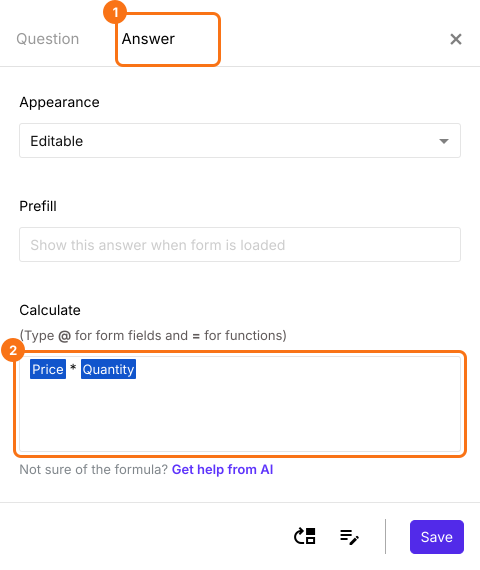
Click on the "Total amount" question, then click on the gear icon. Field settings screen will be displayed. Select "Answer" tab and write the formula Price * Quantity in "Calculate" as shown below. Click Save.
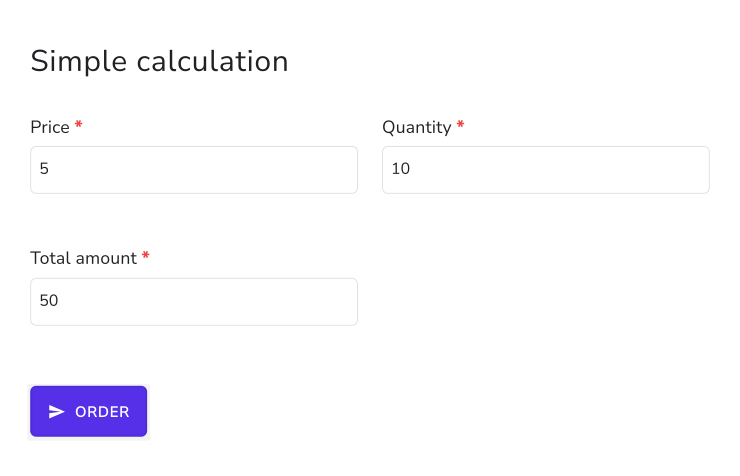
The form calculates the total amount from the price and quantity and displays this in real-time to the user filling the form.
Summary
If you want a total or any other value worked out in your form, Google Forms cannot calculate it. With Formfacade, you can write the expression in the Calculate option and the value will be displayed in real-time to the user filling the form. Create your form and complete the steps above. If you have any questions, write to support.
Last updated: