How to change the placeholder text in Google Forms?
"How to change placeholder text in Google Forms"- Google Docs Editors Community
Every short answer and paragraph question in Google Forms shows the same "Your answer" inside the box, and 345 people on Google's forum have asked how to change it. Google Forms has no option to change or remove it. When you need an answer in a certain format, such as a full name or a phone number with its country code, a hint inside the box is where people look. With Formfacade, you set your own placeholder for each question and your users see your hint in place of "Your answer".
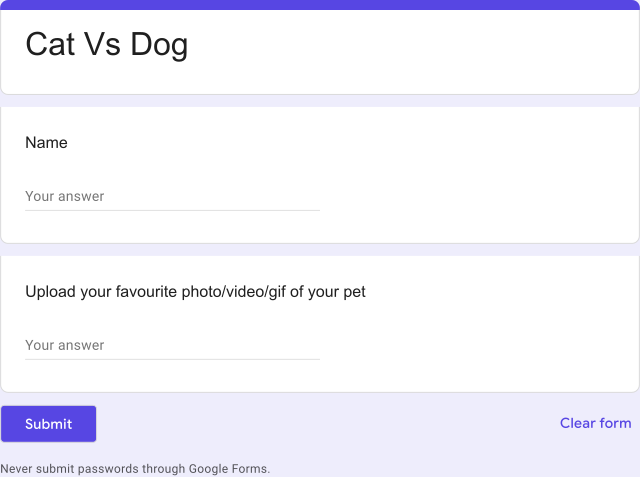
Below is the placeholder Google Forms shows, then the steps to change it. Create your form to start.
The default placeholder text for Short Answer & Paragraph type questions is "Your answer". You can delete or update this placeholder text using Formfacade.
How to change the default placeholder text?
- On the page that opens, name your form, click Build form and click Proceed.
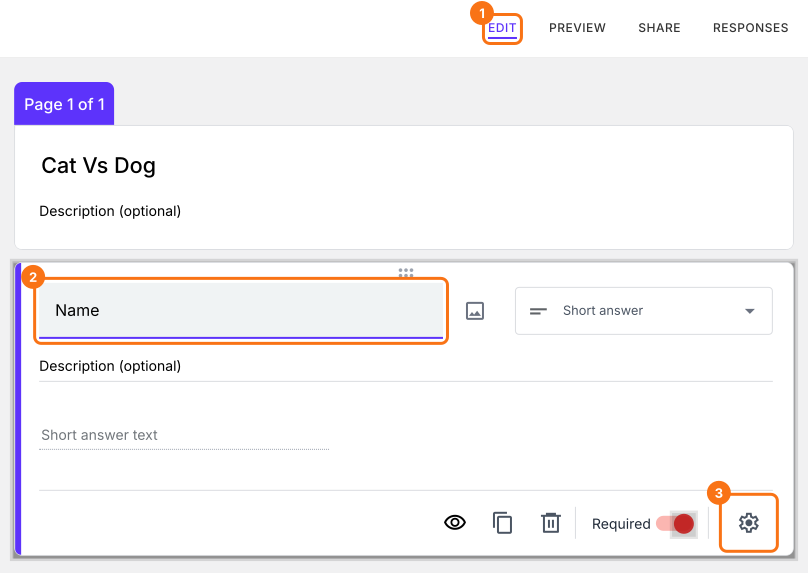
- Click on the "Edit" tab.

- Click on the short answer question, then click on the gear icon. If your form does not have one, click on the + icon in the toolbar on the right to add it.
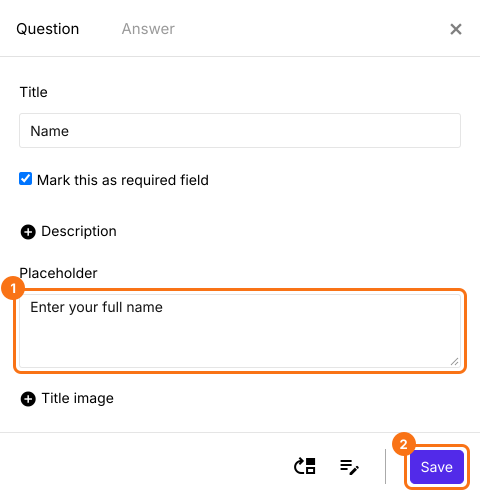
- On the Question tab, click on + Placeholder.
- Enter the placeholder text and click on the Save button.
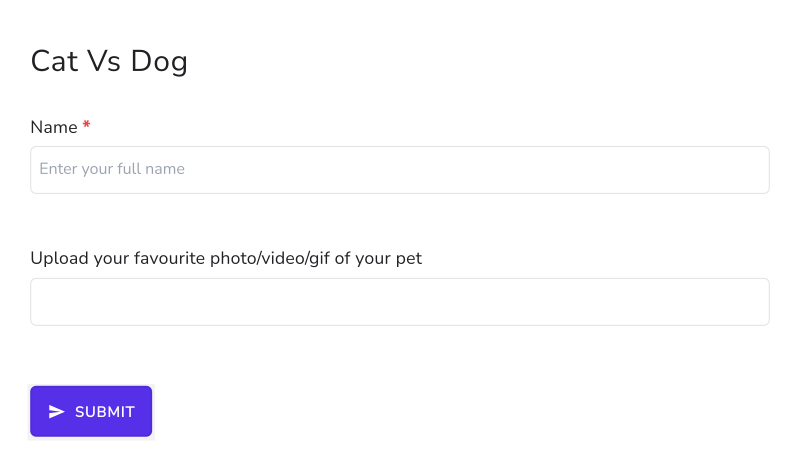
The default "Your answer" placeholder text will be replaced with the text added in Placeholder. For example, you can show "Enter your full name" placeholder text for "Name" question.
Summary
Google Forms shows "Your answer" in every text box and you can't change it. With Formfacade, you enter your own placeholder text for a question, such as "Enter your full name", and your users see it in place of "Your answer". Create your form and complete the steps above.
Last updated: