How to customize the theme in Google Forms?
"Is there any way to copy styles of a form"- Google Docs Editors Community
You've styled one Google Form the way you want, and the next one starts in purple again. Google's theme option changes the color, header image, background and font, but the questions always sit on white cards in the same layout, and each new form has to be styled again. With Formfacade, you pick a theme and change its colors, fonts and layout, then apply it to all your forms at once, so every form looks like your business and not like Google's.
Below is what Google's theme option can change, then the steps to style your forms with Formfacade. Create your form to start.
Google Forms offers limited customization. You can use the theme option to upload a header image, change the theme color, background color and font.
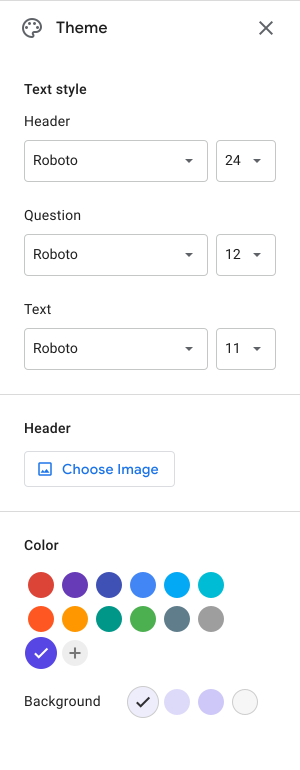
In Google Forms, purple is the default theme color. You can choose a different color from the listed options or add your custom color. Based on the theme chosen color, 4 different background color options will be shown. You can choose one of these four colors to set the page background. Please note that the form color will always be white and cannot be changed.
If you need more customization options, you can use Formfacade. With Formfacade, you can
- Embed Google Forms in your webpage and make it look like your website theme
- Change the form layout - Compact, Comfortable, Default
- Customize the form background colors, font colors and form elements
- Specify a font for heading and form elements
How to customize the theme using Formfacade?
- On the page that opens, name your form, click Build form and click Proceed. Your form opens on the "Preview" tab.

- On the THEME tab, under Theme options, click on a theme. For example: Forest green.
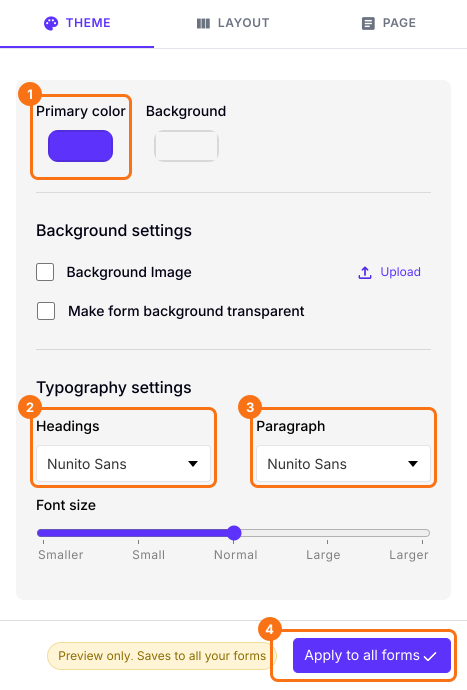
- You can also change the Primary color, Background and Typography settings.
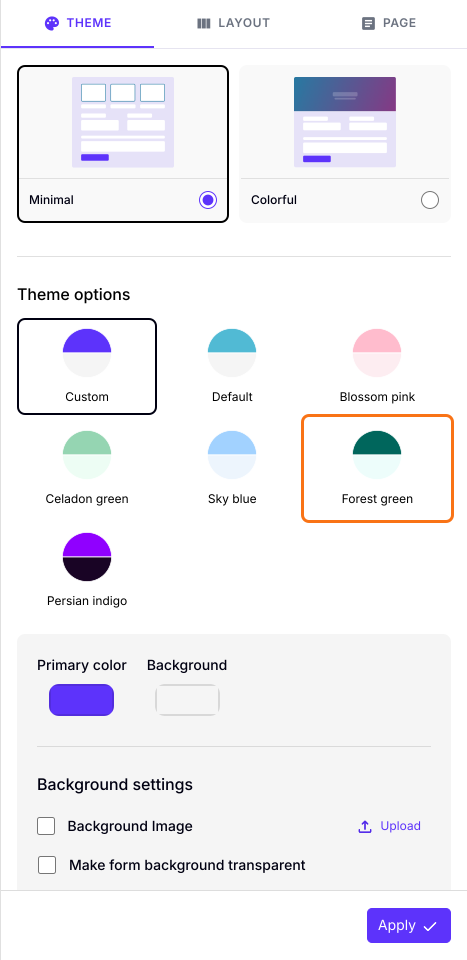
- Click on the "Apply to all forms" button, which changes the theme on every live form on your account, not only this one.
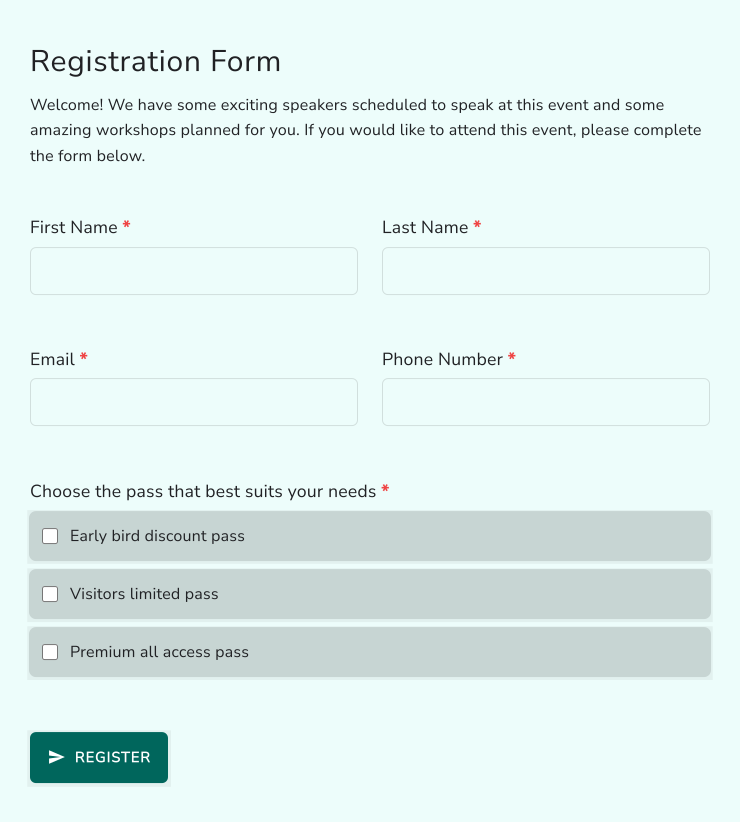
Your form will show the theme you chose.
To change the layout, read How can I change the layout of my Google Forms?
Summary
Google's theme option changes a few colors, a header image and fonts, and the form still looks like a Google Form. With Formfacade, you pick a theme, customize its colors and fonts and apply it to all your forms. Create your form and complete the steps above.
Last updated: